How Do I Save My Photos in the Cloud Securely and Privately?


Your phone holds years of memories, and it only takes one lost device, one failed backup or one hacked account to lose them. So if you are asking "how do I save my photos in the cloud?", you are already ahead of most people. The harder question is how to do it securely and privately.
Internxt Drive and Photos make uploading and backing up your photos easy, with the added benefits of zero-knowledge encryption, open source software, and data sovereignty.
In this guide, we will show you how to save your photos in the cloud with Drive and Photos, giving you the most convenient, secure, and private experience.
Table of contents
- Why you should store and back up photos in the cloud
- How do I save my photos in the cloud on desktop and web?
- How do I save my photos on mobile?
- How do I save my photos in the cloud automatically?
- How do I save my photos in the cloud with encryption?
- Related products
Why you should store and back up photos in the cloud
First, we will cover the benefits of cloud storage for your photos for data protection, convenience, accessibility, security, and privacy.
Free up space on your devices
Photos stored on your mobile can quickly lead to cloud storage full messages. You may not want to delete these photos to free up space on your phone, so cloud storage is an effective solution to this problem.
When you store photos in the cloud, you can delete them from your mobile or desktop, and the files will still be available in your cloud account to view or download whenever you need them.
Access photos from anywhere
Cloud storage offers web, desktop, and mobile apps, so wherever you are, you can access your photos from any device, even if the original photos were taken on a different device.
Share photos easily
When you take photos from your phone or camera, you may want to know how to share photos with family members who don’t have a cloud account.
Internxt is the best way to share photos online privately with a secure and encrypted link you can send via your preferred messaging app or via email without sending large attachments or copying files to physical storage devices.
It’s also a useful way for photographers, freelancers, and businesses that regularly need to send a large amount of photos online.
Protection against data loss
Photos can be lost in many ways, so keeping cloud storage backups of your photos means you can still access them even if your device is lost, stolen, or damaged.
With Internxt Drive, you can back up your photos and other files in the cloud and download them from any device when you need to restore them.
Internxt Photos offers automatic backups for your full photo library, so you always have a copy of your important memories secured in the cloud.
Avoid AI and big tech surveillance
Mainstream cloud storage, such as Google Photos, integrates heavily with AI to offer advanced search features. The cost of this convenience, however, is your privacy and data. Google Photos privacy is limited due to its lack of end-to-end encryption and integration with Gemini AI.
Google Photos works uses algorithms to detect faces and estimate whether different images contain the same person can use Gemini to answer questions about your photo library, such as finding photos of a particular person, identifying what you ate on a trip, or summarizing events and memories.

Google therefore has data on who you spend time with, where you live, where you travel, your relationships, your workplace, your children, your interests, and potentially sensitive documents or other personal information.
For an AI-free experience and secure cloud storage for photos, you can move photos to cloud storage with Internxt, which uses zero-knowledge encryption to keep your photos private and are totally free from AI to keep your photos and personal information secure.
How do I save my photos in the cloud on desktop and web?
How to save photos in the cloud with Internxt Drive
Internxt Drive is available for Windows, Mac, and Linux, which you can download from our website.
To upload files via the web, follow these steps
- Log in to https://drive.internxt.com/
- Drag and drop the photo(s) onto the drive platform or click upload folders
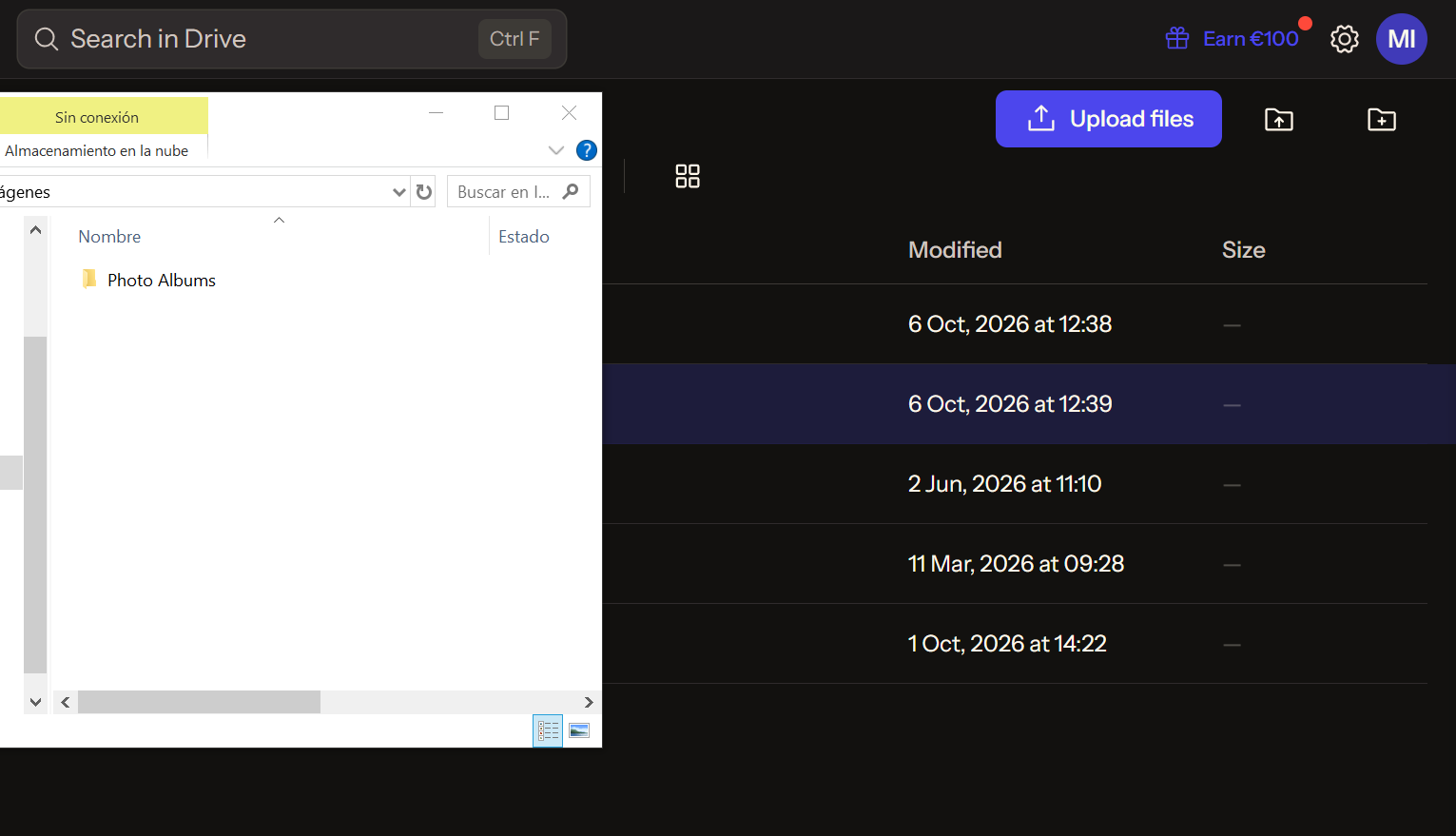
- Wait for the photos to finish uploading to the cloud
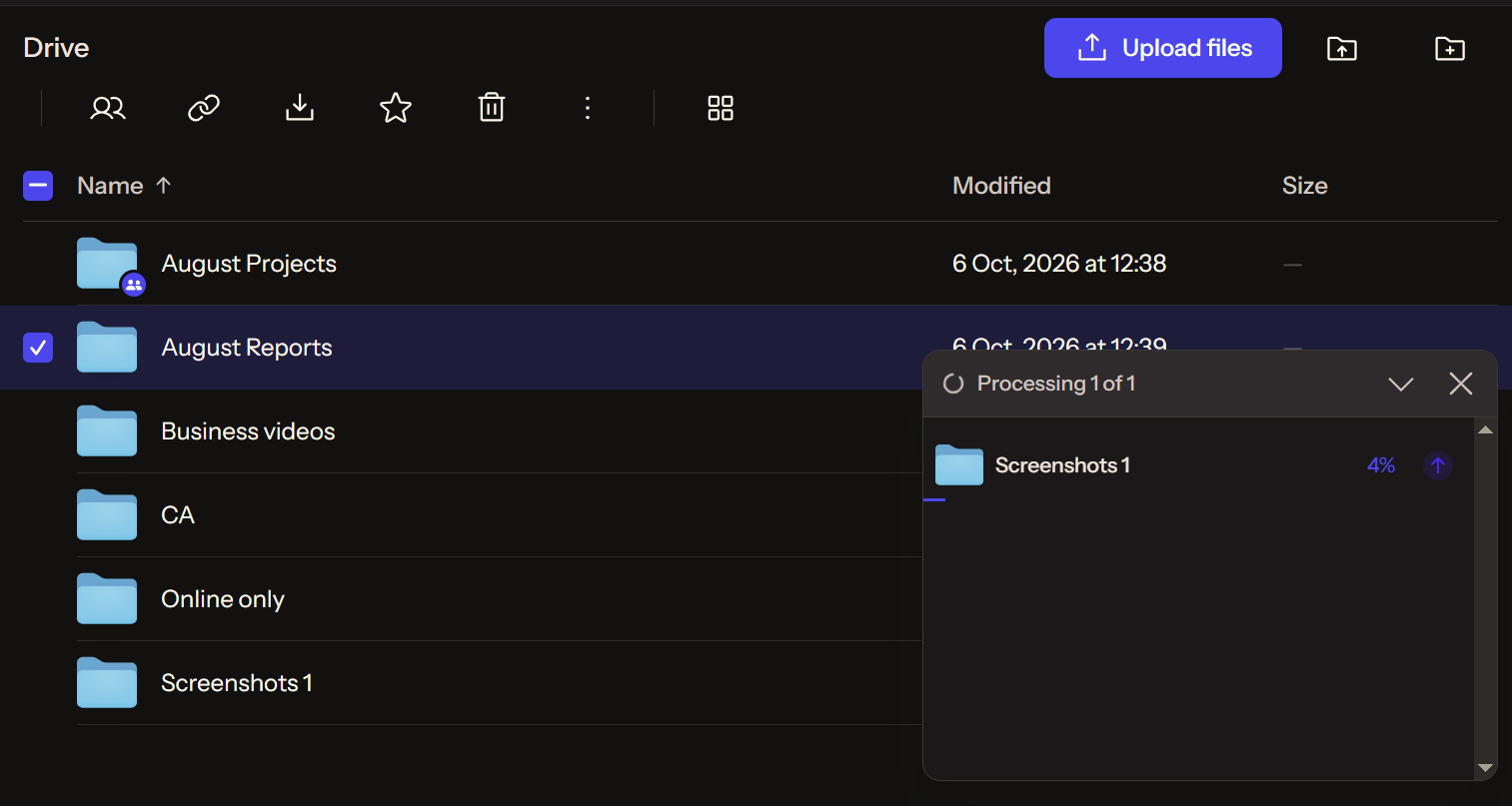
- Once uploaded, your photos are safely stored and synced across all your devices to view or download
How do I save my photos on mobile
Internxt Photos
Internxt Photos is an encrypted cloud storage and backup solution to automatically back up your photo library, free up local storage, and share photos with others.
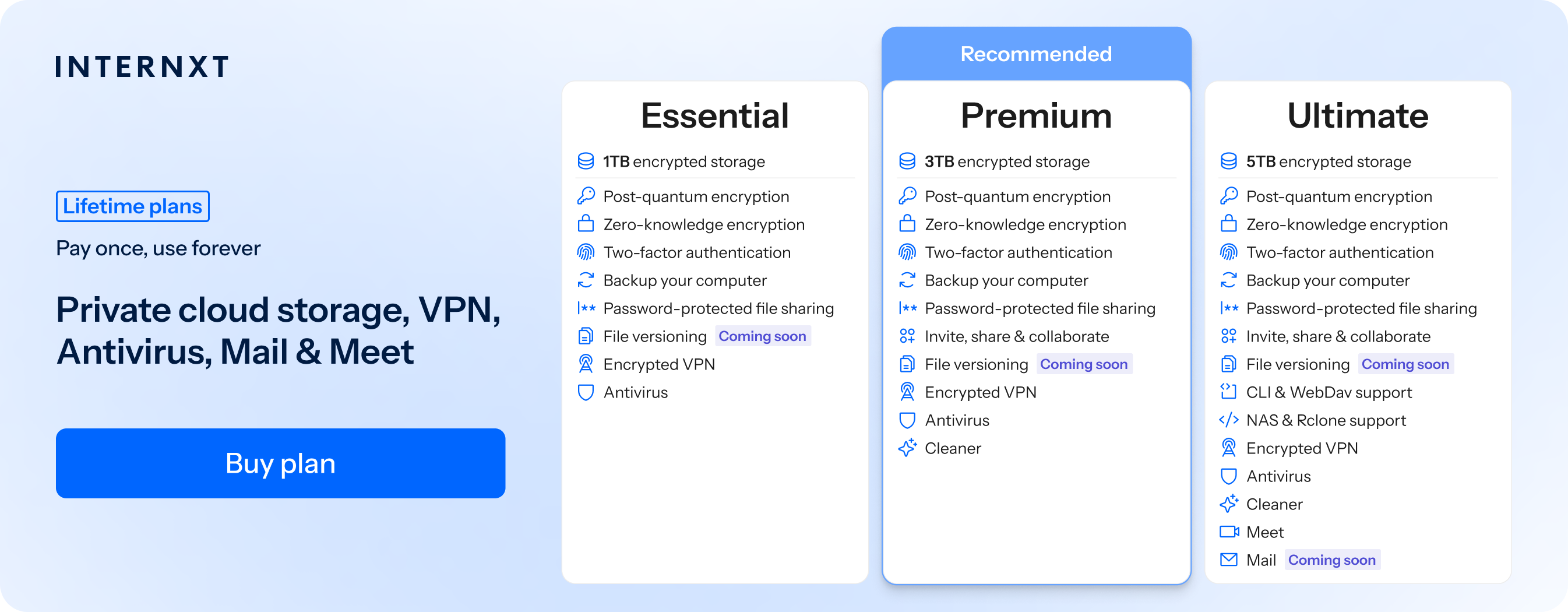
Photos is available on iOS and Android and is available with the Internxt Ultimate plan, offering 5TB of private cloud storage, VPN, NAS support, Meet, and Mail to send encrypted emails.
iOS and Android
If you need to know how do I save my photos in the cloud via mobile, then follow these steps to upload and save your photos directly in the Internxt app:
Download the app via the Google Play or App store
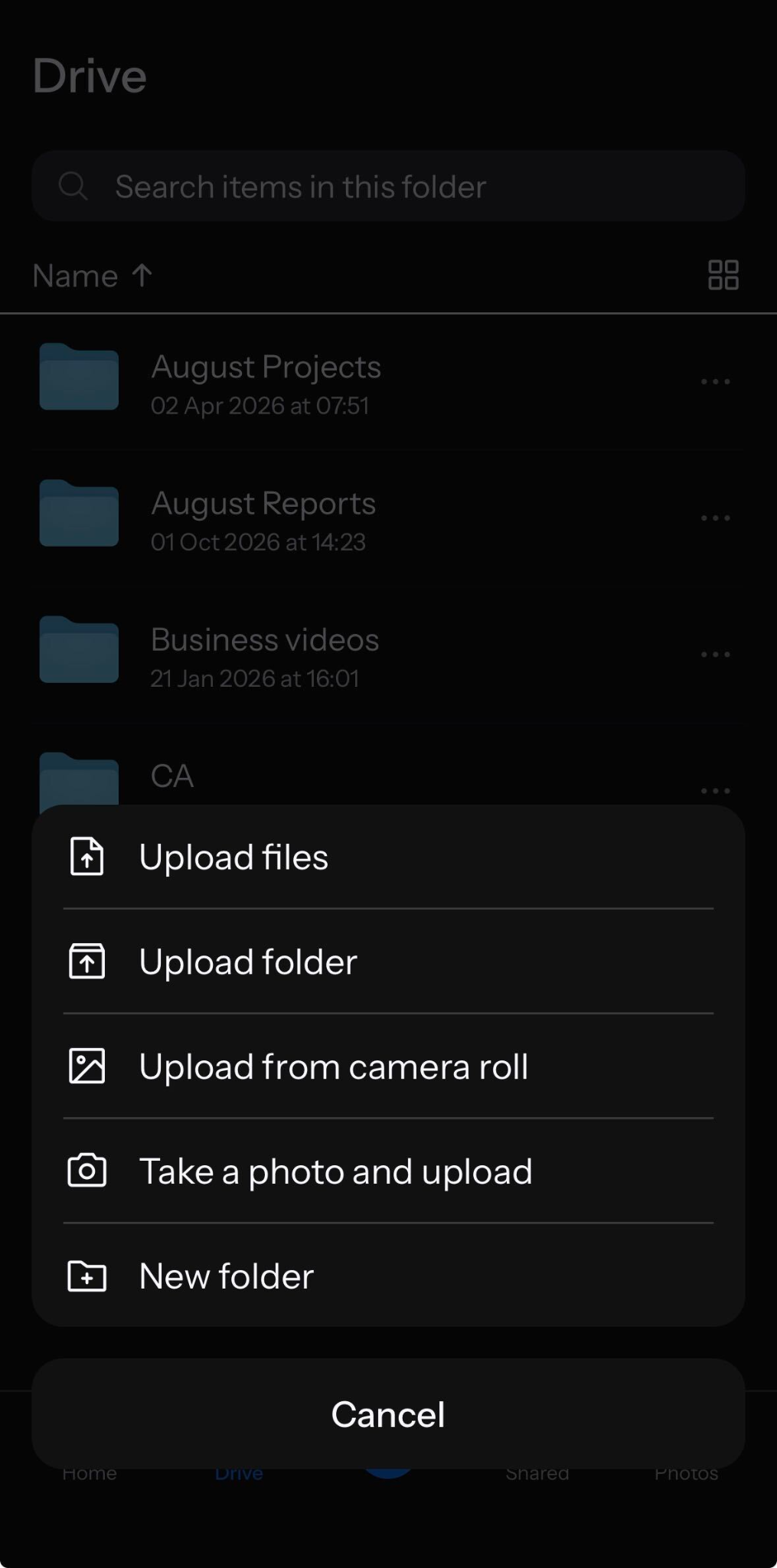
Open the app and click the + icon
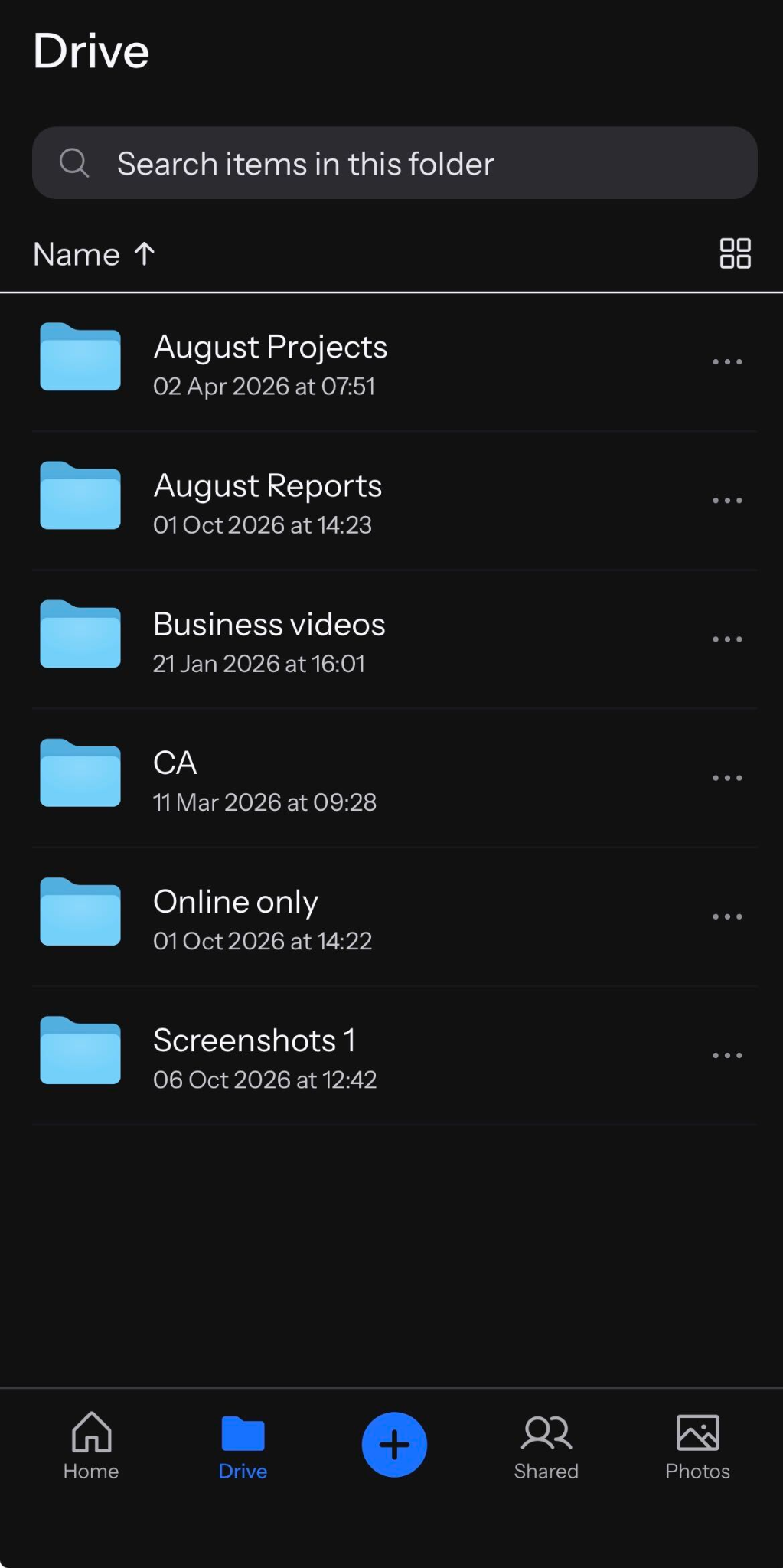
Select from the list of options and wait for your files to upload to the cloud.
How do I save my photos in the cloud automatically?
With an Internxt Ultimate plan, all photos you take will be automatically backed up in the cloud, so you don’t have to manually upload each new photo you take.
To turn on this setting, follow these steps:
Open the Internxt mobile app
Tap the Photos section
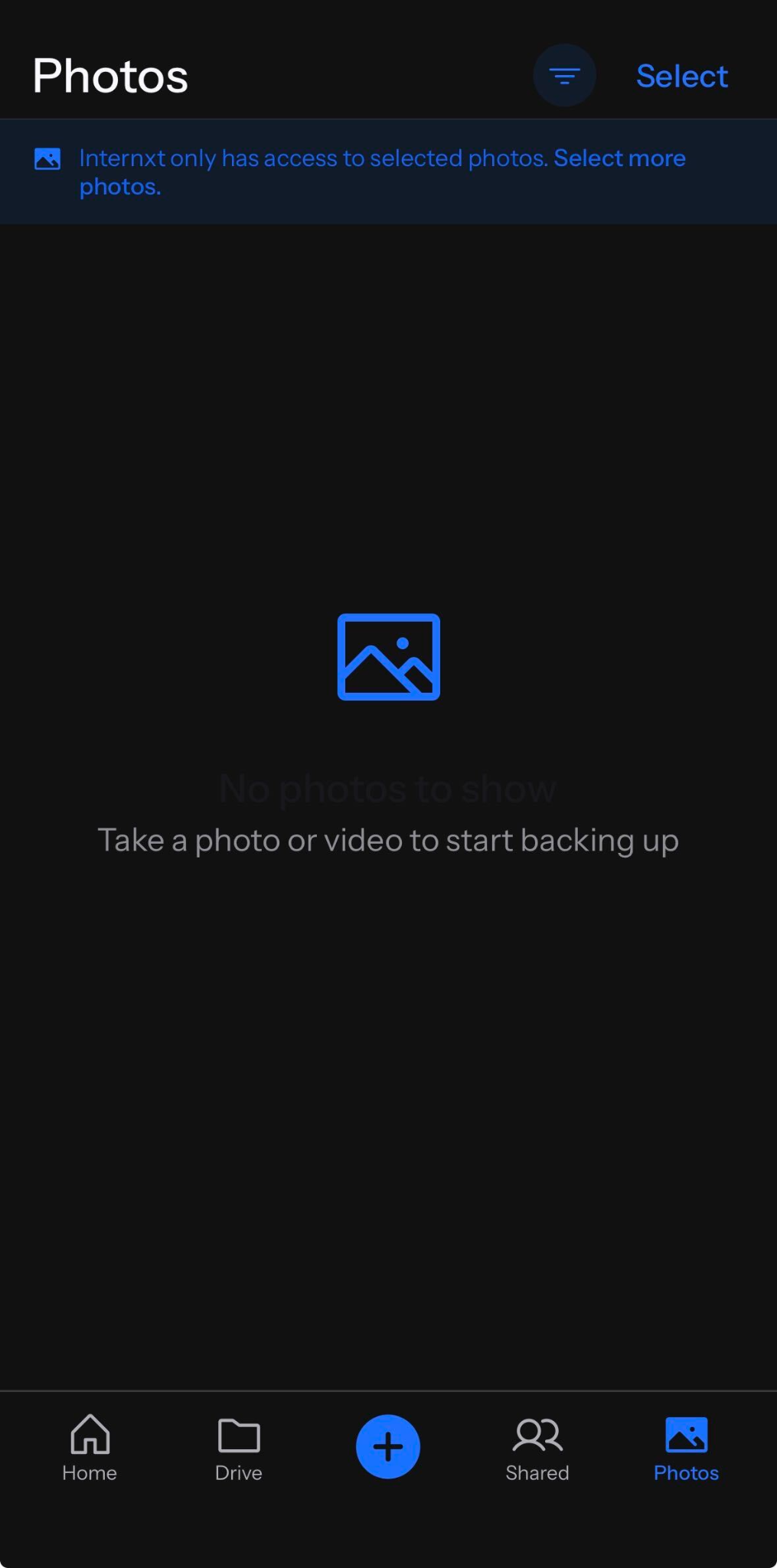
Choose Allow Full Access to back up your full photo library from your mobile
Choose Allow Limited Access to manually select the photos you want to back up
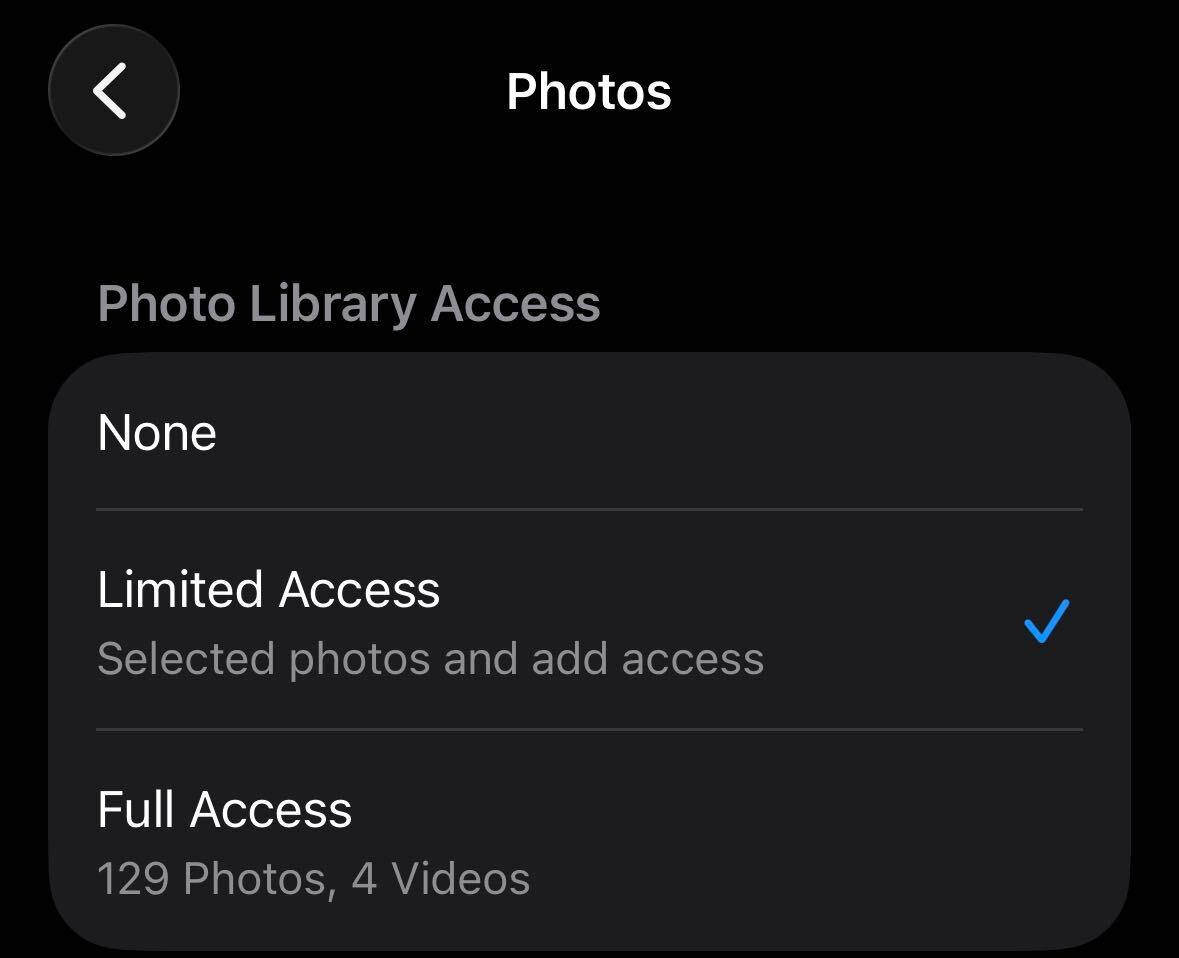
You can change the backup preferences of your photos by searching the Internxt app in your device settings.
Once you back up your photos, you can delete them from your local storage, and your photos will remain secure with Internxt Photos.
How do I save my photos in the cloud with encryption?
All cloud storage providers offer encryption automatically when you store and upload photos to the cloud, but not all offer the same level of privacy for your photos.
Google Drive and OneDrive encrypt your files in transit and at rest, but do not offer end-to-end encryption. Other services offer end-to-end encryption, but as a paid upgrade, as is the case with pCloud.
If you have a Google Drive account or another platform that doesn’t use E2E encryption and are wondering how do I save my photos in the cloud with zero-knowledge encryption, then you can encrypt your photos before uploading them to the cloud with third-party tools such as Cryptomator.
Internxt, on the other hand, offers post-quantum and zero-knowledge encrypted cloud storage for all plans. This encryption happens automatically on your device, so no need to configure additional settings, or use third-party tools.
So if you want the best cloud storage for your photos to save them in total privacy, choose any Internxt monthly or lifetime cloud storage plan, and claim your 85% exclusive discount below.
| Plan | Storage | Features | Annual (Paid monthly) | Lifetime Cost |
|---|---|---|---|---|
| Essential | 1TB | €1.99/month | €380 | |
| Premium | 3TB |
|
€3.99/month | €580 |
| Ultimate | 5TB |
|
€5.99/month | €780 |
| *Prices are correct at the time of writing and are subject to change. For latest prices, check https://internxt.com/offerblogen | ||||
Related products