
How to Migrate from Google Drive to OneDrive: 3 Easy Steps

This article offers the main methods to migrate data from Google Drive to OneDrive via Google Takeout, manual uploads and downloads, or third-party tools.
We will also cover things you need to consider when transferring files from Google Drive to OneDrive, including file conversion and backups.
Finally, if you’re looking to move files from Google Drive and OneDrive to a cloud storage with zero-knowledge encryption, we will also cover what steps to take in this article, too.
Table of contents
- Why transfer files from Google Drive to OneDrive?
- How to migrate Google Drive to OneDrive
- How to migrate from Google Drive or OneDrive to Internxt
- Why migrate files from Google Drive and OneDrive to Internxt
- Frequently asked questions
Why transfer files from Google Drive to OneDrive?
Transferring Google Drive to a OneDrive account is often done by individuals or users who integrate with Microsoft 365 and applications such as Word, Excel, or PowerPoint. OneDrive also includes SharePoint integration for businesses that need an easy way to manage company documents.
OneDrive is also a popular choice for Windows users, so this could be another factor. For a full comparison of both services, and to find out which one is right for you, visit our Google Drive vs OneDrive article.
How to migrate Google Drive to OneDrive
Summary of how to move files from Google Drive to OneDrive
Below are the three main ways to migrate Google Drive to OneDrive. Each is explained in more detail below, so you can choose the best method to transfer files from Google Drive to OneDrive safely.
| Method | Requires downloading? | Best for |
|---|---|---|
| Manual transfer | Yes | Small transfers |
| Google Takeout | Yes | Personal accounts and bulk exports |
| Microsoft Migration Manager | No manual downloading | Businesses |
| Third-party tools | No | Cloud-to-cloud transfers |
Method one: Google Takeout to OneDrive
Google Takeout lets you export data directly to OneDrive by sending you a file containing everything you want to download and move from Google Drive to OneDrive.
- Go to the official Google Takeout page.
- Click on Deselect all.
- Find and select the Drive checkbox only.
- Scroll down and click Next step.
- In the "Destination" dropdown menu, select Add to OneDrive.
- Click Link accounts, create export, and sign in to your Microsoft and Google accounts to authorise the transfer.
Method 2: manual download and upload
- Sign in to your Google Drive account.
- Select the files or folders you want to move (use Ctrl + A on Windows or Cmd + A on Mac to select everything).
- Right-click and choose Download to save the compressed (.zip) file to your computer.
- Extract the ZIP file on your computer.
- Sign in to your OneDrive account and drag and drop the extracted folders, or use the Upload button.
Method 3: Third-party tools or migration tools
For businesses with Google Workspace plans, you can migrate Google Drive to OneDrive business accounts with these methods:
- Microsoft 365 Migration Manager: If you are an IT administrator, you can use Microsoft's Migration Manager to connect Google Workspace and migrate user accounts, files, and permissions to OneDrive and SharePoint.
- Third-party services: Third-party tools allow you to transfer or synchronise files directly between cloud storage services without having to download everything to your computer first.
What to consider if you transfer files from Google Drive to OneDrive
- If Add to OneDrive is not a choice, then you will have to transfer files from Google Drive to OneDrive using the manual download and upload option, explained in method 2.
- Google Docs, Sheets, and Slides are automatically converted into Microsoft Office-compatible formats during the import process (Word .docx, Excel .xlsx, and PowerPoint .pptx).
- Check that you have enough storage in your OneDrive account to avoid missing files during the upload process and that files are < the 250 GB upload limit OneDrive has.
- Organize files so they're easier to find after the process is complete.
- Back up files in the cloud before migrating to avoid potential data loss.
- Limitations: Google Drawings, Forms, Sites, Maps, shortcuts, and other files are not imported. There are also file size limits (for example, files larger than 15 GB cannot be transferred through direct import).
How to migrate from Google Drive or OneDrive to Internxt
If you’re searching for a Google Drive or OneDrive alternative that is open source and uses zero-knowledge encryption for total privacy of your files, you can also migrate Google Drive or OneDrive files to Internxt Drive to ensure nobody but you can view the contents of your files.
To do so, you can follow the steps below
How to migrate files from Google Drive to Internxt Drive
Here's how to easily export your files from Google Drive and upload them to Internxt’s encrypted cloud storage.
- Visit https://takeout.google.com/ and log in to your account.
- Select the data you would like to include; this can be all your data, Photos, or just Google Drive.
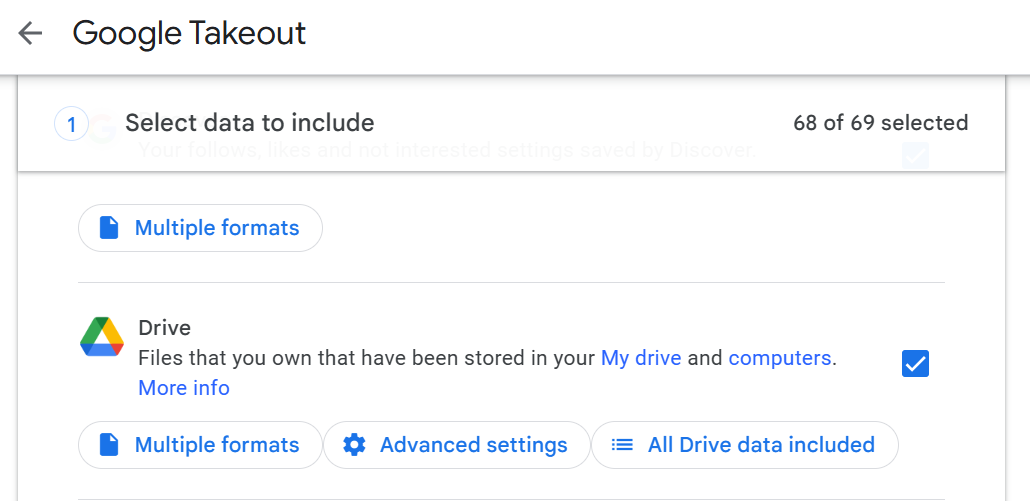
3. Click "Next step" and select the file type (zip) and size
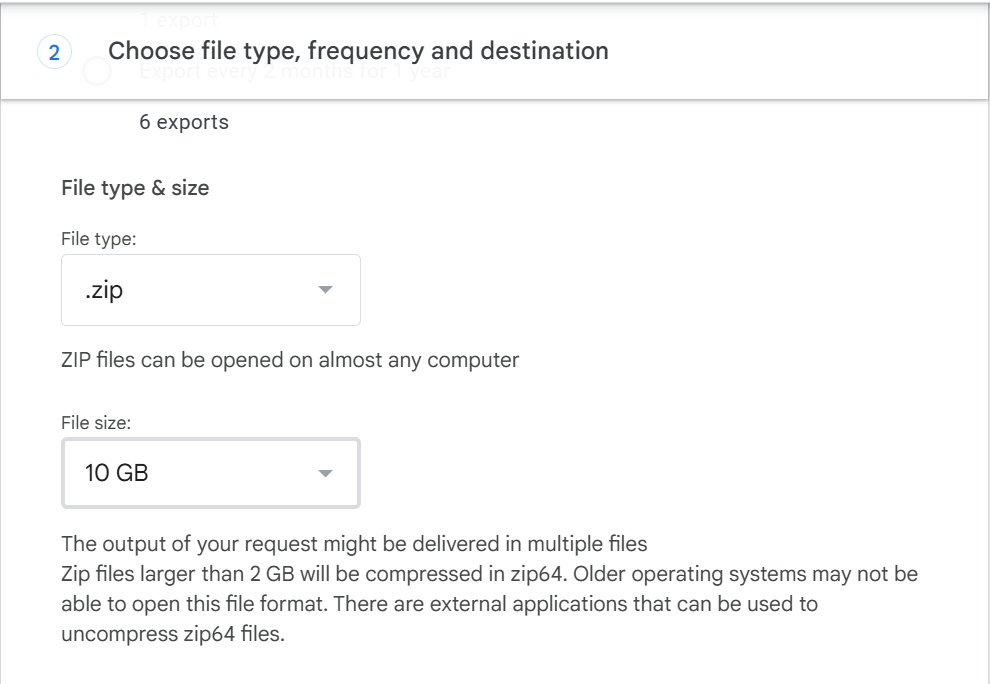
4. Click "Create export" to receive a link to your email. Depending on the size of your files, it may take longer.
Once you have received your email, download the file, and you will have all the files available to upload to Internxt Drive for you to back up, sync, or share files privately online.
How to migrate files from OneDrive to Internxt Drive
- Select individual files and folders to download. Ctrl-A selects all folders or all files.
- Click Download.
- When you see Save/save as, fill in the details.
- If you have multiple files or folders, they will download as a zip file.
- Your files and folders will download as a zip file if there are multiple files/folders or contents.
- Once you have your folder, you are ready to upload the contents to Internxt Drive!
You can also choose Internxt as a Dropbox alternative by migrating files from Dropbox to Internxt Drive by following the steps in this article.
Why migrate files from Google Drive and OneDrive to Internxt
Internxt is a European and sovereign cloud storage provider built on trust and transparency thanks to its open-source software and zero-knowledge encryption. Unlike Big Tech, Internxt can never view your files, as everything is encrypted before it leaves your device.
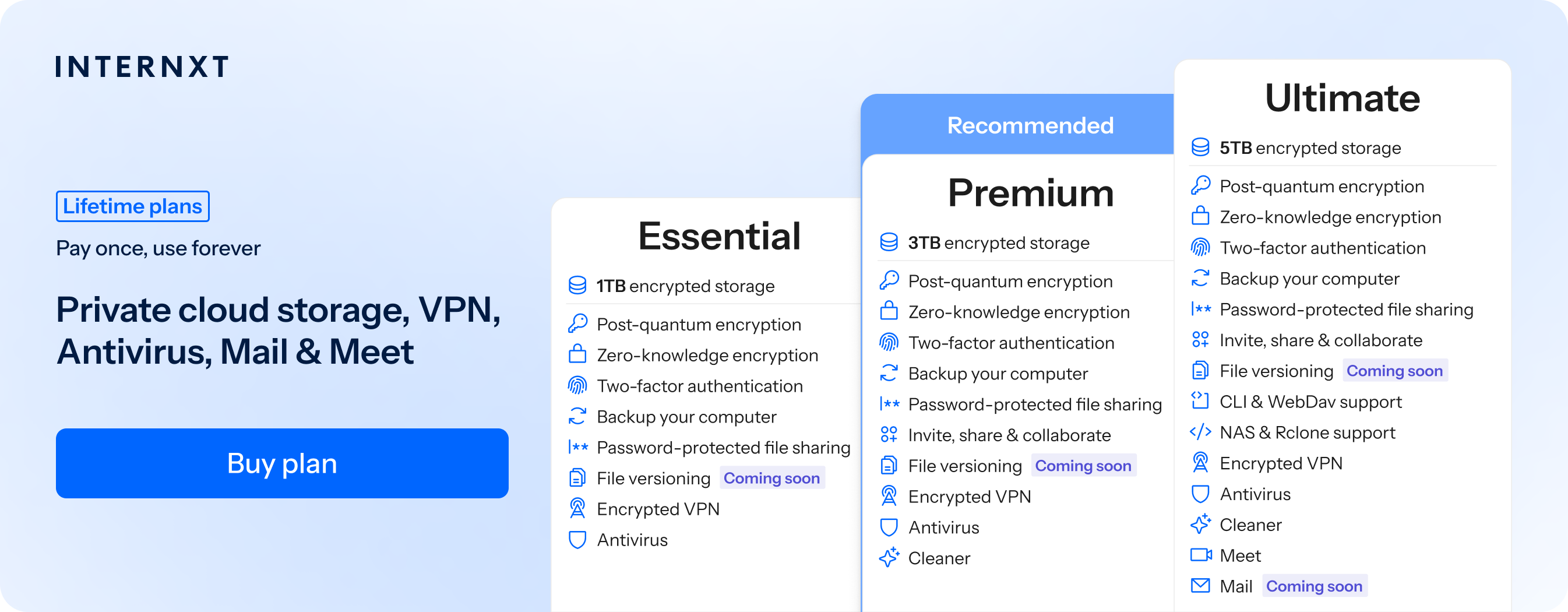
All Internxt plans include backups, Antivirus, and a VPN, offering full online protection for your device, cloud storage, and internet connection. It also offers alternatives to Gmail and Outlook with Internxt Mail, and full automatic backups with Internxt Photos.
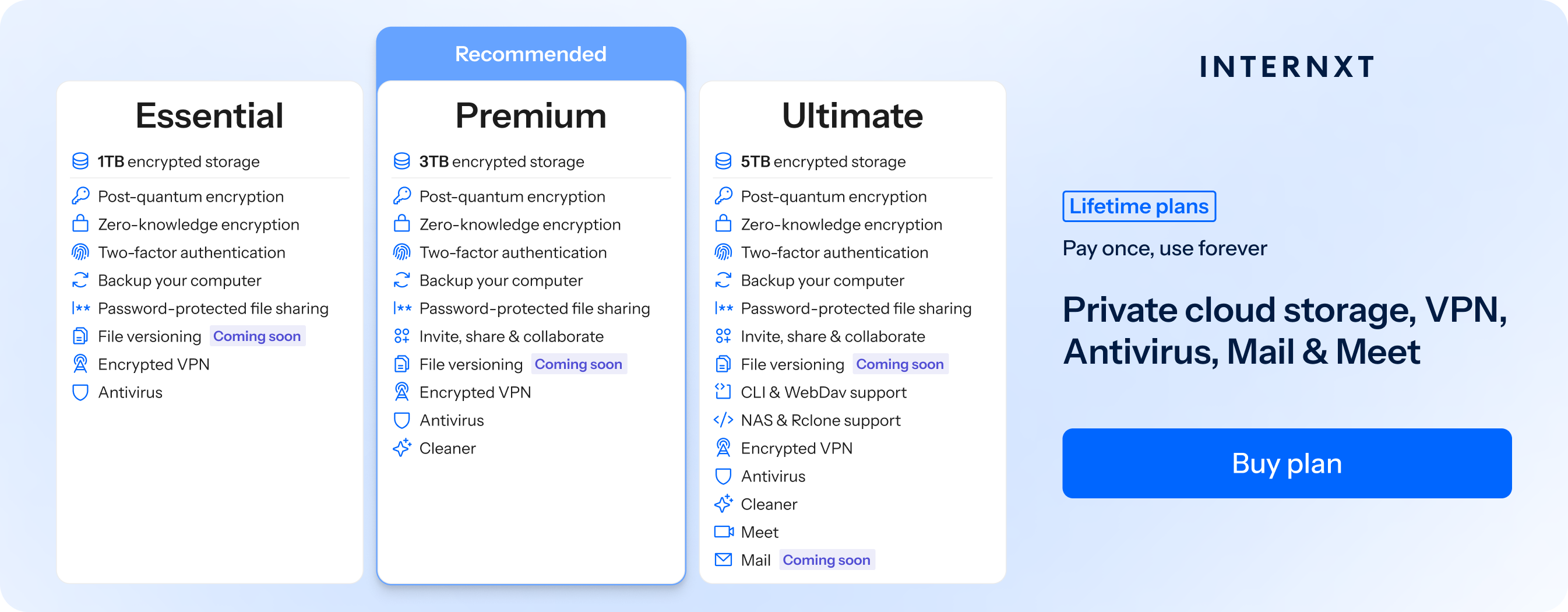
To get started with Internxt, claim your 85% discount on all monthly and lifetime cloud storage plans, and check out the full features of all Internxt plans below.
| Plan | Storage | Features | Annual (Paid monthly) | Lifetime Cost |
|---|---|---|---|---|
| Essential | 1TB | €1.99/month | €380 | |
| Premium | 2TB |
|
€3.99/month | €580 |
| Ultimate | 5TB |
|
€5.99/month | €780 |
| *Prices are correct at the time of writing and are subject to change. For latest prices, check https://internxt.com/offerblogen | ||||
Frequently asked questions
How do I move everything from Google Drive to OneDrive?
You can move your files by downloading them from Google Drive and uploading them to OneDrive, using Google Takeout to export your data, or using a third-party cloud migration tool. Businesses can also use Microsoft 365 Migration Manager to migrate Google Workspace data.
Does Google Takeout transfer files directly to OneDrive?
No. Google Takeout does not directly transfer files to OneDrive. It exports your Google Drive data into downloadable archives, which you must download and then upload to OneDrive.
What is the best Google Drive to OneDrive migration tool?
The best tool depends on your requirements. Manual transfers and Google Takeout are suitable for personal use, while other tools offer convenient cloud-to-cloud transfers. Businesses migrating Google Workspace to Microsoft 365 can use Microsoft's Migration Manager.
Will my Google Drive folders remain organised in OneDrive?
Generally, yes. Most migration methods preserve the original folder structure, although the results may vary depending on the tool used. It is recommended to check your folders after completing the transfer.
How can I transfer files from Google Drive or OneDrive to another cloud storage?
You can transfer files from Google Drive or OneDrive to another cloud storage service such as Internxt Drive by downloading your files and uploading them to the new platform, via Google Takeout, or using a cloud migration tool.
Before starting, check that the destination account has enough storage and verify that your files and folder structures have transferred successfully.