
Successful Steps for Box to Microsoft 365 Migration

This article covers three ways to move data to Microsoft 365 from Box.
Whether you use these services for personal, business, or enterprise cloud storage, we cover the tools you need to safely migrate files from Box to Microsoft 365.
We will also cover how to migrate to other cloud storage providers from Box, and alternative cloud storage providers that use end-to-end encryption to keep your files private.
No matter what service you need to migrate to, this article will give you the methods, and tips to consider before you migrate to make the process as smooth as possible, without the risk of losing your files.
Table of contents
- Box vs Microsoft 365 and why to migrate
- How to manage files before you move data to Microsoft 365 from Box
- Ways to migrate files from Box to Microsoft 365
- Box migration to other cloud providers
- Why migrate from Box to Internxt Drive
- How to migrate files to Internxt Drive
- Box to Microsoft 365 migration frequently asked questions
Box vs Microsoft 365 and why to migrate
Box focuses primarily on cloud content management, secure file storage, file sharing, and collaboration. It is designed to help businesses manage documents and control access to company data, which you can learn more about in our Box Drive article.
Microsoft 365 offers a broader productivity environment that combines cloud storage through OneDrive and SharePoint with applications such as Word, Excel, PowerPoint, Outlook, and Teams.
Therefore, a Box to Microsoft 365 migration is the best option for personal or business cloud storage that combines with strong collaboration features.
How to manage files before you move data to Microsoft 365 from Box
Before migrating data from Box to Microsoft 365, organize and review your files to ensure a smooth migration and avoid transferring unnecessary or problematic content.
- Remove unnecessary data: Delete outdated, duplicate, or irrelevant files to reduce migration time and avoid taking up unnecessary storage.
- Check file names and paths: Microsoft 365 does not allow the following characters in file and folder names: " * : < > ? / \ |. Names containing _vti_ or starting with ~$ are also restricted. The complete decoded file path must not exceed 400 characters.
- Review permissions: Check file and folder sharing settings, user access, and ownership, as some sharing permissions may need to be recreated manually after the migration.
- Identify large files: Microsoft 365 Migration Manager supports individual files up to 250 GB. Files exceeding this limit cannot be migrated using this method.
- Check unsupported content: Identify restricted file types and content that Microsoft 365 policies may block.
- Review file versions and metadata: Box file version history, comments, tags, bookmarks, favorites, and certain custom metadata may not transfer.
- Check storage capacity: Ensure your Microsoft 365 environment has enough available storage for all selected content.
- Back up files: Keep a separate copy of important Box data before starting the migration to avoid data loss during transfer.
Ways to migrate files from Box to Microsoft 365
Method 1. Box to Microsoft 365 migration tool
You can migrate content from Box to Microsoft 365 (SharePoint, OneDrive, and Teams) using Microsoft's built-in Migration Manager, which copies files without deleting anything from Box.
Migrating from Box to Microsoft 365 prerequisites
- Microsoft 365 role: Assign Microsoft 365 Migration Administrator (recommended for least privilege), SharePoint Administrator, or Global Administrator in the Microsoft 365 admin center.
- Box access: Have Box credentials with Read access to every Box user account you plan to migrate.
Box to Microsoft 365 migration steps
- Open the tool: Go to the Microsoft 365 admin center > Setup > Migration resources (or Migration and imports) > Explore migration & imports tools > Box.
- Connect to Box: Add the Microsoft 365 migration app to Box custom apps and authorize access (complete the connection within 10 minutes before the session expires).
- Scan & assess (optional): Run scan tasks and review reports to catch blockers.
- Add users & destinations: Add ready Box users to the migration list and verify destination paths in SharePoint or OneDrive (destinations cannot be changed once migration starts).
- Map identities: Match Box users, groups, and domains to Microsoft 365 accounts.
- Migrate & verify: Run the migration, expect throttling based on service load, and review permissions and user adoption afterward
Third-party migration tools
Cloud-to-cloud migration tools allow you to move data to Microsoft 365 from Box without manually downloading and uploading your files, although we will also cover this method below if you want to transfer smaller files from Box to Microsoft 365.
This method uses a third-party cloud migration service that connects to both storage platforms through their APIs. Once both accounts are connected, the service transfers the selected files and folders directly between the cloud environments.
Third-party migration prerequisites
- Migration service: Check that the cloud-to-cloud migration service supports both Box and Microsoft 365.
- Box access: Have valid login credentials and sufficient permissions to access all Box files and folders you want to migrate.
- Microsoft 365 access: Have access to the destination OneDrive accounts or SharePoint sites.
- Authorization: Be able to authorize the migration service to access both cloud platforms.
- Storage capacity: Ensure that the Microsoft 365 destination has sufficient available storage.
- Permissions: Verify whether the migration service supports transferring file permissions, ownership, metadata, and folder structures.
Box to Microsoft 365 migration steps for third-party tools
1. Open the migration service: Sign in to your chosen third-party cloud migration platform and access its cloud migration dashboard.
2. Connect to Box: Select Box as your source storage provider. Authenticate with your Box account and authorize the migration service to access the required files and folders.
3. Connect to Microsoft 365: Add Microsoft 365 as the destination platform. Authenticate with your Microsoft 365 administrator or destination account and grant the necessary permissions.
4. Select migration source and destination: Choose Box as the source and Microsoft 365 as the destination. Depending on your requirements, you can select OneDrive for individual user files or SharePoint for shared company documents.
5. Select files and folders: Choose the specific Box folders, user accounts or entire storage areas you want to migrate. Configure the corresponding destination locations in Microsoft 365.
6. Configure migration settings: Review available options for folder structures, file permissions, metadata, file versions and other supported settings. Configure filters or exclusions if you do not want to migrate all content.
7. Start migration: Initiate the transfer. The migration service will retrieve the selected content from Box and transfer it directly to Microsoft 365. You can usually monitor the progress through the migration dashboard.
8. Verify migrated files: Once the transfer is complete, review the migration reports and check the destination OneDrive or SharePoint locations. Confirm that files, folder structures, and supported permissions have been transferred correctly.
Important: Cloud-to-cloud migration avoids the need for local downloads and uploads, making it particularly useful for large amounts of data. However, the ability to transfer file versions, sharing permissions, ownership, and metadata depends on the migration service and the APIs supported by both platforms. Some information may need to be recreated manually.
Method 3: Download and upload manually
This is the simplest method if you only need to migrate a relatively small amount of data or do not want to use, or aren’t familiar with, third-party migration services.

Manual migration prerequisites
- Box access: Access your Box account.
- Microsoft 365 access: Have access to your OneDrive or SharePoint destination.
- Local storage: Ensure your computer has enough free disk space to temporarily store the downloaded files.
- Internet connection: A stable internet connection is recommended, especially when transferring large amounts of data.
Box to Microsoft 365 migration steps
- Open Box: Sign in to your Box account using a web browser.
- Select files: Navigate to the folders you want to migrate and select the required files or folders.
- Download files: Use the Download option to download the selected content to your computer. Box may package multiple files into ZIP archives.
- Extract files: If the downloaded content is compressed, extract the ZIP archives while preserving the original folder structure.
- Open OneDrive: Sign in to your Microsoft 365 account and open OneDrive.
- Upload files: Select Upload > Files or Upload > Folder and choose the downloaded content.
- Verify migration: Check that all files and folders have been uploaded successfully and that the folder structure is preserved.
Box migration to other cloud providers
Microsoft’s Migration Manager is a useful tool if you want to migrate to Microsoft’s services such as SharePoint or OneDrive.
For a comprehensive overview of how to migrate your cloud to a range of cloud storage providers, check out our articles below to find the best way to migrate from Box to other providers:
Migrating from Box to OneDrive
Box migration methods are also available for other major cloud providers. Depending on your cloud storage requirements and the cloud provider you want to migrate to, you can find out the ways to transfer files from Box to any of the providers below.
Migrate Google Drive to OneDrive
If you want to transfer your files to a private cloud storage solution with end-to-end encryption, then migrating to Internxt gives you secure cloud storage combined with a full privacy suite to protect your files, device, and sensitive information online.
Why migrate from Box to Internxt Drive
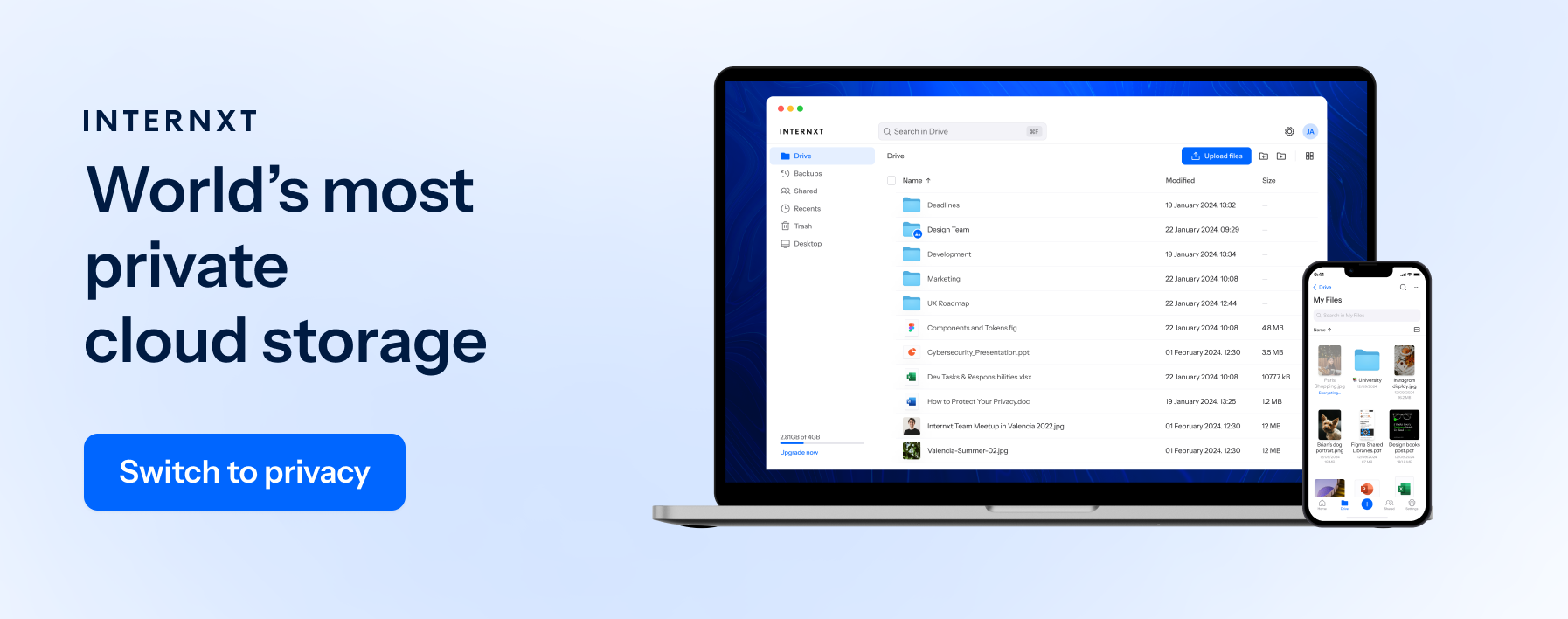
Internxt Drive differs from Box, Microsoft, and other major cloud providers because it focuses on protecting the privacy of your files with post-quantum cryptography and end-to-end encryption.
Internxt is also fully open-source and has been independently audited for security twice to ensure the platform is secure from hackers and that there are no risks to your personal data. Your data is also protected by GDPR, ISO 27001, SOC 2, and HIPAA regulations, ensuring the highest level of security for data stored with Internxt.
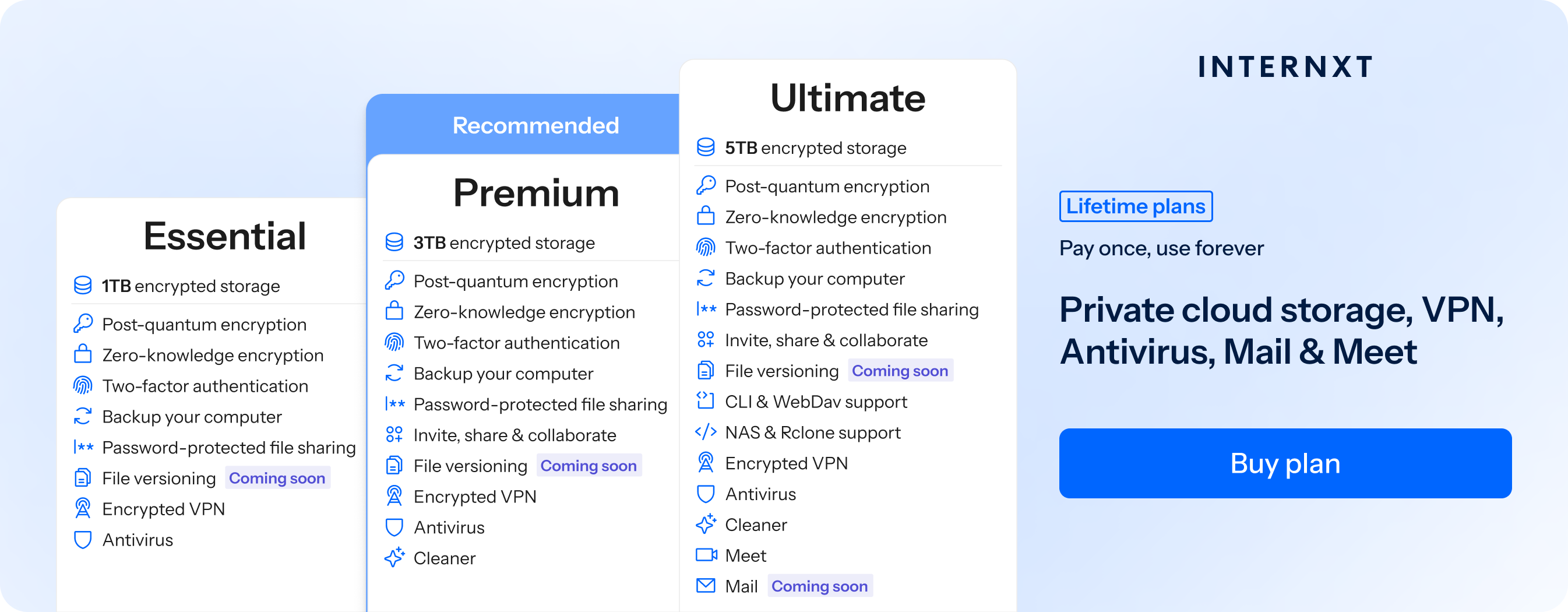
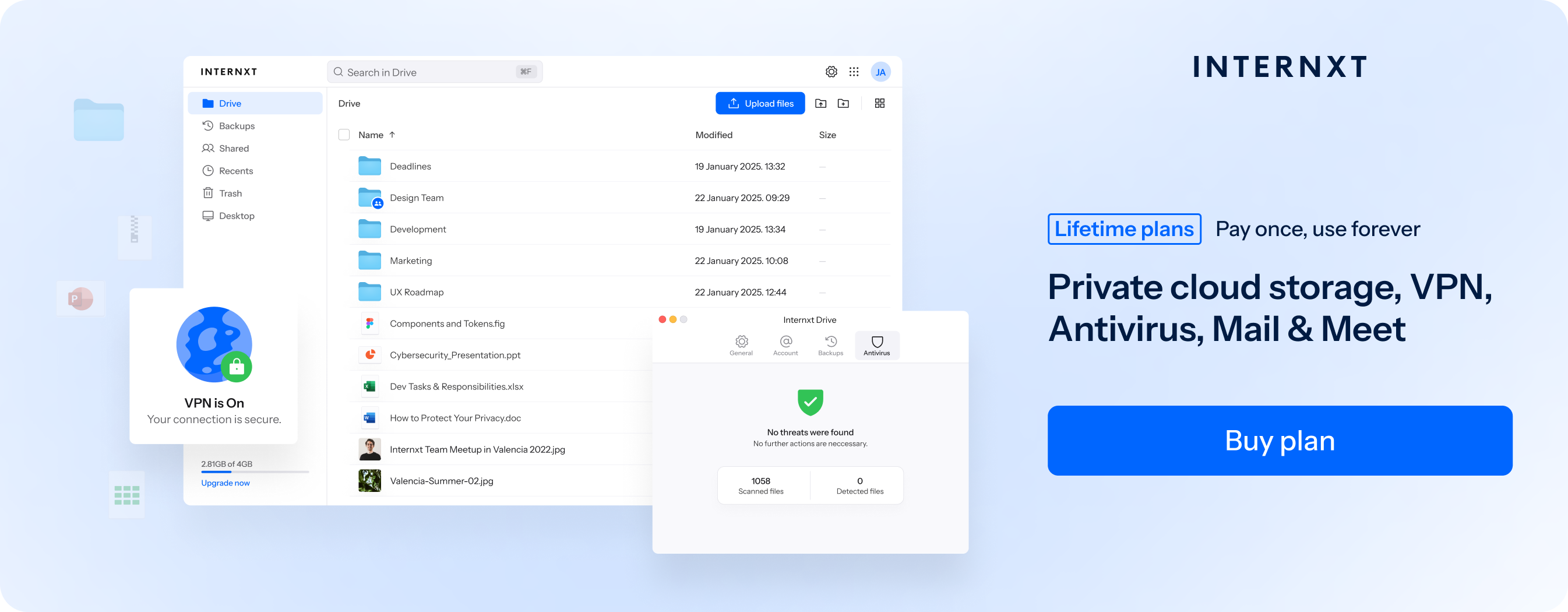
Internxt monthly and lifetime cloud storage plans also include backups, VPN, and antivirus for further protection of your files and data. With the Ultimate plan, you get access to all of Internxt’s features, such as Rclone and NAS support for QNAP and Synology, Internxt Photos, Mail, and Meet.
You can check the full features of Internxt below and choose the right plan to fit your needs by taking advantage of our exclusive 85% discount.
| Plan | Storage | Features | Annual (Paid monthly) | Lifetime Cost |
|---|---|---|---|---|
| Essential | 1TB | €1.99/month | €380 | |
| Premium | 2TB |
|
€3.99/month | €580 |
| Ultimate | 5TB |
|
€5.99/month | €780 |
| *Prices are correct at the time of writing and are subject to change. For latest prices, check https://internxt.com/offerblogen | ||||
How to migrate files to Internxt Drive
To migrate from Box, Dropbox, or any other provider, you can download the files and upload them to the Internxt Drive app using method 3 in this article.
Internxt Ultimate plans also include native rclone support, so you can also migrate files using this cloud management tool
For Google Drive, you can use the Google Takeout option to download all the files from your Google Drive account and upload them to the Internxt web or desktop app for Windows, Mac, or Linux.
Once start uploading files to Internxt, all files are encrypted directly on your device, during transfer, and on our servers, so nobody but you can access them.
You can also share files privately with a secure and encrypted link, and enjoy all the other features of your Internxt plan.
Box to Microsoft 365 migration frequently asked questions
Can you migrate files from Box to Microsoft 365?
Yes. You can use Microsoft's Migration Manager, third-party tools, or manual uploads.
What is the best way to migrate from Box to Microsoft 365?
Microsoft's Migration Manager is a convenient option for transferring files directly to OneDrive, SharePoint, and Teams.
Can I migrate from Box to OneDrive?
Yes. You can transfer files using Migration Manager, third-party tools, or manual uploads.
Can I migrate Box files to SharePoint?
Yes. Microsoft's Migration Manager supports transferring Box files to SharePoint.
Will my Box file permissions transfer to Microsoft 365?
Not necessarily. Some permissions, ownership details, and sharing settings may need to be recreated manually.
Is there a file size limit when migrating from Box to Microsoft 365?
Yes. Microsoft's Migration Manager supports individual files up to 250 GB.
Can I migrate files from Box without downloading them to my computer?
Yes. Microsoft's Migration Manager and supported third-party tools allow direct cloud-to-cloud transfers.
Can I migrate files from Box to Internxt Drive?
Yes. Download your Box files and upload them to Internxt Drive using the web or desktop app.