
Three Methods for Migrating from Box to OneDrive

This article covers three ways to migrate from Box to OneDrive, including business, enterprise, and personal cloud storage methods.
Migrating from Box to OneDrive can be beneficial due to OneDrive’s integration with Microsoft 365 applications, enhanced collaboration capabilities, improved file accessibility, and centralized cloud storage and document management features via SharePoint.
We will also explain how to migrate from Box to other cloud providers, and how to transfer files to Internxt’s zero-knowledge encrypted cloud storage.
Table of contents
- Box vs OneDrive overview
- What you should know before migrating from Box to OneDrive
- Recommended steps before migrating from Box to OneDrive
- Three Box to OneDrive migration methods
- How to migrate your files from Box to other cloud providers
- Why migrate files from Box, Google Drive, and others to Internxt Drive
- How to migrate from Box to Internxt Drive
- Frequently asked questions about migrating from Box to OneDrive
Box vs OneDrive overview
Migrating from Box to OneDrive offers businesses access to Microsoft 365’s suite, which includes Word, Excel, PowerPoint, Outlook, Teams, OneDrive, and SharePoint.
Once files are successfully migrated to a OneDrive account, you get cloud storage, document management, team collaboration, and much more. You can also migrate files from Box to SharePoint if you need a centralised platform for storing, organising, sharing, and collaborating on documents across your organisation. To do so, you can follow the steps in our article below.
Below, you can check the overview of Box vs OneDrive.
Feature | Box | OneDrive for Business |
|---|---|---|
Primary purpose | Cloud storage and content management | Cloud storage and file management |
Free storage | 10 GB (personal plan) | 5 GB (personal plan) |
Business storage | Depends on subscription | Depends on Microsoft 365 plan |
File sharing | Yes | Yes |
Collaboration | Box Notes and integrations | Real-time Microsoft 365 collaboration |
Office integration | Microsoft 365 integration | Native Word, Excel and PowerPoint integration |
Team/shared storage | No dedicated team drive | SharePoint Online integration |
Native collaboration | File sharing and integrations | Microsoft Teams, SharePoint, Outlook and Office apps |
Native file formats | Box Notes | Word, Excel and PowerPoint |
File synchronisation | Box Drive | OneDrive sync app |
Security | Encryption, access controls and compliance features | Encryption, access controls and Microsoft security features |
Version history | Supported | Supported |
Admin controls | Box Admin Console | Microsoft 365 Admin Center and Microsoft Entra ID |
Platform availability | Web, Windows, macOS, iOS and Android | Web, Windows, macOS, iOS and Android |
Best suited for | Businesses needing content management and integrations | Individuals and businesses using the Microsoft 365 ecosystem |
We also compare Box to other major providers in our blog, which you can find below.
What you should know before migrating from Box to OneDrive
While there are many methods to transfer data from Box to OneDrive, there are limitations and restrictions you should be aware of before you choose a Box to OneDrive migration method.
- Migrating high-volume user accounts and large files: Transferring large amounts of data across multiple user accounts can take considerable time and consume significant network bandwidth.
- Migrating special characters, file names, and file path length is unsupported in Microsoft 365.
- Migrating sharing permissions for root and subfolders: Box allows users to assign different permissions to folders, subfolders, and individual files. These permissions must be carefully mapped to Microsoft 365 to ensure users retain the appropriate access levels without exposing sensitive information.
- Converting Box-native files, such as Box Notes: Box Notes are native documents that may not transfer directly into Microsoft 365 formats.
- Migrating shared links, external shares, version history, and timestamps: Box supports shared links, external collaborators, and file version history. These elements may not transfer automatically to OneDrive or SharePoint.
Recommended steps before migrating from Box to OneDrive
Successfully migrating from Box to OneDrive and SharePoint requires careful preparation to minimise data loss, preserve access permissions, and ensure business continuity.
The following steps are recommended to make the migration process as smooth and reliable as possible:
- Assessment and cleanup: Inventory your Box content, remove outdated or temporary files, and correct unsupported characters in file and folder names.
- Destination planning: Separate personal files (OneDrive) from collaborative or team files (SharePoint / Microsoft Teams).
- Pilot migration: Start with a small group of users to validate folder structures, permissions, and links before the final cutover.
- Validation: Compare file counts, folder structures, permissions, metadata, and version history between the source and destination.
- Final migration: Run incremental migration, communicate the transition to users, and verify that all content is accessible before decommissioning Box.
Three Box to OneDrive migration methods
There are three main methods to transfer files from Box to OneDrive, depending on the type of plan you have.
Method 1. Microsoft 365 Migration Manager
Box to OneDrive migration tool
- What it is: A free migration tool integrated into the Microsoft 365 SharePoint Admin Center.
- How it works:
- Sign in to the Microsoft 365 Admin Center and navigate to Settings → Migration and Import → Box.
- Connect your Box account using OAuth by adding the Microsoft 365 migration application.
- Map Box users to their corresponding destination accounts in OneDrive or SharePoint.
- Run an assessment, perform a pilot migration, and execute the final migration using incremental (delta) synchronization.
Important note to consider: Microsoft 365 Migration Manager for Box is designed for Microsoft 365 business and enterprise environments. It requires an organisation-managed Microsoft 365 tenant with SharePoint Online and OneDrive for Business, as well as an account with the appropriate administrative permissions.
To move files from Box to OneDrive, for personal or family OneDrive accounts, you can follow the steps in method 3 below.
Method 2. Third-Party Tools (for complex enterprise scenarios)
- When to use them: When you need to migrate complex shared-folder permissions, complete version history, comments, external sharing links, or convert Box Notes into Word documents (.docx).
Method 3. Manual migration (For small or personal data)
Box to OneDrive migration for personal accounts will require you to download your files from Box first, and then upload them to OneDrive.
- How it works: Download files and folders from Box to your local computer, then upload them using the OneDrive sync application or File Explorer.
- Limitations: This method is not recommended for enterprise environments because metadata, permissions, and version history may be lost.
How to migrate your files from Box to other cloud providers
With the Migration Manager tool, migrating from Box to OneDrive or SharePoint is the easiest way for businesses to migrate their cloud storage to Microsoft’s services.
These methods are not the same for all cloud storage services; however, we also cover how to migrate from other providers in our blog so you can choose the right cloud migration method for your required service.
Migrate to Dropbox to OneDrive
Migrate Google Drive to OneDrive
If you want to migrate to a private cloud storage provider that uses end-to-end encryption, so companies like Google Drive, OneDrive, or others cannot decrypt or access your files, then Internxt offers secure cloud storage with post-quantum encryption for maximum protection and privacy of your files.
Why migrate files from Box, Google Drive, and others to Internxt Drive
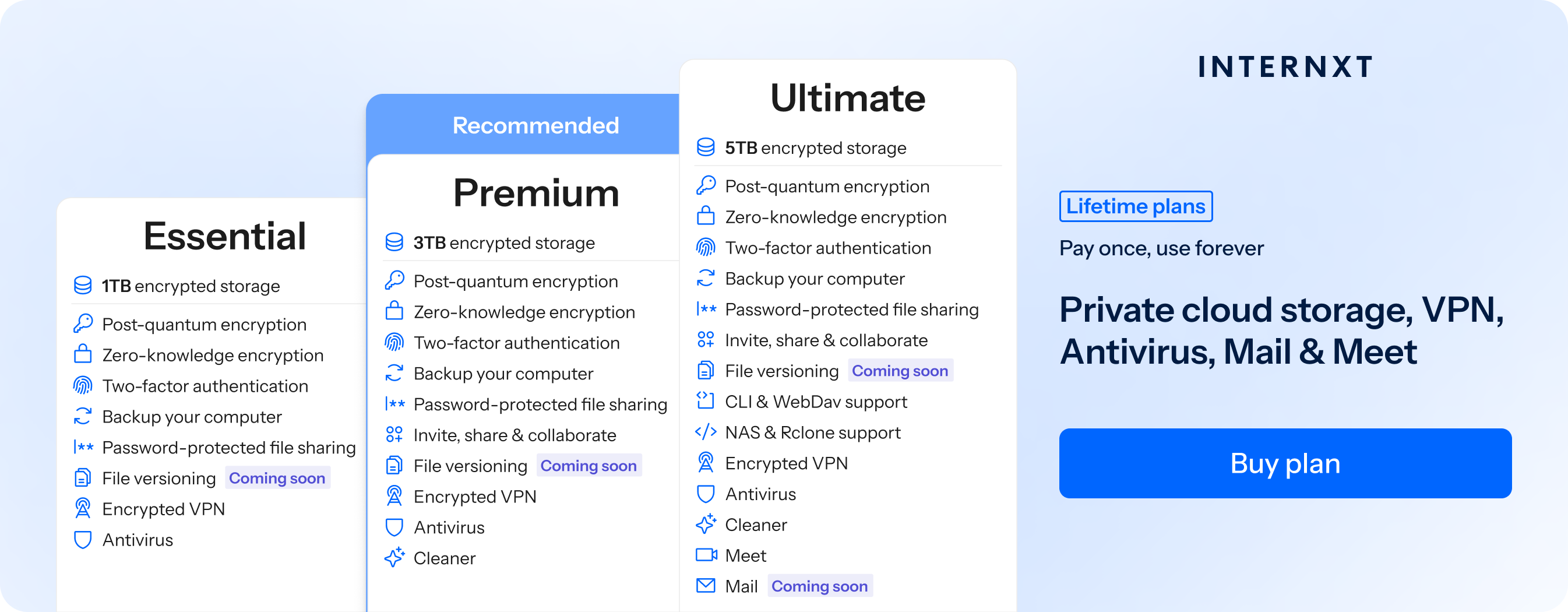
Internxt Drive is a European cloud storage provider offering post-quantum encryption to future-proof your files, and a full product suite that includes a VPN, Antivirus, Mail, Meet, and Photos.
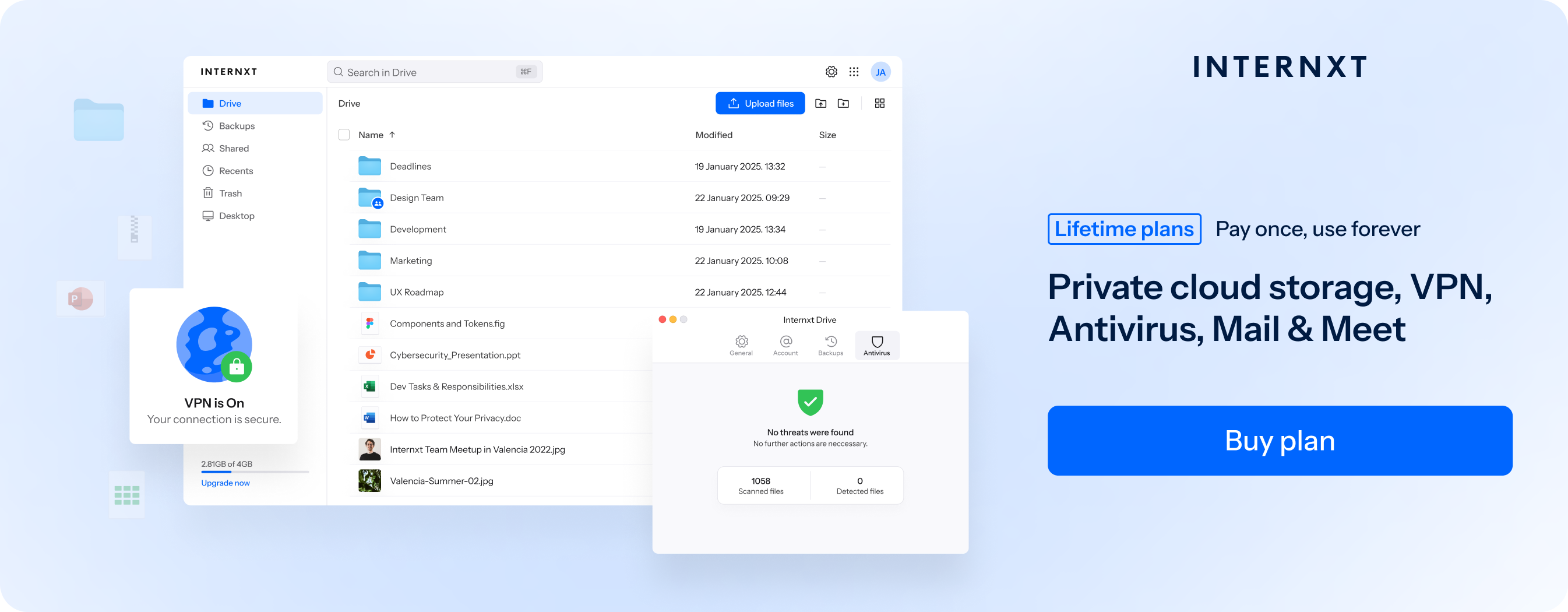
Internxt is a secure, sovereign cloud storage provider that, unlike big tech, can never access your files because encryption happens directly on your device, so only you can view them.
As Box, Google Drive, OneDrive, and others hold the encryption keys for your files stored on their servers, they could access your files or give access to government or law enforcement agencies if requested.
For fully private cloud storage, migrate your files from Box to Internxt to ensure maximum security and privacy of your files thanks to zero-knowledge encryption.
How to migrate from Box to Internxt Drive
To migrate files from Box to Internxt Drive, you can download the Internxt Drive app for Windows, Mac, or Linux. If you’re getting started with Internxt’s free cloud storage plan, then you can start by downloading files from Box and uploading them to the Internxt app using method 3 in this article.
If you purchase a monthly or lifetime cloud storage plan, then you can transfer up to 5TB of files from Box to Internxt, plus the extra benefits of NAS cloud backups, rclone support, and automatic photo backups.
To transfer from other cloud providers, such as iCloud Drive or Google Drive, you can follow the steps in our help center.
To start migrating to Internxt, you can claim your 85% discount below and check out the full product suite Internxt has to offer.
| Plan | Storage | Features | Annual (Paid monthly) | Lifetime Cost |
|---|---|---|---|---|
| Essential | 1TB | €1.99/month | €380 | |
| Premium | 2TB |
|
€3.99/month | €580 |
| Ultimate | 5TB |
|
€5.99/month | €780 |
| *Prices are correct at the time of writing and are subject to change. For latest prices, check https://internxt.com/offerblogen | ||||
Frequently asked questions about migrating from Box to OneDrive
Can you migrate files directly from Box to OneDrive?
Yes. You can migrate files directly from Box to OneDrive using Microsoft 365 Migration Manager, a third-party migration tool, or by manually downloading files from Box and uploading them to OneDrive.
What is the best tool to migrate from Box to OneDrive?
Microsoft 365 Migration Manager is a recommended option for businesses and enterprises because it supports bulk migrations and user mapping. Third-party tools may be more suitable for complex migrations involving permissions, metadata, and version history.
How do I transfer files from Box to OneDrive manually?
Download your files and folders from Box to your computer, sign in to OneDrive, and upload them using the web interface, OneDrive desktop application, or File Explorer.
Can I migrate Box to OneDrive without downloading files?
Yes. Microsoft 365 Migration Manager and compatible third-party cloud migration tools allow you to transfer files directly between Box and OneDrive without manually downloading them to your computer.
Will Box folder permissions and sharing links transfer to OneDrive?
Not necessarily. Some permissions and sharing settings may require manual configuration or remapping.
Can I transfer Box Notes and version history to OneDrive?
Box Notes and file version histories may not transfer directly or retain their original structure. Depending on the migration tool, you may need to export Box Notes into compatible formats, such as Word documents, and verify version history separately.
How long does it take to migrate from Box to OneDrive?
Migration time depends on the amount of data, file sizes, number of user accounts, network bandwidth, and migration method. Large enterprise migrations can take several days or longer, so running a pilot migration beforehand is recommended.