
A Full Guide on Box to SharePoint Migration Methods

One of the main advantages of a Box to SharePoint migration is that SharePoint integrates directly with Microsoft 365 applications, which include access to Word, Excel, PowerPoint, Teams, and Outlook within one paid subscription, rather than managing Box or OneDrive subscription costs.
Once files are successfully migrated from Box to SharePoint, teams and individuals can edit, share, and collaborate on documents and manage files, as SharePoint provides the storage for team documents.
So if you’re looking for a Box to SharePoint migration tool, or need to know how to manually transfer files from Box to SharePoint, we cover both methods in this article, as well as how to transfer files to other major cloud storage providers.
Box vs SharePoint
Below is an overview of the services Box and SharePoint offer.
| Feature | Box | SharePoint |
|---|---|---|
| Primary purpose | Cloud file storage and content management | Document management and team collaboration |
| Microsoft 365 integration | Requires integrations or third-party connectors | Native integration with Microsoft 365 |
| File sharing | Secure external and internal sharing | Internal and external sharing with permission controls |
| Real-time collaboration | Supported through integrations | Built-in collaboration with Office apps |
| File synchronization | Box Drive and Box Sync | OneDrive sync client |
| Security | Access controls, encryption and governance | Access controls, encryption and Microsoft Purview integration |
| Workflow automation | Box Relay and integrations | Power Automate integration |
| Search capabilities | Content search and metadata | Microsoft Search and metadata |
| Best suited for | Businesses needing cloud content management | Organizations using Microsoft 365 |
For more details on each service, the following articles are useful before you copy files from Box to SharePoint.
Important steps to take before a Box to SharePoint migration
For business
- Audit your Box content. Inventory total volume, user count, folder structures, and file types. Check for files over 15 GB, as Migration Manager will not migrate those files.
- Map your destinations. Decide where each Box folder belongs: a user's OneDrive, a SharePoint site, or a Teams library. Destination paths lock once a migration begins, so this cannot be corrected afterwards.
- Review permissions. Box has seven collaborator roles, whereas SharePoint has fewer, so some users will end up with broader access than they had before. Identify where this happens and fix it in advance.
- Match user identities. Every Box account needs a corresponding Microsoft 365 account. Users without one will have no content migrated.
- Check your SharePoint storage. Confirm your tenant has capacity for the incoming data plus version history, which can multiply the space each file consumes.
For personal migration
- Check which tool is available to you. Without tenant admin access, Migration Manager is not an option. The best options therefore are manual download and upload, dragging between the Box Drive and OneDrive sync folders, which we cover further down in this article.
- Sort before you move. A personal migration is a good moment to delete what you no longer need rather than carrying it across.
- Check your destination capacity. Confirm your Microsoft 365 plan has room for everything you intend to transfer.
- Download originals, not previews. Make sure you are copying full files rather than cached or partial versions, particularly for large media.
- Note any shared links. Links you have sent to other people will stop working once the content moves. Make a list of what you have shared and with whom.
- Keep a local copy during the move. Hold everything on a local or external drive until you have confirmed the transfer completed correctly, so you are never relying on a single copy.
Box to SharePoint migration for business and personal use
Method 1: Migrate Box to Microsoft 365 with Migration Manager
SharePoint has a Box to SharePoint migration tool, which is the easiest way to migrate from Box to SharePoint Online.
Important: Migration Manager requires admin access to a Microsoft 365 tenant and an admin-level Box account. Individuals on a personal Box plan generally cannot use it, but we will cover other ways to migrate from Box to SharePoint online afterwards.
To do so, follow these steps:
1. Connect your Box account. Sign in to Box and add the Microsoft 365 migration app to your Box custom apps. You grant access in the SharePoint admin centre, copy the client ID across to the Box admin console, then return to SharePoint.
**Note that you have 10 minutes to complete this, after which the session expires.**
2. Scan and assess. Migration Manager scans the Box environment and produces a report of users, folders, and content, flagging items that will not migrate cleanly. It’s important to review this before going further, as it is where you catch oversized files, unsupported items, and structural problems.
3. Map identities. Match Box user and group identities to their Microsoft 365 equivalents. This determines who ends up owning what, and it is the step most likely to cause problems later if rushed. Users without a mapped Microsoft 365 account will not have their content migrated.
4. Set destinations. Assign each Box user or folder to its target OneDrive, SharePoint site, or Teams location. Check these carefully, since they cannot be changed once the migration runs.
5. Create and run tasks. Migration Manager handles one Box user per task, copying everything that user has access to. Content they cannot access is excluded from that task. Start with a small pilot batch rather than the full tenant.
6. Verify and complete. Review the migration reports for failures, confirm permissions landed as expected, and re-invite external collaborators.
Method 2: Downloading from Box and uploading to SharePoint
This is the simplest Box to SharePoint migration if you don’t have access to the Migration Manager and need to move your files to SharePoint for personal use.
- Sign in to Box on the web and navigate to the folders you want to move.
- Select your content and choose Download. Box packages multiple items into a ZIP file. Work folder by folder rather than selecting everything at once, since very large ZIP files are slow to build and often fail partway.
- Unzip the download and check it against what Box shows. Compare the number of files and the total size, and open a few of the larger files to confirm they are complete rather than partial.
- Open the destination document library in SharePoint. Make sure you are in the right site and library before you start, as moving content afterwards is more work than getting it right the first time.
- Upload the files. Either drag the folders in from your file explorer, or use the Upload button and select Folder. SharePoint preserves the folder structure, so your hierarchy carries across.
- Verify the transfer. Compare file counts and folder sizes between Box and SharePoint, and open a sample of files from the SharePoint side to confirm they work.
- Reconfigure sharing and permissions in SharePoint, since these do not carry across from Box.
- Only then remove the content from Box. A manual transfer has no rollback, so keep the original until you have confirmed everything arrived.
What this method does not preserve
Permissions, version history, and file metadata such as who uploaded an item and when. Only the current version of each file transfers, and any share links you previously sent from Box will stop working.
What a Box to SharePoint migration does not include
Before you or your company uses a Box to SharePoint migration tool, it’s worth noting what the migration doesn’t include, so you can plan your file management within SharePoint accordingly
- External collaborators are deliberately excluded and must be re-invited in SharePoint afterwards
- External sharing links do not carry across
- Box Notes convert to Word (.docx) rather than migrating as Box Notes
- Older file versions are generally not preserved
- Box has seven collaborator roles, which collapse into a smaller set of SharePoint permission levels. Some users will end up with broader access than they had in Box, so check this to ensure the right users have the right permissions set to avoid leaking sensitive information
- You should plan for potential downtime if you are transferring large amounts of data
How to migrate files from Box, SharePoint, and others
Major cloud providers offer ways to transfer files from Box to SharePoint, OneDrive, Google Drive, Dropbox, and more.
Below, you can find the right migration methods for you or your business, based on your current cloud provider.
Migrate Google Drive to OneDrive
If you want to migrate your files to a secure cloud storage solution that protects your files with post-quantum and zero-knowledge encryption, then you can easily migrate your files to Internxt’s encrypted cloud storage.
Why migrate files to Internxt Drive
Internxt is a sovereign cloud provider based in Valencia, Spain. Internxt Drive keeps your files private in the cloud with zero-knowledge encryption, and only you hold the keys to unlock your data.
OneDrive, Google, and others do not use this kind of end-to-end encryption, so they could potentially access your videos, documents, photos, and other files you store in the cloud.
For added transparency, Internxt is open-source, fully audited, and complies with GDPR, ISO 27001, SOC 2, and HIPAA, so all data you store in the cloud is protected by strict regulations and data protection laws.
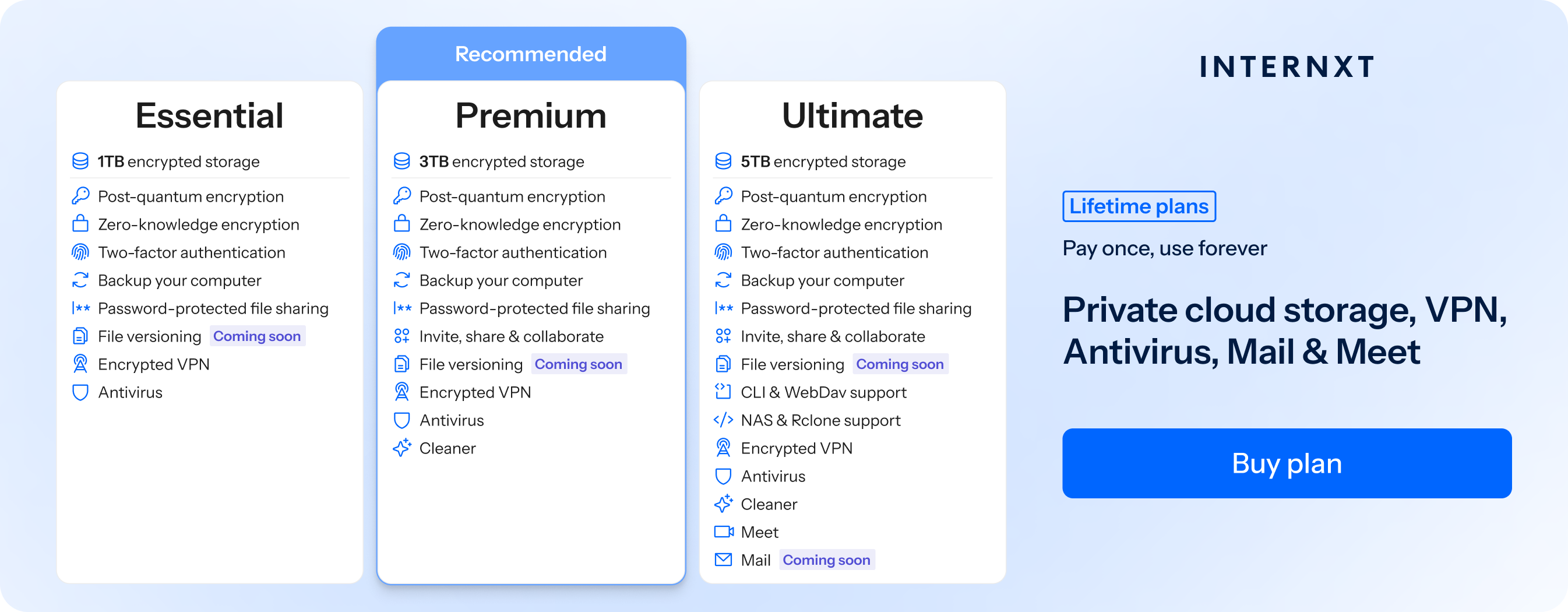
Internxt also includes a complete product suite which includes Photos, Mail, VPN, and more, you can also move and transfer files via rclone, WebDAV, or to your QNAP or Synology NAS system.
To start migrating files from Box to Internxt Drive, you can follow the second method explained in this article, and to transfer from Google, iCloud Drive, or other Big Tech companies, you can check our help center article below.
Migrate from Google, iCloud, OneDrive, or Dropbox to Internxt
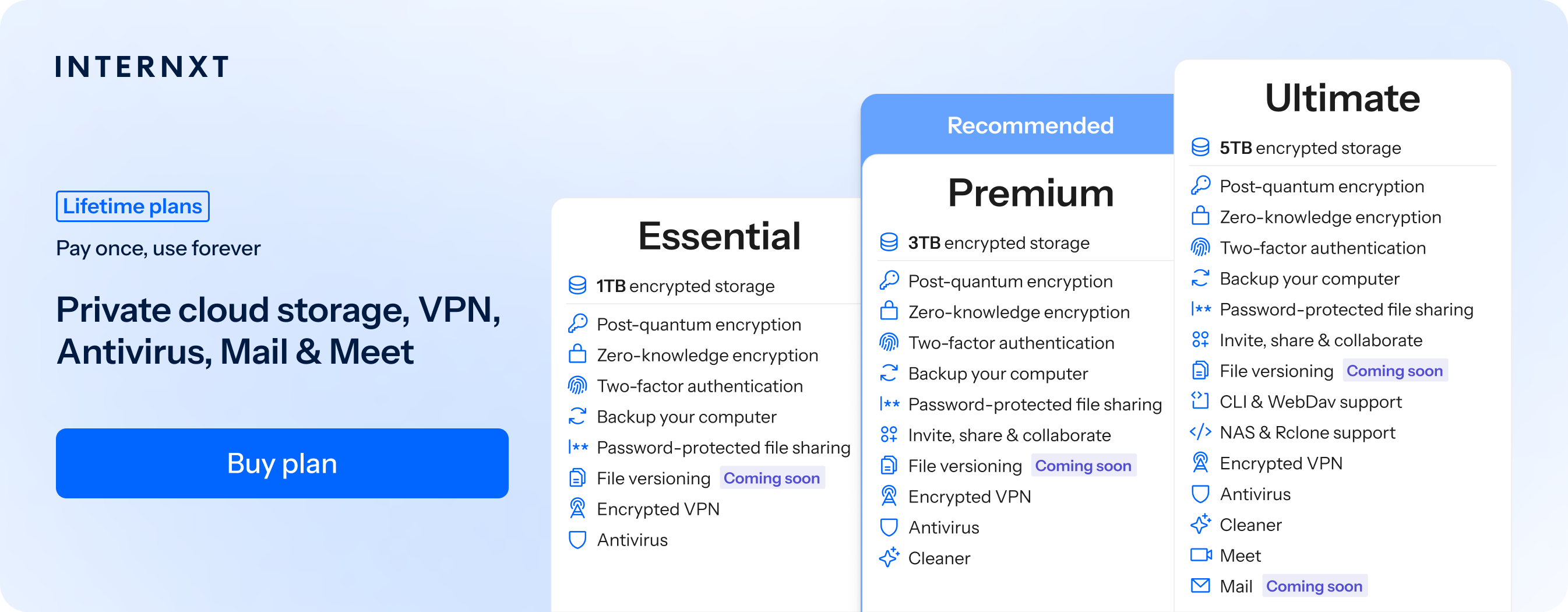
If you want to get started with Internxt, check out the features of our monthly and lifetime cloud storage plans below, and claim your exclusive 85% Internxt discount.
| Plan | Storage | Features | Annual (Paid monthly) | Lifetime Cost |
|---|---|---|---|---|
| Essential | 1TB | €1.99/month | €380 | |
| Premium | 2TB |
|
€3.99/month | €580 |
| Ultimate | 5TB |
|
€5.99/month | €780 |
| *Prices are correct at the time of writing and are subject to change. For latest prices, check https://internxt.com/offerblogen | ||||