
Three Ways to Migrate from Dropbox to OneDrive

This article offers different methods to migrate from Dropbox to OneDrive for business and personal use.
We will also cover what you should consider before migrating your files to avoid data loss, and factors you should consider before transferring your files to make switching from Dropbox to OneDrive as smooth as possible.
Finally, if you want to migrate files outside of Dropbox or OneDrive to another cloud storage provider, we will also explain methods on how to do so, and the advantage of choosing other alternatives to big tech to gain more control over the privacy of your cloud storage.
Table of contents
- Why transfer files from Dropbox to OneDrive
- Three ways to migrate from Dropbox to OneDrive for businesses
- Problems you may face when moving files from Dropbox to OneDrive
- How to migrate Dropbox or OneDrive files to other cloud storage providers
- Why you should migrate Dropbox or OneDrive files to Internxt
- Frequently asked questions
Why transfer files from Dropbox to OneDrive
A Dropbox to OneDrive migration is a valuable process for businesses or personal cloud storage users, as OneDrive provides additional services such as Teams, Outlook, and SharePoint.
If you want a detailed comparison of both services, including prices, features, and storage plans, check out our Dropbox vs OneDrive article.
Three ways to migrate from Dropbox to OneDrive for businesses
The most common ways to transfer files from Dropbox to OneDrive
Below is an overview of how to migrate from Dropbox to OneDrive, which is explained in more detail throughout this article.
Migration method | Advantages |
| Manual download and upload | Simple, free, and suitable for small transfers. |
| Desktop applications | Easy drag-and-drop transfer between synced Dropbox and OneDrive folders. |
| Microsoft Migration Manager | Built-in migration option for organizations moving Dropbox Business data to Microsoft 365. |
| Third-party cloud migration tools | Transfer files directly between cloud services without downloading them to your computer. |
Method 1: For Business Accounts (Microsoft 365 / Dropbox Business)
If you manage an organization, Microsoft offers an integrated tool for this purpose:
- Go to the Microsoft 365 Admin Center.
- Navigate to Settings > Migration and imports and select Dropbox to create a migration project.
- Connect to your Dropbox administrator account with read permissions.
- Scan and assess: Run a pre-migration scan to identify potential issues or file size limits.
- Migrate: Add the folders to the migration list and transfer them to OneDrive or SharePoint.
Method 2: For Personal Accounts (Manual Download and Upload)
If you have a personal account and a moderate amount of data, you can do this directly through your browser:
- Sign in to Dropbox.
- Download the folders or files to your computer (if they are very large, compress them into a .zip file to make the process easier).
- Sign in to OneDrive.
- Click Upload and select the files or unzipped folder from your hard drive.
- Keep the browser tab open until the upload is complete.
Method 3: Synchronization Using the Desktop Applications
- Make sure you have both the Dropbox and OneDrive applications installed on your computer (Windows/Mac).
- Open File Explorer and drag the files directly from your local Dropbox folder into your local OneDrive folder.
- Wait until the icons change to green checkmarks, indicating that the upload to the cloud has been completed.
Problems you may face when moving files from Dropbox to OneDrive
When you migrate from Dropbox to OneDrive can sometimes cause issues that interrupt the migration or prevent files from transferring correctly. Things to check and be aware of before you transfer files from Dropbox to OneDrive are:
- Check that you have the right storage space available
- File size limits (OneDrive has a 250 GB upload limit)
- Preserving file metadata, such as creation dates and modification dates
- Version history, such as original creation dates, modification dates, file ownership, and previous file versions, may be lost depending on the transfer method.
- Create a backup of your important files before starting the migration
- Check file names for unsupported characters, which may not be transferred
How to migrate Dropbox or OneDrive files to other cloud storage providers
As neither Dropbox nor OneDrive use end-to-end encryption for your files, if you need a secure cloud storage solution that encrypts files directly on your device, then migrating your files to a private cloud storage, such as Internxt Drive, will keep your files encrypted so nobody but you can see them.
Both companies are based in the US and keep their source code hidden, so you have to trust that they keep your data secure and that there are no backdoors to your data.
Even so, as neither uses end-to-end encryption, both could still technically access your files, which is why Internxt is the best alternative to OneDrive and Dropbox.
To learn more about Dropbox and OneDrive security and privacy, you can find more information in our is Dropbox safe and is OneDrive safe articles.
How to migrate from Dropbox to Internxt Drive
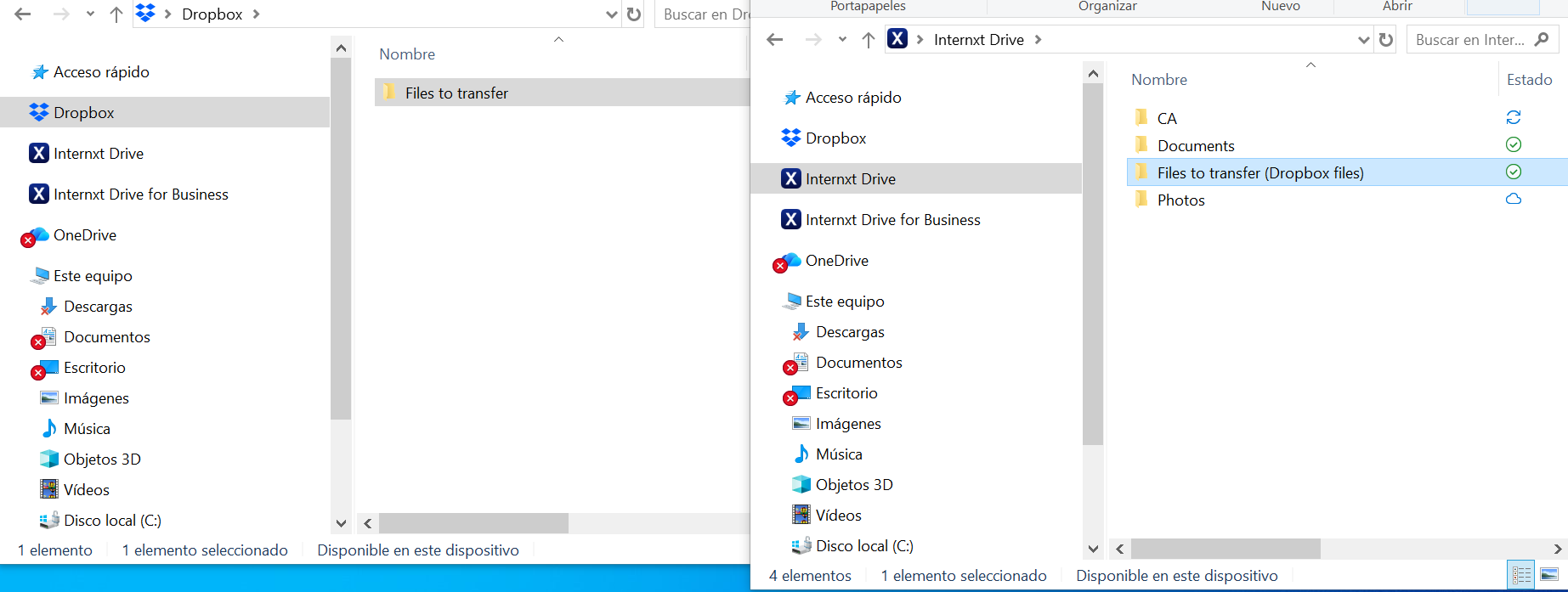
To migrate files from Dropbox to Internxt Drive, you can do so by dragging files from Dropbox into the Internxt web platform, or into any of the Internxt Windows, Mac, or Linux desktop apps, and follow the steps below.
- Download and open the Internxt Drive and Dropbox apps.
2. Select the folders you want to transfer to Internxt Drive
3. Drag and drop the selected folders into the Internxt Drive app.
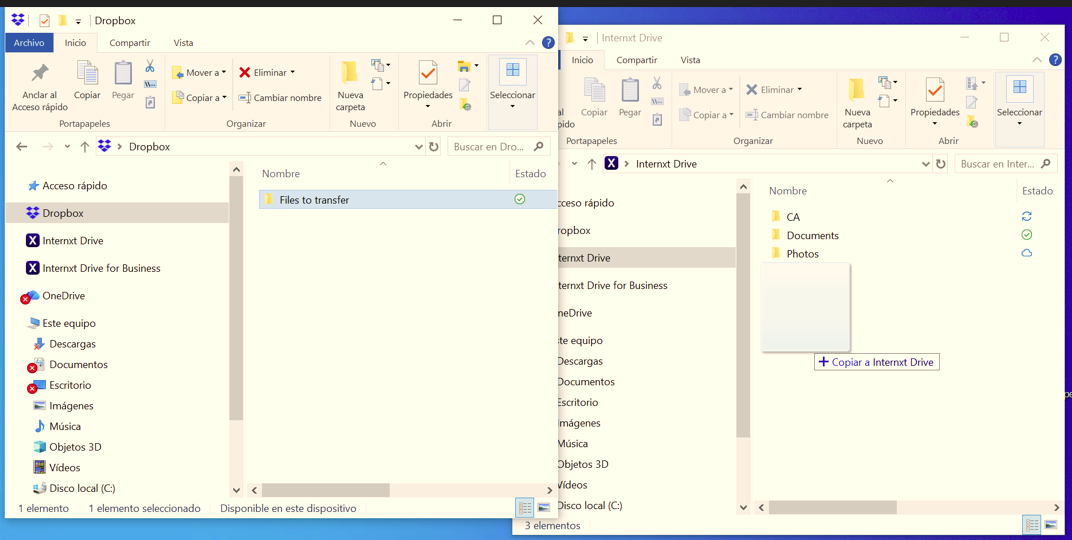
4. Once the upload process is completed, you have successfully migrated your folders to Internxt Drive, and your files will be synced across the mobile and web platforms too.
How to migrate from OneDrive to Internxt Drive
If you choose Internxt as your European alternative to OneDrive, then you can migrate your files from your OneDrive account to Internxt by following these steps.
- Select individual files and folders to download. Ctrl-A selects all folders or all files.
- Click Download.
- When you see Save/save as, fill in the details.
- If you have multiple files or folders, they will download as a zip file.
- Your files and folders will download as a zip file if there are multiple files/folders or contents.
- Once you have your folder, you are ready to upload the contents to Internxt Drive
We also cover how you can migrate your files from Google in our migrate Google Drive to OneDrive article.
Why you should migrate Dropbox or OneDrive files to Internxt
End-to-end encrypted
Internxt secure cloud storage uses post-quantum and zero-knowledge encryption, protecting your files from present and future cybersecurity attacks.
Unlike Dropbox and OneDrive, Internxt encrypts files directly on your device, and only you hold the key, keeping your files private and inaccessible to anyone but you.
Open source and audited
All Internxt products are open source and available for anyone to review, ensuring security protocols stay up to date and there are no backdoors to your data.
Security experts can review the code to ensure there are no vulnerabilities, and Internxt has been fully audited twice to ensure there are no vulnerabilities that could expose your data.
Based in Europe
Internxt is a European cloud storage provider based in Valencia, Spain, and is compliant with GDPR, ISO 27001, SOC 2, and HIPAA, offering full protection no matter what data you store in the cloud.
Full privacy suite
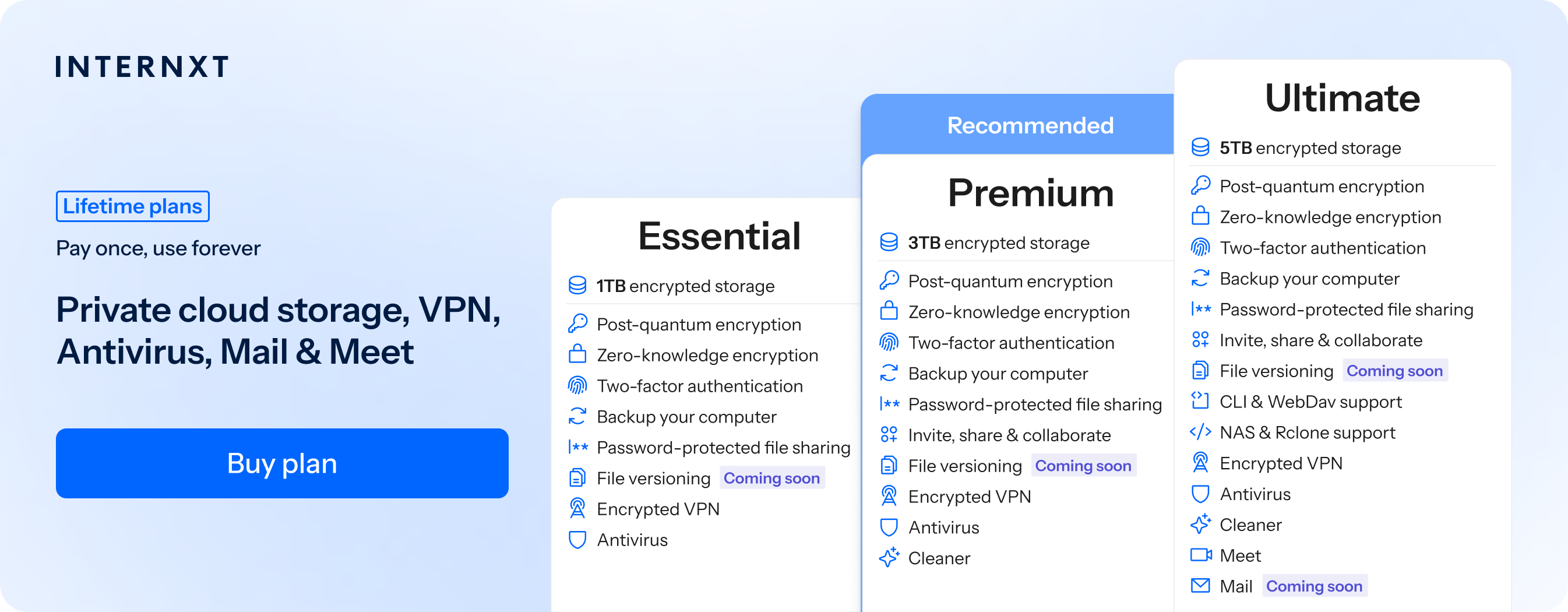
All Internxt plans include backups, antivirus, and a VPN for full online privacy, with advanced features such as native rclone support available. Ultimate plans include everything Internxt has to offer, which includes an encrypted email with Internxt Mail, and automatic photo backups with Internxt Photos.
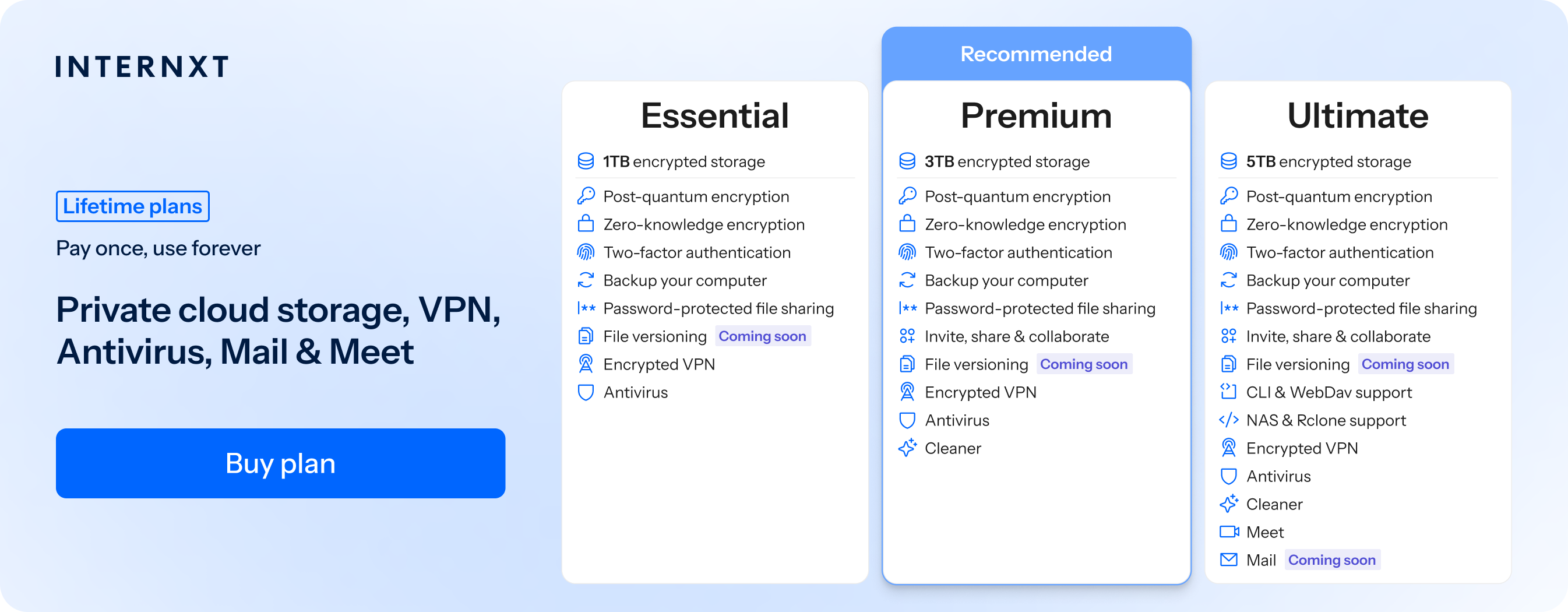
You can get 85% off any Internxt plan using the special offer below, where you can also check the full features of Internxt plans.
| Plan | Storage | Features | Annual (Paid monthly) | Lifetime Cost |
|---|---|---|---|---|
| Essential | 1TB | €1.99/month | €380 | |
| Premium | 2TB |
|
€3.99/month | €580 |
| Ultimate | 5TB |
|
€5.99/month | €780 |
| *Prices are correct at the time of writing and are subject to change. For latest prices, check https://internxt.com/offerblogen | ||||
Frequently asked questions
How do I migrate Dropbox to OneDrive?
You can migrate Dropbox to OneDrive by downloading your files from Dropbox and uploading them to OneDrive, or by using a cloud migration tool to transfer them directly.
How do I move files from Dropbox to OneDrive without losing data?
Use a reliable migration tool or download and upload your files manually. Check that all files have transferred successfully before deleting anything from Dropbox.
Can I transfer files from Dropbox to OneDrive for free?
Yes. You can transfer files from Dropbox to OneDrive for free by downloading files to your computer and uploading them to OneDrive. Free storage limits may apply.
What is the easiest way to transfer files from Dropbox to OneDrive?
Using a cloud-to-cloud migration tool is usually the easiest option because it transfers files directly without requiring you to download them to your computer first.
How long does it take to move files from Dropbox to OneDrive?
Transfer time depends on the amount of data, internet speed, file sizes, and the migration method used.
Can I transfer entire Dropbox folders to OneDrive?
Yes. You can move entire folders while preserving their folder structure using manual uploads or a cloud migration tool.
Will moving files from Dropbox to OneDrive delete them from Dropbox?
No. Transferring files normally creates copies in OneDrive. Your original Dropbox files remain untouched unless you manually delete them or use a migration tool with a move-and-delete option.