
Three Box to Google Drive Migration Methods You Need to Know

This article covers three ways to migrate from Box to Google Drive for personal, business, or enterprise use.
Migrating to Google Cloud can offer a cheaper cloud storage solution, more collaboration features, and more advanced features for teams and enterprises.
With the methods explained in this article, you can choose the best Box to Google Drive migration method to meet your needs. We will also cover how to migrate from Box to other cloud providers, including Internxt, if you want to move your files to an encrypted cloud storage provider.
- Why migrate from Box to Google Drive
- Steps to take before migrating from Box to Google Drive
- What you should know before you migrate from Box to Google Drive
- Box to Google Drive migration methods
- How to migrate from Box to other cloud providers
- Box to Internxt Drive migration
- Box to Google Drive migration: Frequently Asked Questions
Why migrate from Box to Google Drive
Users and organizations migrate from Box to Google Drive for several reasons, including potentially lower subscription costs or a higher free cloud storage plan.
Google Drive also provides built-in document editing through Google Docs, Sheets, and Slides, allowing teams to create, edit, and share files without relying on separate office software.
Its sharing features make it easier to collaborate with external clients and colleagues, while its administrative tools support centralized file management and access control for business plans.
Steps to take before migrating from Box to Google Drive
Before you migrate to Google Drive from Box, there are a few things worth checking before transferring your files, whether you choose to manually upload files or use a Box to Google Drive migration tool.
- Check your total storage usage to determine how much data needs to be transferred.
- Review your existing folders and remove unnecessary files, outdated documents, and duplicates.
- Identify shared folders and files owned by other users that may require additional permissions to download.
- Check whether you have access to all the files you intend to migrate.
- Organize your files and folders to make the migration easier to manage.
- Check for unusually large files and ensure they can be uploaded to your destination account.
- Make sure your internet connection is stable and that your computer has sufficient storage space for the downloaded files.
- Create a backup of important documents before starting the migration.
- Keep your original account active until you have verified that the migration is complete and all files are accessible.
- Keep your files on our device until you verify all files and folders have transferred successfully.
What you should know before you migrate from Box to Google Drive
Here are some useful things to check and be aware of before you start your Box to Google Drive migration, whether it’s for personal, business, or enterprise cloud storage.
- Sharing permissions, file version history, and some metadata may not be transferred.
- For large amounts of data, download files in smaller batches to avoid interrupted downloads and ZIP file size limitations.
- Check that your Google Drive plan has enough storage for all your files before starting the migration.
- Some file formats may behave differently after migration, particularly documents that rely on platform-specific features or integrations.
- Check for unsupported characters, excessively long file names, or deeply nested folders that could cause upload errors.
- Uploading files that already exist in the destination may create duplicates or overwrite existing content, depending on the upload settings.
- Check the destination platform's file-size upload limits before transferring particularly large files.
- Files shared by other users may require additional access permissions before they can be downloaded.
- Downloaded files are temporarily stored on your computer, so ensure your device is secure and delete or back up local copies once the migration has been verified.
- Keep your original account active until you have confirmed that all files have been successfully transferred and are accessible in the destination account.
Box to Google Drive migration methods
Method 1. Download and upload
The manual download-and-upload method is suitable for transferring a small number of files or folders from Box to Google Drive. This method is best if you use Box as your personal cloud provider and don’t want to use a third-party Box-to-Google Drive migration tool.
- Go to the Box website and sign in to your account.
- Select the files or folders you want to transfer. You can select multiple items at once.
- Click Download. Box may package multiple selected files or folders into a ZIP archive.
- Save the download to a location on your computer with enough available disk space, then right-click it and select Extract All (Windows) or double-click it (Mac).
- Once downloaded, log in to Google Drive
- Click + New, then select New folder.
- Open your new Google Drive folder.
- Click + New and select the files or folders extracted from Box.
Important: If you have a large amount of data, download your files in smaller batches rather than downloading everything at once. This helps avoid interrupted downloads and ZIP file size limitations.
Method 2. Box to Google Drive migration tool
A Box to Google Drive migration tool allows you to transfer files from Box to Google Drive without downloading them to your computer first.
The process depends on the tool, but generally works with these steps:
- Open the migration tool and create an account or sign in.
- Connect your source cloud storage account and authorize access.
- Connect your destination cloud storage account and authorize access.
- Select the files and folders you want to migrate.
- Choose the destination folder and review the migration settings.
- Start the migration and monitor the transfer progress.
- Once completed, verify that all files have been transferred successfully.
Method 3. Box to Google Drive enterprise migration
Box to Google Drive migration is managed centrally by an IT administrator using enterprise migration tools. These tools connect both platforms, transfer data between employee accounts, preserve folder structures and, where supported, replicate existing sharing permissions.

For Google Workspace integrations, a service account with domain-wide delegation may be required. This allows the migration tool to access multiple employee accounts on behalf of the organization, without requiring each employee to authorize the transfer individually.
To use the Box to Google Drive migration tool, both plans require a Business or Enterprise plan, which are part of the Box and Google One pricing tiers.
Once complete, the account administrator can monitor the migration, identify failed transfers, and verify that all organizational data has been successfully transferred.
How to migrate from Box to other cloud providers
Migrating between cloud storage is possible, whether it’s Google or any other provider; you just have to choose which method works best for you or your team. If you wish to migrate from Box to other providers, we cover the best ways in the articles below:
Migrating from Box to OneDrive
For other providers, such as Google or OneDrive, we also cover methods to migrate for these services below:
Migrate from Google Drive to OneDrive
Migrate from Dropbox to OneDrive
Migrate from Dropbox to SharePoint
If you want to migrate your files to a secure and encrypted cloud storage platform, then Internxt Drive offers end-to-end post-quantum encrypted cloud storage to offer full privacy of your files.
With Internxt, you get an open-source, European cloud storage provider that protects the privacy of your files and offers a suite of products such as VPN, Internxt Mail, and cloud storage for photo backups.
Find out the steps to migrate from Box or any other cloud provider below.
Box to Internxt Drive migration
To migrate files from Box to Internxt Drive, the easiest way is to follow the first method from this article.
For Google Drive, OneDrive, or Dropbox, you can follow the steps in our help center article.
Once you upload files to Internxt, they are encrypted on your device, in transit, and in our European cloud data centers. With this end-to-end encryption, nobody but you can access your files, as you hold the keys; even Internxt cannot see what you store in the cloud.
This makes Internxt the best alternative to Google Drive and other big tech companies, as they don’t use end-to-end encryption and may access your files or give access to external law enforcement agencies.
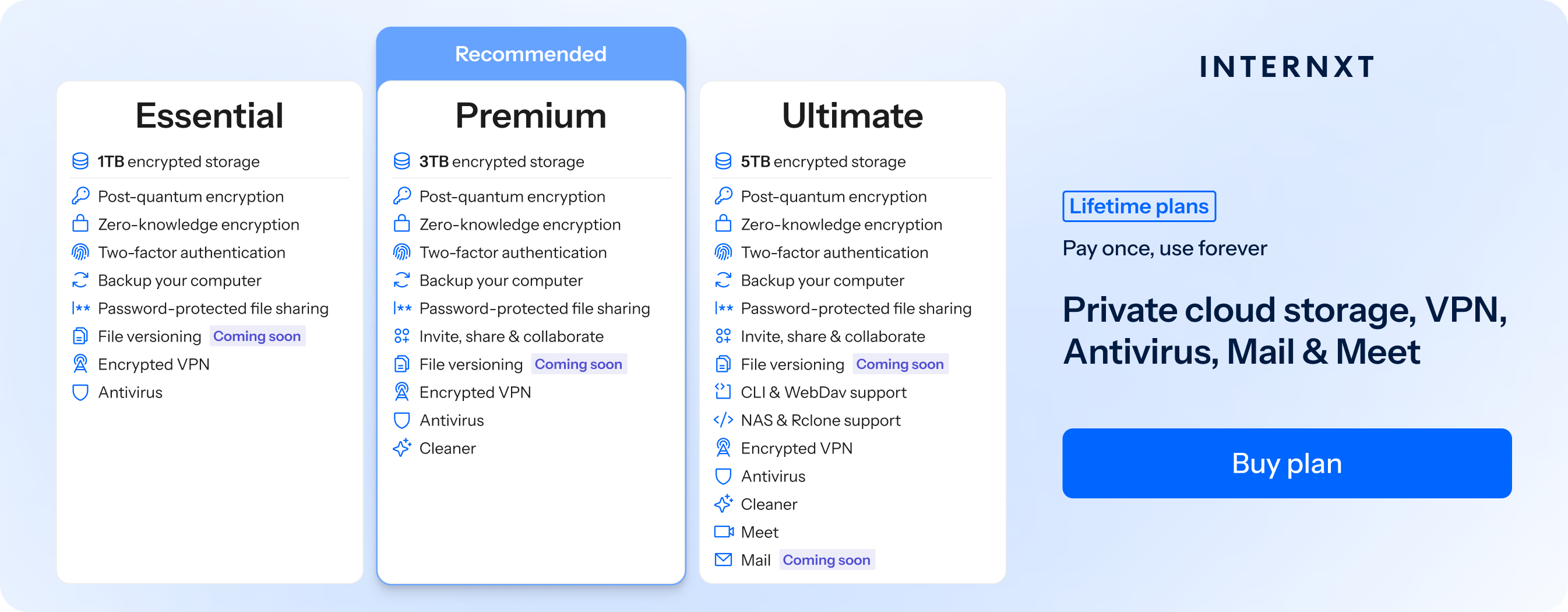
With Internxt, you also get more than just secure cloud storage; paid plans offer backups, VPN, and Antivirus, and for a full privacy suite, Internxt’s Ultimate plan includes Meet, Mail, Photos, WebDAV, Rclone, and NAS support.
You can try Internxt for free, or get started with a monthly or lifetime plan for 85% with the link below, where you can also check the features of Internxt’s Essential, Premium, and Ultimate plans.
| Plan | Storage | Features | Annual (Paid monthly) | Lifetime Cost |
|---|---|---|---|---|
| Essential | 1TB | €1.99/month | €380 | |
| Premium | 2TB |
|
€3.99/month | €580 |
| Ultimate | 5TB |
|
€5.99/month | €780 |
| *Prices are correct at the time of writing and are subject to change. For latest prices, check https://internxt.com/offerblogen | ||||
Box to Google Drive migration: Frequently Asked Questions
How do I migrate files from Box to Google Drive?
You can migrate files from Box to Google Drive using three main methods: manually downloading and uploading files, using a third-party cloud migration tool, or using an enterprise migration solution for organizations. The best method depends on how much data you need to transfer and whether you are migrating personal or business accounts.
Can I transfer files from Box to Google Drive without downloading them?
Yes. You can use a cloud-to-cloud migration tool to transfer files directly between the two platforms without downloading them to your computer.
Does migrating from Box to Google Drive preserve folder structures?
Yes, folder structures can generally be preserved when migrating files from Box to Google Drive. However, the results depend on the migration method and tool used.
Will my Box sharing permissions and file version history transfer to Google Drive?
Sharing permissions, previous file versions, comments, and certain metadata may not transfer automatically. You may need to recreate sharing permissions and manually transfer important file versions.
How long does it take to migrate from Box to Google Drive?
Migration time depends on the total amount of data, internet connection speed, file sizes, number of files, and migration method. Smaller personal migrations may take minutes or hours, while large business and enterprise migrations can take several days or longer.
Can I migrate files from Box to another cloud storage provider?
Yes. You can migrate files from Box to other cloud storage providers using manual download and upload methods or compatible cloud-to-cloud migration tools.
If privacy and encryption are priorities, you can also transfer your files to an end-to-end encrypted cloud storage provider such as Internxt.