
How to move photos to cloud storage easily, securely, and privately


If you have a large collection of photos you don’t know what to do with, and need a fast, efficient way to store and keep your memories protected, then cloud storage may be the option for you.
Moving your photos to cloud storage is a simple way to store, back up, and manage your photo library without relying only on your phone, computer, or physical storage devices. But how do you move photos to the cloud, do your photos automatically get backed up, and how much cloud storage do you actually need?
This guide explains how to move photos to cloud storage securely and privately, how automatic backups work, and the best ways to store your photos for the long term.
Table of contents
Why people choose cloud storage for their photos
Cloud storage offers many benefits for your photos, from keeping backups of your memories and sharing with friends to keeping your memories safe. Below are the top reasons people choose cloud storage to save their photos online.
Access your photos from anywhere
Cloud storage lets you access your photos from your phone, computer, or other devices wherever you have an internet connection.
Look for cloud storage that offers support for multiple platforms, such as Windows, Mac, Linux, iOS, and Android. If you only use your cloud storage on your phone to store your photos, then check if it has automatic backup features to keep photos protected from data loss.
Free up device storage
Taking photos from your phone can quickly use up your cloud or device storage, especially if they are being backed up without you knowing. If you use Google Photos, for example, you may want to check how to stop Google Photos backup to free up storage space.
When you move photos to the cloud, it helps free up space on your device and can help improve device performance as a result.
Automatic backups and data protection
Many cloud storage services can automatically back up new photos, such as Internxt Photos, the best alternative to Google Photos for encrypted cloud storage and backups.
Automatic backups reduce the risk of losing your important memories, and even if your device is lost or stolen, your photos remain accessible in the cloud.
Easy photo sharing
Cloud storage makes it simple to share private photos with family, friends, or colleagues without sending large files directly.
Store large photo libraries
Cloud storage provides additional space for growing photo collections, which you can organize into folders and albums to make large photo libraries easier to manage.
This is especially useful for cloud storage for photographers, as higher storage plans allow for high-resolution images and RAW files to be stored in the cloud without using up the device storage.
Benefits of moving your photos to cloud storage
Reduced reliance on physical devices
USBs or hard drives can become corrupted, lost, or stolen, and if you didn’t encrypt your hard drive, someone with access to it could access your private photos.
Storing your photos in the cloud means you gain extra security and privacy, and can access photos from anywhere without having to bring your own device wherever you go to view your photos.
Search and find photos faster
Many cloud photo services can search by dates, locations, people, objects, or keywords, so you can find a specific photo without manually looking through hundreds or thousands of files.
Archive your memories
Cloud storage lets you archive your memories so you can free up your cloud storage for new photos and keep old memories backed up in the cloud and accessible whenever you need them.
How to move photos to cloud storage
Below, you can find out how to move photos to cloud storage with the Internxt app for iOS, Android, and Desktop.
iPhone and Android
- Open the Internxt app
- Give the app permission to access your photos
- Select the photos you want to upload, or take a picture and upload it to Internxt
- Tap the upload or backup option
- Wait for the upload to finish
- Check your cloud storage to confirm your photos uploaded successfully
Desktop
To manually back up your photos, or to store photos in the cloud with Internxt Drive so they sync across your devices, follow these steps.
- Go to internxt.com/drive and download the app for Windows, Mac, or Linux
- Sign in to your account.
- Select the folder containing the photos you want to move.
- Upload the photos or drag them into your cloud storage folder.
- Wait for the files to finish uploading and syncing.
- Open your cloud storage and verify that the photos are available.
To back up your photos in the Internxt app, select the “Backups” option from the app, and select the folder of the photos you want to back up.
How to move photos to cloud storage from Google
If you want a more private Google Drive or Google Photos alternative, then you can migrate your photos from Google Drive via the Google Takeout option. Once you choose the photos, Google will email you a link to your photos, which you can download and upload to your preferred Google Drive alternative.
To learn more about the privacy and security of your photos in Google Drive, and why you may want to move your photos to another cloud storage, visit our is Google Drive safe for private photos article.
Do my photos automatically go to the cloud?
No, your photos do not automatically get stored in the cloud unless you turn on automatic syncing and backups. If automatic backup is disabled, your photos remain stored on your device until you manually upload them to a cloud service.

What is the best way to store photos?
If you want additional protection for your files, there are other methods to keep your photos safe, from USBs to NAS cloud backups; each has its advantages and disadvantages, which you can see below.
| Storage method | Best for | Advantages | Disadvantages |
|---|---|---|---|
| Cloud storage | Convenient backups | Accessible anywhere | Subscription/storage limits |
| External HDD | Large libraries | Affordable capacity | Can fail or be damaged |
| SSD | Fast local storage | Fast and portable | More expensive |
| NAS | Home photo libraries | Control and redundancy | More complicated for beginners |
| USB drive | Small backups | Portable | Easy to lose/damage |
How much cloud storage do you need for photos?
For basic family use, 100 GB to 200 GB is usually enough for several years of photos, especially if you mainly store phone photos and do not keep large amounts of video.
For hobby photographers, 500 GB to 2 TB is a better range. RAW files, high-resolution images, and larger photo collections can quickly require more space than a typical phone photo library.
For professional photographers, 2 TB to 10 TB or more may be appropriate. Professionals often need to store RAW files, edited versions, client galleries, and project archives, so storage needs can grow significantly over time.
For enterprise use, storage requirements can reach tens or hundreds of terabytes, or even petabytes, depending on the number of users, projects, files, and retention requirements. Businesses should also consider scalability, access controls, redundancy, and backup policies when choosing storage capacity.
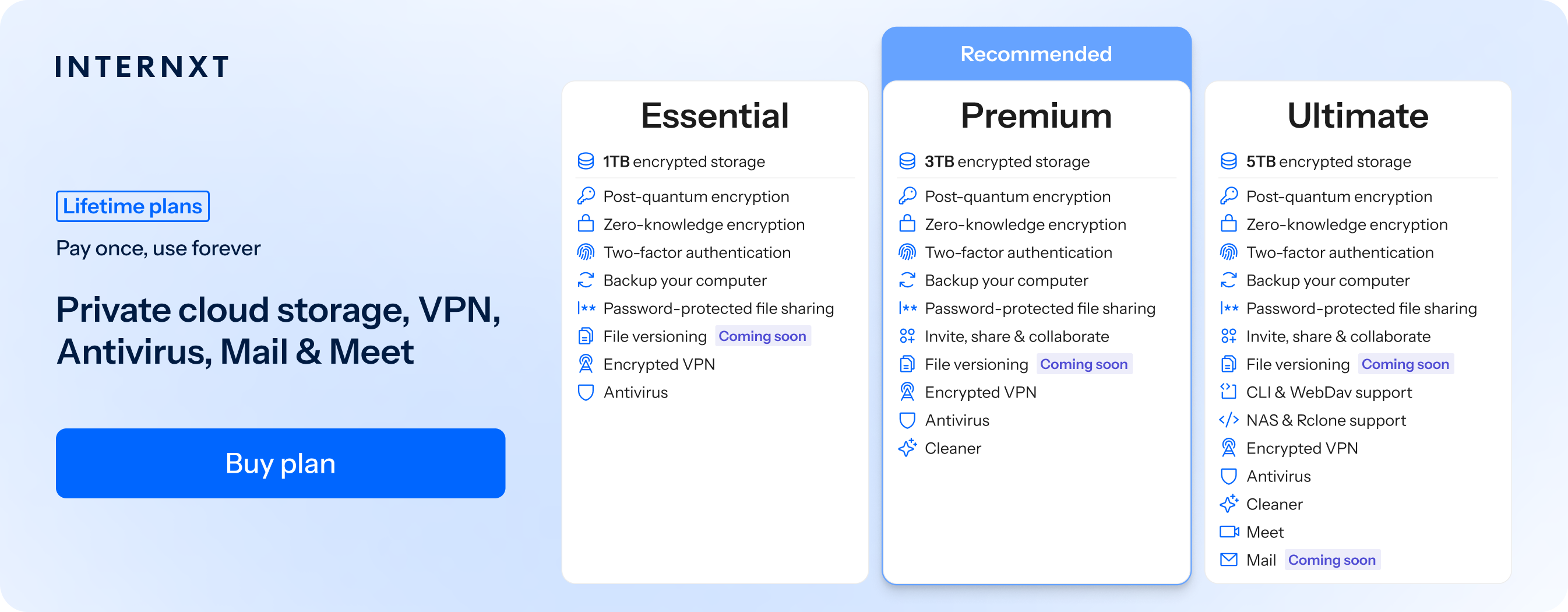
Internxt Drive offers encrypted cloud storage for Photos to meet all these needs, with 1TB, 3TB, and 5TB plans available. If you purchase a lifetime cloud storage plan, you can stack these to meet your needs in the future if your photo collection continues to grow.
Internxt plans are enough to store the following amount of photos, depending on the format.
| Photo format | Typical file size | 1 TB | 3 TB | 5 TB |
|---|---|---|---|---|
| JPEG | ~5 MB | ~200,000 photos | ~600,000 photos | ~1,000,000 photos |
| HEIC | ~3 MB | ~333,000 photos | ~1,000,000 photos | ~1,667,000 photos |
| PNG | ~10 MB | ~100,000 photos | ~300,000 photos | ~500,000 photos |
| RAW | ~25 MB | ~40,000 photos | ~120,000 photos | ~200,000 photos |
| TIFF | ~50 MB | ~20,000 photos | ~60,000 photos | ~100,000 photos |
Internxt also offers Internxt S3, a cloud object storage solution for enterprises where you pay a fixed fee of €7/TB/month, with no data transfer costs and no limit on the amount of storage you can buy, so it’s the perfect option for enterprises that need to store large amounts of data.

What is the best cloud storage for photos?
Internxt Drive and Internxt Photos offer end-to-end encrypted cloud storage with Drive and backups with Internxt Photos.
Internxt also includes secure file transfer with Internxt Send, so you can send large files securely via the internet for free and as many times as you like.
Aside from offering the best cloud storage for photos, Internxt plans include everything you need to stay secure online and protect your privacy with its Essential, Premium, and Ultimate plans, which you can view below.
Choose from any plan to store, share, and secure your photos by clicking this link to get 85% off all plans.
| Plan | Storage | Features | Annual (Paid monthly) | Lifetime Cost |
|---|---|---|---|---|
| Essential | 1TB | €1.99/month | €380 | |
| Premium | 3TB |
|
€3.99/month | €580 |
| Ultimate | 5TB |
|
€5.99/month | €780 |
| *Prices are correct at the time of writing and are subject to change. For latest prices, check https://internxt.com/pricing | ||||
Related products

Frequently asked questions
How to keep photos safe in cloud storage
To keep your photos safe, keep backups of important memories, and ensure your account is protected with a strong password and 2FA enabled. When you share photos, make sure you have the right privacy permissions available to prevent unauthorized access.
What is the best way to store photos for the long term?
The best long-term approach is to keep multiple copies in different places: one on your computer or NAS, one on an external hard drive, and one with Internxt Drive and Photos. Ideally, follow the 3-2-1 rule: three copies, on two different types of storage, with one copy kept off-site. Check the backups periodically and replace aging drives every few years.
Will moving photos to the cloud delete them from my device?
Usually, uploading photos to cloud storage does not delete the originals from your phone or computer. If you back up your photos with Internxt Photos, you can safely delete the photos from your local storage, and they will remain in the cloud.