
How to Stop Google Photos Backup and Protect Your Cloud Storage

For Android users, all the photos you take are automatically backed up into Google Photos; the same goes if you have Google Photos on iOS or your desktop devices.
But what if you don’t want to automatically back up your Google Photos?
Or what if you no longer want to be a part of Google’s business model that profits from your data?
Luckily, this article gives you an easy and step-by-step guide on how to stop Google Photos backup, and why Internxt is the perfect alternative to Google that respects the privacy of your photos and your data.
Table of Contents
What is Google Photos backup?
Google Photos backup is included in the app and automatically uploads your photos and videos from your phone or tablet to your Google Photos account. Once enabled, new photos and videos are backed up automatically over Wi-Fi or mobile data, depending on your settings.
Backed-up photos and videos count toward your Google One plan, so 15GB if you use Google’s free cloud storage, or up to 2TB. Google Photos backup is shared across Google Photos, Google Drive, and Gmail.
The advantages of cloud storage backups mean you can access your files from any device signed in to your Google account, and you can restore your files in case of accidental deletion, lost device, or if your device becomes compromised by ransomware.
Why people turn off Google Photos backup
Turning off your Google Photos backup can have its advantages, one of the main ones being privacy.
When Google Photos backup is enabled, your photos and videos are automatically uploaded to Google's cloud servers, and as Google manages your encryption keys, they could potentially access your photos stored in its servers.
If you want your photos backed up with end-to-end encryption, then Internxt Drive encrypted cloud storage and Internxt Photos offer post-quantum encryption, ensuring nobody but you can access your backed-up photos.

Other reasons include:
- Storage limits: Backups in Google Photos, so disabling it can avoid cloud storage full messages.
- Reduce mobile data usage: Uploading large photos and videos can quickly consume your monthly data allowance.
- Battery life: Backing up photos can increase battery consumption, especially when backing up large albums.
- Backups are stored in another cloud: This helps avoid duplicate uploads, saves cloud storage space, and ensures new photos are only backed up by services like Internxt that respect user privacy.
What happens when you turn off Google Photos backup?
Before we learn how to stop Google Photos backup, we should know what happens to your photos in the cloud when backups are turned off.
Once turned off, Google Photos will update your settings with the following changes:
- Photos already backed up remain in Google Photos.
- New photos and videos stop uploading.
- Photos stay on the device unless manually deleted.
- Difference between disabling backup and deleting photos.
How to stop Google Photos backup on Android and iOS
If you want to disable Google Photos backup on Android and iOS, you can turn off Backup in the app's settings. This stops any new photos or videos from being uploaded, but it doesn't delete the files that have already been backed up to your Google account.
- Open the Google Photos app on your Android device.
- Tap your profile picture or initials in the top-right corner.
- Tap Photos settings.
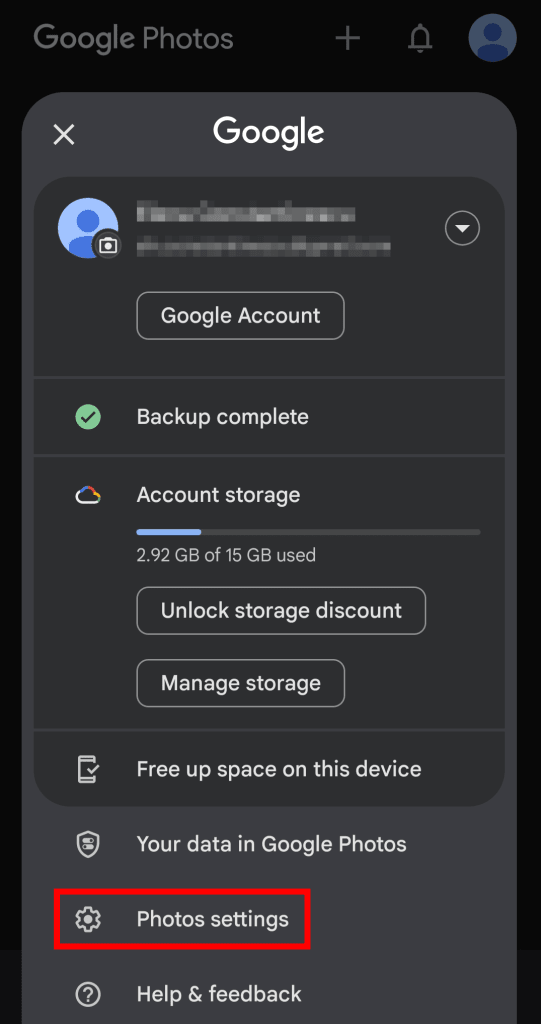
- Tap Backup.
- Turn off the Backup toggle.
How to disable Google Photos backup on Windows and Mac
To turn off Google Photos backup on your desktop, follow these steps:
- Open Google Drive for desktop on your Windows PC or Mac.
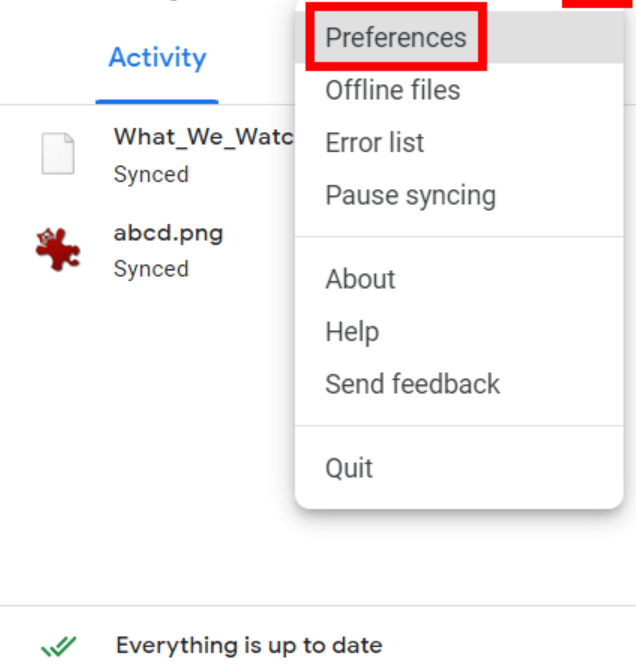
- Click the Google Drive icon in the system tray (Windows) or menu bar (Mac).
- Click the Settings icon, then select Preferences.
- In Google Photos, click a folder to open its settings.
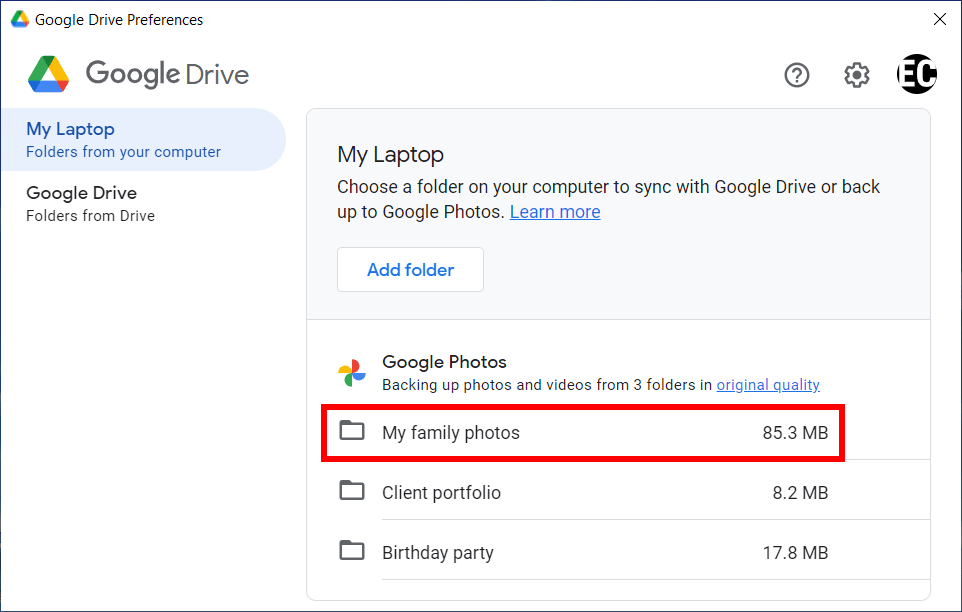
- Turn off Back up to Google Photos or remove the folder from backup.
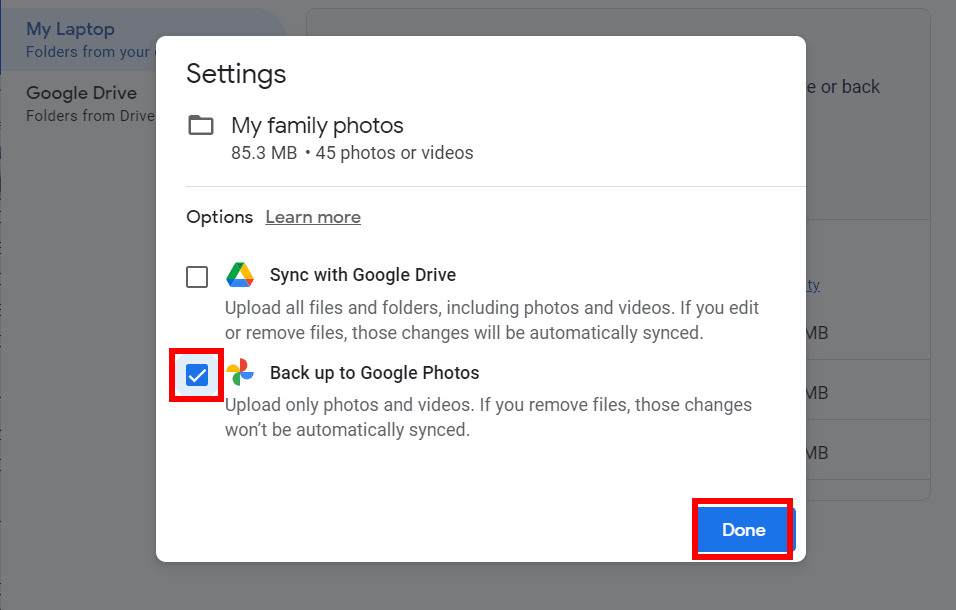
- Click Done and Stop backing up to save your changes.
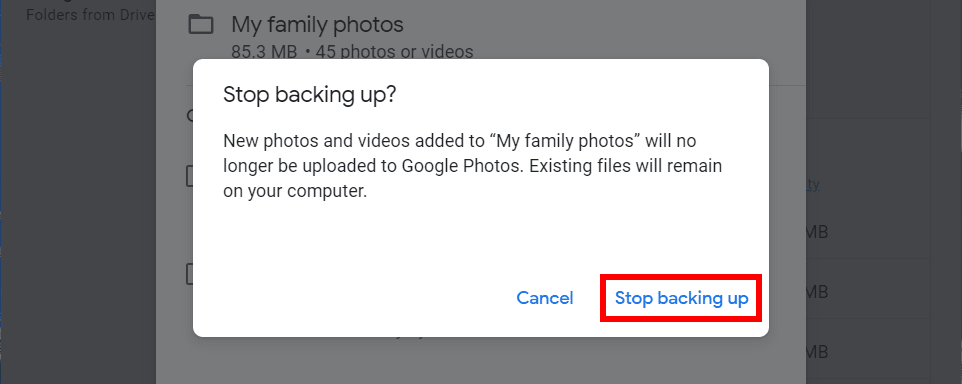
After doing this, new photos and videos from your computer will no longer be uploaded to Google Photos.
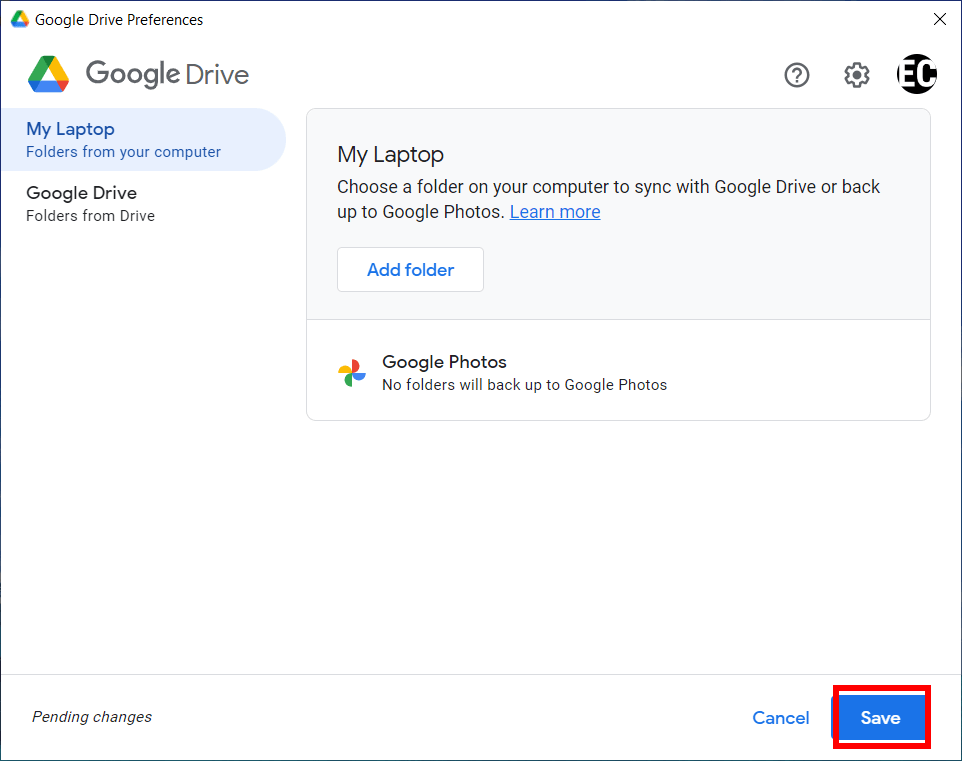
- Repeat steps 3–5 for each folder listed on Google Photos.
- Click Save to apply your changes.
Why should you stop Google Photos backup?
Google has paid hundreds of millions in GDPR fines due to breaches in privacy laws, including a €10 million fine for passing identifying information of people who requested deletion to third parties without consent.
With the increased integration of Gemini AI, which analyzes your photos for advanced facial recognition, including identifying people who may not use Google. This means Google can learn more about where you live, work, and other private information about your personal life.
Google Photos and Google Drive encryption is not end-to-end encrypted for your photos, folders, or your metadata, which means the privacy of your folders and personal information is all available for Google to see.
It’s also concerning that, due to Google’s lack of transparency as a closed-source service, we have no way of knowing what other methods Google or Gemini AI use that could be a breach of our privacy.
Alternatives to Google Photos
Internxt Drive
Internxt Drive is an open-source, European cloud storage with zero-knowledge encryption to store and back up your photos in total privacy.
As a private alternative to Google Photos, Internxt offers end-to-end encrypted cloud storage that means nobody but you, not even Internxt, can view your Photos, or any other files, as only you hold the decryption key.
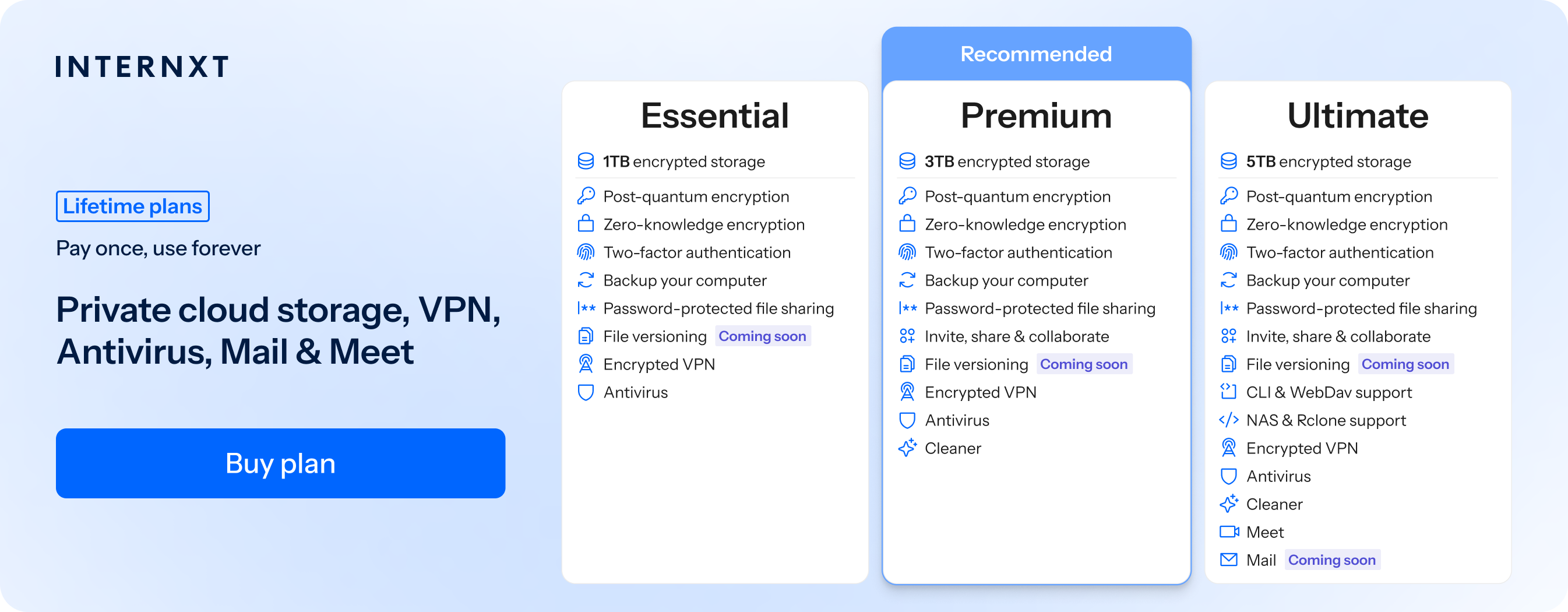
Internxt paid plans also offer alternatives to Google’s products so you can fully deGoogle your life, including:
- Internxt Meet: private video calling and an alternative to Google Meet
- Internxt Mail: alternative to Gmail
For the full list of Internxt’s features, check out our plans below or view the full pricing and get 85% off all Internxt plans.
| Plan | Storage | Features | Annual (Paid monthly) | Lifetime Cost |
|---|---|---|---|---|
| Essential | 1TB | €1.99/month | €380 | |
| Premium | 3TB |
|
€3.99/month | €580 |
| Ultimate | 5TB |
|
€5.99/month | €780 |
| *Prices are correct at the time of writing and are subject to change. For latest prices, check https://internxt.com/pricing | ||||
Internxt Photos
Internxt also offers end-to-end encrypted backups with Internxt Photos to sync and backup files to keep your memories updated, accessible wherever you are, and protected from data loss.
Internxt Photos offers a completely ad-free experience, free from the data tracking and AI of Google Photos to ensure your photos remain yours, private, and secure.
Photos is included in the Internxt Ultimate plan, which also includes NAS cloud backup support if you need extra backup for your photos on your QNAP or Synology device.
You can test Internxt for free, or if you’re ready to make the switch from Google, claim your 85% discount below!
Related products
Frequently asked questions
How to stop Google Photos from backing up?
Open the Google Photos app, tap your profile picture, go to Photos settings > Backup, and turn off the Backup toggle. This stops new photos and videos from being uploaded to your Google Photos account.
Does turning off Google Photos backup delete my photos?
No. Turning off backup only stops future uploads. Photos already stored in Google Photos and those saved on your device remain unchanged.
Can I stop backing up only certain folders?
Yes. On Android, open Photos settings > Backup > Back up device folders, then turn off backup for any folders you don't want to upload, such as Screenshots or WhatsApp Images.
How do I stop Google Photos from using mobile data?
Open Google Photos, go to Photos settings > Backup > Mobile data usage, and disable mobile data backup. Photos and videos will then only back up over Wi-Fi.
Why is Google Photos still backing up after I turned it off?
Check that Backup is disabled on every device using your Google Account. If uploads are still in progress, Google Photos may be finishing files that were queued before you turned backup off.
Can I pause Google Photos backup?
Google Photos doesn't have a dedicated pause option. You can temporarily stop uploads by turning off Backup and re-enabling it when you're ready.
How do I delete backed-up photos without deleting them from my phone?
Turn off Google Photos backup and disable sync on all devices using the same Google Account before deleting photos from Google Photos. Otherwise, the photos may also be removed from your device.
What's the difference between Sync and Backup in Google Photos?
Backup uploads your photos and videos from your device to your Google Photos account. Sync keeps changes, such as edits or deletions, consistent across devices signed in to the same Google Account.