
Is a Google Drive Encrypted Folder Really Private?

Learn how Google Drive encryption works, whether you can password protect Google Docs, and how to encrypt Google Drive files and folders for extra security.
If you’re interested in encrypting or getting more privacy for your cloud storage with a Google Drive encrypted folder, then there are methods to encrypt files before uploading them to Google, or to password-protect a Google Doc.
Google Drive does come with secure encryption, but not end-to-end encryption, so they manage the encryption keys on its serves, which could potentially be accessed by law enforcement or Google employees.
Next, if you’re wondering how you can password protect a Google Doc, unfortunately Google only offers file-restricted features, and not native password protection in the Google suite.
Nevertheless, this article will cover methods for creating a Google Drive encrypted folder, password protection, and cloud storage with end-to-end encryption and password protection features if you are looking for a more private Google Drive alternative.
Table of contents
- Does Google Drive have built-in encryption?
- Can you password-protect a Google Doc?
- How to password protect Google Docs and Google Drive files
- How to create an encrypted folder in Google Drive
- Google Drive encrypted folder vs password protection: What's the difference?
- Best practices for securing sensitive Google Drive files
- An alternative to creating a Google Drive encrypted folder
Does Google Drive have built-in encryption?
Yes, but files are not encrypted on your devices; instead, Google Drive protects files using encryption both while data is being transferred (in transit) and while it is stored (at rest) on Google’s servers.
Encryption keys are managed on Google’s servers, so confidential or private documents you store with the service don’t benefit from the same privacy as end-to-end encryption, where files are encrypted and keys are managed on your device, so nobody but you can access them.
If you want a Google Drive encrypted folder for your account, you would have to use third-party tools or choose cloud storage with zero-knowledge encryption, all of which we cover later in this article.
If you're an avid Docs and Sheets users with Google, but want more privacy for your files, then we offer different services you can try in our best alternative to Google Sheets and best alternative to Google Docs articles.
Can you password-protect a Google Doc?
No, you cannot password-protect a native Google Docs or Sheets file, as they do not have a built-in password feature; instead, you have to choose alternatives that offer password protection.
Google doesn't offer password protection for documents or spreadsheets in Google Drive because it relies on Google account authentication and access permissions instead of file-level passwords.
This approach supports collaboration, centralized access management, auditing, and recovery, while avoiding the usability and security issues that come with managing separate passwords for individual files.
For files that require password protection, Google expects users to encrypt them before uploading or use third-party tools rather than providing built-in password protection.
How to password protect Google Docs and Google Drive files
If you want to password-protect a Google Doc or encrypt a Google Drive file, your options are:
- Restrict access, limit editors and viewers, and remove download, print, and copy permissions.
- Download the document as a PDF or Word file and add password protection.
- Encrypt the file before uploading it to Google Drive using third-party encryption apps like Cryptomator.
Alternatively, you can use cloud storage with password-protected file sharing and end-to-end encryption, like Internxt, file sharing services, or password-protected archive tools like 7-Zip.
How to create an encrypted folder in Google Drive
Create an encrypted archive (ZIP/7z)
An encrypted archive combines one or more files into a single compressed file that is protected with a password. Anyone who wants to access the files or open the archive must enter the correct password.
This is one of the simplest and most widely supported ways to protect files before uploading them to Google Drive.
Use third-party encryption software
Third-party encryption software creates secure encrypted storage that encrypts your files on your device before uploading them to the cloud.
Tools like Cryptomator integrate with cloud storage that doesn’t use end-to-end encryption, like Google, Dropbox, or OneDrive, and create an encrypted vault in your account to ensure not even the cloud provider can access your files.
End-to-end encrypted cloud storage
An end-to-end encrypted (E2EE) cloud storage service automatically encrypts your files on your device before they are uploaded to the cloud.
Only you and anyone you explicitly authorize can decrypt and access your data. Unlike Google Drive, the cloud provider cannot read your files because it never has access to your encryption keys.
Some providers, like pCloud or Icedrive, offer zero-knowledge encryption as a paid add-on. Internxt Drive, however, includes end-to-end encryption with all plans, with the added benefit of being the first cloud storage with post-quantum cryptography.
Internxt encrypted cloud storage ensures only you and those you share your files with can access them, as you manage the encryption keys; it's impossible for Internxt, or anyone else, to access your folders, making it a more private and secure alternative to Google Drive encryption.
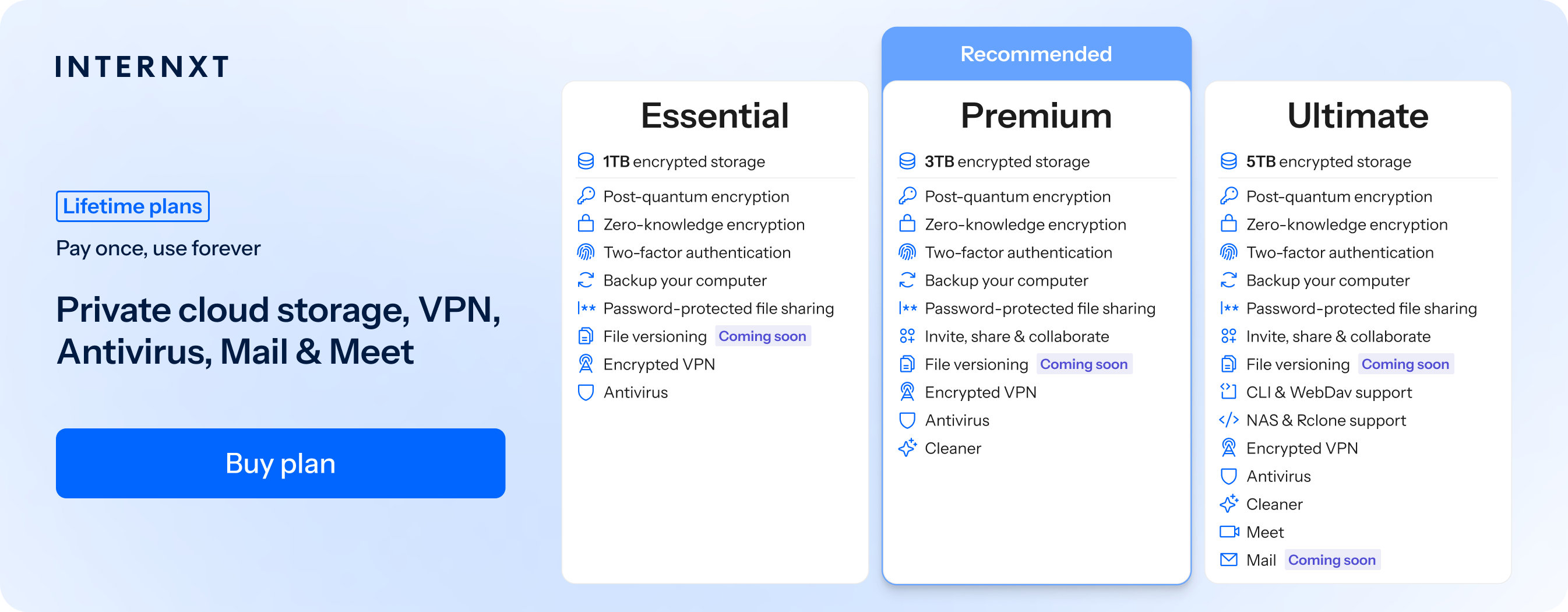
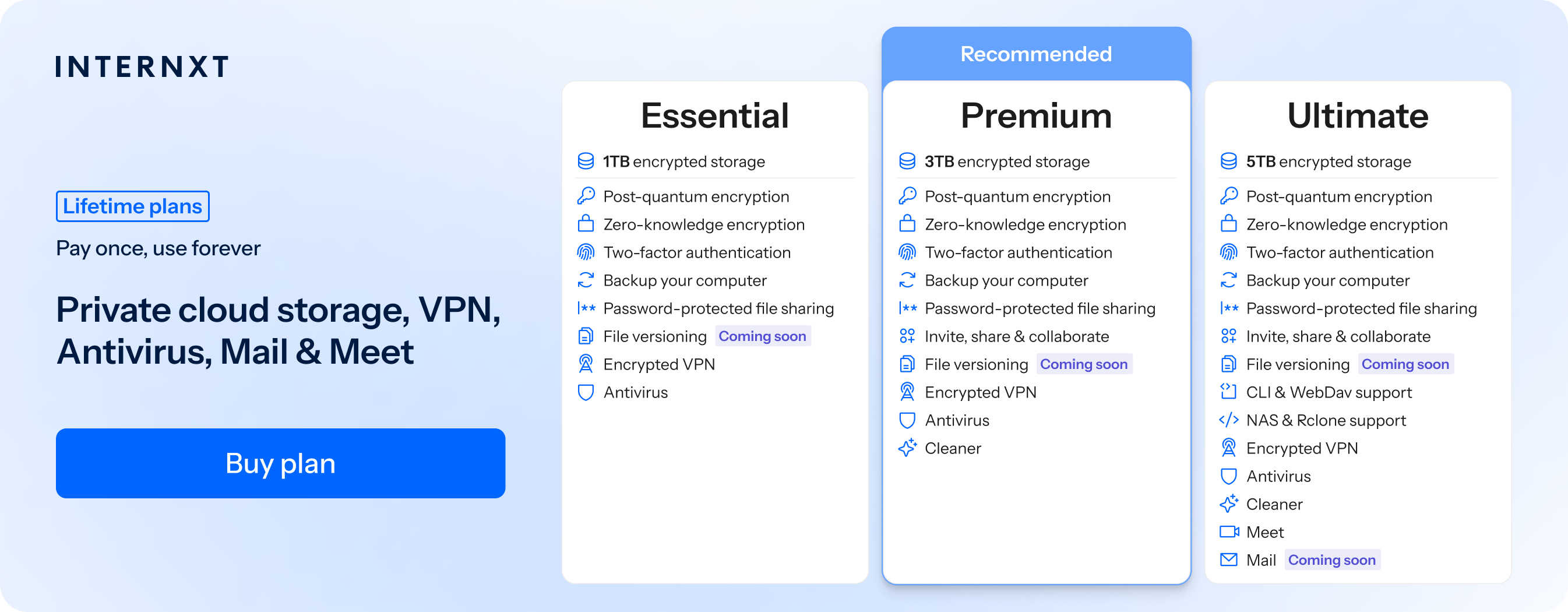
Internxt Drive also includes password protection for files, so if you want more private encryption, secure file sharing, and a range of products such as Mail, Meet, and advanced cloud management like NAS and Rclone support, you can get 85% off all Internxt plans and check out the full Internxt product suite below.
Google Drive encrypted folder vs password protection: What's the difference?
Encryption and password protection are two security measures with different purposes. Encryption protects your data from unauthorized access during storage and transfer, while password protection restricts who can open a specific file.
| Feature | Google Drive Encryption | Password Protection |
|---|---|---|
| Protects files from server threats | ✅ | ✅ |
| User-controlled password | ❌ | ✅ |
| Protects shared files | Limited | ✅ |
| Works offline | ❌ | ✅ |
| Individual file security | Limited | ✅ |
Google Drive encryption protects your files while they're stored on Google's servers and when they're being transferred over the internet. Google manages these encryption keys, so it can decrypt your files when necessary to provide its services.
Password protection adds an extra password that must be entered before a file can be opened, regardless of where it's stored. Google Drive doesn't offer this feature for individual files, and so any of the alternative methods featured in this article is the only way to password protect Google Doc files.
Best practices for securing sensitive Google Drive files
If you’re less concerned about how to password protect Google Docs and want to improve your Google Drive security, then follow these steps:
- Enable two-factor authentication: Turn on two-factor authentication (2FA) for an additional security method to prevent access to your account even if someone knows your password.
- Use strong passwords: Create a unique password or passphrase that is long, random, and not used for any other account.
- Review sharing permissions: Periodically check who has access to your files and folders, and remove anyone who no longer needs access.
- Avoid public links: Only share files with specific people instead of creating links that anyone can access to prevent confidential files from being accessed by unauthorized people.
- Encrypt confidential files: Encrypt sensitive files before uploading them to Google Drive, or store them in an alternative to Google that encrypts files on your device, like Internxt Drive.
An alternative to creating a Google Drive encrypted folder
A Google Drive encrypted folder is possible, but only if you choose alternative services, and isn’t the default if you want to encrypt Google Drive files.
For full end-to-end encryption, Internxt Drive offers secure cloud storage, backups, and password protection for your files, offering you a private space in the cloud where only you can access your files.
All plans come with post-quantum and zero-knowledge encryption included, so you get maximum privacy regardless of whether you’re using free cloud storage or a paid plan.
Below you can see an overview comparing Google Drive encryption compared to Internxt Drive.
| Feature | Internxt Drive | Google Drive |
|---|---|---|
| Encryption | AES-256 & Kyber 512 | AES-256 (in transit & at rest) |
| End-to-end encryption | ✅ | ❌ |
| Open source | ✅ | ❌ |
| Password protection | ✅ | ❌ |
| Privacy laws | Europe | United States |
| Can access your files | ❌ | ✅ |
Aside from offering a Google Drive alternative, Internxt also includes alternatives to Google’s products to help you move towards full online privacy by degoogling your life with these products:
- Internxt Meet: encrypted and private video calling
- Internxt Mail: secure and encrypted emails
- Internxt Photos: private cloud storage for photos
Additional products include Internxt VPN, Antivirus, and Cleaner, offering a comprehensive privacy suite with the best encryption, privacy, and pricing guaranteed.
If you already have a Google account, not to worry; you can migrate your Google storage to Internxt Drive easily by following our step-by-step guide in the article below.
Get started for free, or claim 85% off all monthly or lifetime plans below.
Frequently Asked Questions
Can you password protect a Google Doc?
No. Google Docs does not support password protection for individual documents. Instead, Google controls access through account sign-in and sharing permissions. If you need password protection, you must encrypt the document before uploading it, use a third-party encryption tool, or use cloud storage with password protection features, like Internxt.
How do I encrypt a Google Drive file?
Google Drive automatically encrypts files when they are uploaded and stored, so you don't need to encrypt them manually for basic protection. If you want only you or authorized recipients to be able to read a file, encrypt it yourself before uploading it using a password-protected archive, encryption software, or end-to-end encrypted cloud storage alternatives to Google.
Is Google Drive already encrypted?
Yes. Google Drive encrypts all files in transit and at rest using AES-256 encryption to protect them while they are transferred and stored on Google's servers. However, this is not the same as end-to-end encryption, as Google manages the encryption keys for most personal Google Drive accounts.
What is more secure than Google Drive encryption?
Google Drive is secure and protects your files with encryption while they are transferred and stored on Google's servers.
However, if privacy is your top priority, end-to-end encryption offers stronger protection because only you and the people you authorize can decrypt your files. Unlike Google Drive's standard encryption, the cloud provider cannot access your data or the encryption keys.
Also of interest to you...