
How To Encrypt A File: A Detailed Guide to Securing Your Data and Privacy

Encrypting files has become the new norm for the digital services we use online, from VPN, email, and cloud storage.
Without it, our data is openly available for anyone to read, compromising our confidentiality, privacy, and security and potentially costing businesses millions in compliance fines.
This comprehensive guide therefore offers you a comprehensive guide on how to encrypt files to ensure your data remains protected by covering the following topics:
- How to encrypt a file on different devices
- Encrypting files before uploading to the cloud
- Cloud storage with zero-knowledge encryption
- Avoid common encryption mistakes
By the end, you will be able to encrypt files with your chosen apps, learn more about cloud storage such as Dropbox and Google Drive encrypted folders, and when to choose a zero-knowledge or cloud storage service to protect your data from being leaked online.
Table of contents
- Why encrypting your files matters
- Different methods of encrypting files
- How to encrypt files on different devices
- How to encrypt a file on mobile devices
- How to encrypt different file types
- Best services for encrypting files
- How to avoid common mistakes when encrypting files
- How to ensure your encrypted files stay protected
- Related products
- Frequently asked questions
Why encrypting your files matters
- Protect private and confidential data: encrypting files in cloud storage, emails, or file sharing services transforms the plain text of your file to an unreadable format (ciphertext) so neither hackers nor any other unauthorised parties can access your files.
- Preservation of privacy: Encrypting files on your devices or external drives helps keep your personal information private by making it unreadable to anyone without the correct encryption key or password. If your device is lost, stolen, or accessed without your permission, encrypted files remain protected even if someone can physically access the storage.
- Compliance: Many industries require encryption to comply with data protection regulations like GDPR, HIPAA, or other regional requirements to demonstrate that companies take the necessary measures to protect against data breaches.
- Secure file sharing: When sending files over networks, encryption protects your information during transmission.
Different methods of encrypting files
There are multiple ways to encrypt files depending on where they're stored, how they're being shared, and the level of protection required.
File encryption encrypts individual files or folders, making them accessible only with the correct encryption key or password. This is ideal for protecting specific documents before storing or sharing them.
Full-disk encryption encrypts an entire storage device, such as a computer's hard drive, SSD, USB flash drive, or external hard drive. It protects all data on the device and helps prevent unauthorized access if the device is lost or stolen.
For cloud storage encryption, providers like Google Drive, OneDrive, or Dropbox encrypt files only after they reach their servers.
These secure cloud storage, but as the providers stores files on servers they own and manage the encryption keys, employees can access or give access to data to law agencies if required.
Private cloud storage for your files uses client-side or zero-knowledge encryption to encrypt files before they leave your device, ensuring that only you can access their contents because files are encrypted and keys are managed on your device, so nobody but you can access your data.
How to encrypt files on different devices
How to encrypt a file on Windows
- Right-click on the file or folder you want to encrypt.
- Select “Properties” from the context menu.
- Click the “Advanced” button in the General tab.
- Check the box next to “Encrypt contents to secure data.”
- Click “OK” and then “Apply.”
- Choose whether to encrypt just the file or its parent folder as well.
- Click “OK” to complete the process.
Once complete, your file shows a padlock to confirm your file is encrypted.
How to encrypt a file on MacOS
To encrypt data on your Mac device, MacOS offers built-in encryption options with FileVault and Disk Utility.
With FileVault enabled, it encrypts the entire startup disk, protecting all files, applications, and system data on your Mac. Anyone without your account password or recovery key cannot access the contents of the drive if the device is lost or stolen.
To enable FileVault on your Mac:
- Click the Apple menu and open System Settings.
- Select Privacy & Security, then scroll down and click FileVault.
- Click Turn On FileVault.
- Enter your Mac administrator password if prompted.
- Choose how you want to unlock your disk if you forget your password. You can use your Apple Account or create a recovery key to store in a safe place.
- Follow the on-screen instructions to confirm your choice.
- Restart your Mac if prompted. macOS will begin encrypting your startup disk in the background, which may take a few hours.

Disk Utility allows you to create encrypted folders that act as secure virtual folders for storing sensitive files. You can also encrypt external storage devices such as USB flash drives and external hard drives.
Access to these files requires the correct password, so Disk Utility is a useful option for protecting specific files or storage devices without encrypting your entire Mac.
To do so, follow these steps:
- Open Disk Utility from Applications > Utilities.
- Go to File > New Image > Blank Image.
- Enter a name for the disk image, choose where you want to save it, and specify its size.
- Select an encryption level (128-bit AES or 256-bit AES).
- Create and verify a strong password for the encrypted disk image.
- Choose a disk image format and click "Save."
- Double-click the encrypted disk image and enter your password to mount it.
- Drag the files you want to encrypt into the mounted disk image.
- Eject the disk image when you're finished. Your files will remain encrypted until you mount the disk image and enter the correct password again.
How to encrypt a file on mobile devices
Android
If you have screen lock enabled on your Android devices, then your data will be encrypted, and files stored on your device are unreadable without your PIN, password, or biometric authentication.
To check that your Android device is protected:
- Open the Settings app.
- Tap Security & privacy or Security (the name may vary depending on your device).
- Set up a PIN, password, or pattern if you haven't already.
- Enable fingerprint or face unlock if your device supports biometric authentication.
- Verify that your device encryption is enabled. On most recent Android devices, this is turned on automatically and cannot be disabled.
iOS
iPhone and iPads automatically encrypt all data stored on the device using hardware-based encryption.
Once you set a passcode, encryption is enabled by default, protecting your files, photos, messages, and other personal data if your device is lost or stolen.
To ensure your iPhone or iPad is encrypted:
- Open the Settings app.
- Tap Face ID & Passcode or Touch ID & Passcode.
- Enter your current passcode or create one if you don't already have one.
- Scroll to the bottom of the screen and confirm that "Data protection is enabled" appears.
While both iOS and Android encrypt the data stored on your device, this protection only encrypts your local storage.
If you upload files to cloud storage or share them with others, you'll need to use encrypted cloud storage or file encryption tools if you want the files to remain protected outside your device.
How to encrypt different file types
How to encrypt a PDF file
Encrypting a PDF file is useful to protect documents containing financial records, legal contracts, medical information, business reports, personal data, or confidential work files.
To do so, follow these steps:
- Open the PDF in Adobe Acrobat Pro.
- Select All tools > Protect a PDF > Encrypt with Password.
- Choose whether you want to require a password to open the document or only to restrict editing and printing.
- Enter a strong password and confirm it.
- Click Apply to encrypt the PDF.
- Save the encrypted PDF to complete the process.
How to encrypt Microsoft Office documents
As Google Docs doesn’t allow you to password-protect documents, one workaround is using Microsoft Office documents to protect sensitive Word, Excel, or PowerPoint files from unauthorized access.
If you want to protect financial information, business reports, contracts, personal data, or confidential work for an Office document, follow these steps:
- Open the Word, Excel, or PowerPoint document you want to encrypt.
- Click File > Info.
- Select Protect Document (or Protect Workbook/Protect Presentation).
- Click Encrypt with Password.
- Enter a strong password and confirm it.
- Save the document to apply the encryption.
How to encrypt a ZIP file
ZIP compresses and combines one or more files and folders into a single file. File compression reduces the overall file size, helping to free up space in cloud storage, and making it easier to store, upload, share, or download multiple files at once.
ZIP files can also be encrypted with a password using the following steps:
- Install a file archiving tool that supports encryption, such as 7-Zip or WinRAR.
- Select the file or folder you want to compress.
- Right-click the selection and choose Add to archive.
- Choose ZIP as the archive format.
- Enter a strong password in the encryption section.
- Select AES-256 encryption if the option is available.
- Click OK or Create to generate the encrypted ZIP file.
Best services for encrypting files
Internxt
With Internxt, you get encrypted storage that doesn’t require any extra steps when encrypting files. So if you’re wondering how to encrypt a file to protect your files in the cloud, Internxt does this all for you.
Internxt uses AES-256 and Kyber-512 post-quantum encryption for all free and paid plans, and you hold the encryption keys so you, and only you, can see your files.
Thanks to this zero-knowledge policy, your files are encrypted automatically on your device, during transit, and on Internxt’s servers, but because you hold the encryption keys, neither Internxt nor anybody else can view the contents.
The same applies when you share files online with Internxt: you don’t have to create an encrypted file beforehand; Internxt Drive creates an encrypted link with password protection, and you can also send encrypted files for free with Internxt Send.
On top of Internxt’s secure cloud storage, Internxt also offers more encrypted services to ensure your data remains private online with the following services:
- Internxt Meet: secure video calling
- Internxt Mail: encrypted and private email
- Internxt VPN: a private and encrypted VPN
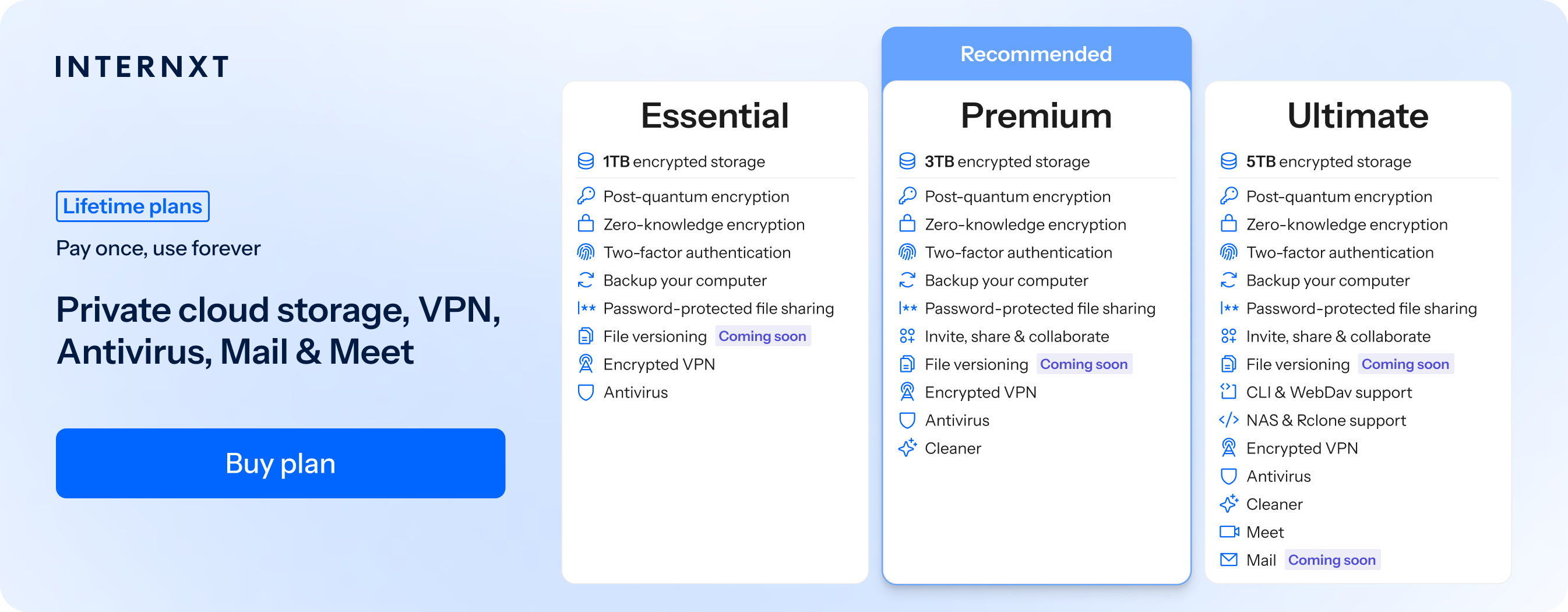
For encrypting files and more, get started with Internxt for free, or choose from any paid lifetime or monthly plan below.
| Plan | Storage | Features | Annual (Paid monthly) | Lifetime Cost |
|---|---|---|---|---|
| Essential | 1TB | €1.99/month | €380 | |
| Premium | 3TB |
|
€3.99/month | €580 |
| Ultimate | 5TB |
|
€5.99/month | €780 |
| *Prices are correct at the time of writing and are subject to change. For latest prices, check https://internxt.com/pricing | ||||
Cryptomator
With Cryptomator or a Cryptomator alternative, you can encrypt files to secure data to encrypt files on your device before uploading them to cloud storage providers like Google Drive or OneDrive to guarantee they cannot view the contents of your encrypted folders.
How to encrypt a file with Cryptomator:
- Install Cryptomator and open the application.
- Create a new vault and choose where if you want to save it in a cloud storage folder or on your computer.
- Create a strong password for the vault. This password is required to access your encrypted files.
- Copy or move the file you want to protect into the unlocked vault.
- Cryptomator automatically encrypts the file as it is saved inside the vault.
- When you have finished, lock the vault from the Cryptomator application.
How to avoid common mistakes when encrypting files
Data encryption is almost impossible to break; if encrypted data is hacked, it is likely due to these common errors:
- Weak passwords: Attackers use advanced software to try to crack passwords; if you repeat or use weak passwords, it makes it easier for them to access your encrypted file or cloud storage accounts.
- Losing a backup key: If you forget your password, you cannot regain access to your files because only you know your encryption credentials, causing the data to be permanently lost.
- Not backing up encrypted data. Encryption does not protect against accidental deletion, hardware failure, or corruption. Keep backups of your encrypted vault in a separate location.
To prevent these mistakes, ensure you use a strong password or passphrase to protect your files and accounts, store your backup key in safe places you can always access whenever needed, and follow the 3-2-1 backup rule to protect important files against data loss.
How to ensure your encrypted files stay protected
- Use strong, unique passwords or passphrases to protect encrypted files and accounts.
- Enable multi-factor authentication whenever possible.
- Keep all software up to date to protect against newly discovered vulnerabilities.
- Back up encrypted files regularly and store backups in a separate, secure location.
- Store passwords and recovery keys securely, such as in a trusted password manager.
- Lock or unmount encrypted vaults when they are not in use.
- Choose zero-knowledge cloud storage providers.
- Verify that files have been encrypted successfully before deleting the original copies.
- Securely erase unencrypted copies of sensitive files once they are no longer needed.
- Use trusted, well-maintained encryption software that has been independently audited.
- Follow the principle of least privilege by only giving access to encrypted files to people who need it.
- Periodically test that encrypted files and backups can still be accessed and recovered.
Related products

Frequently asked questions
Can encrypted files be hacked?
Encrypted files cannot be easily hacked if they use modern encryption standards such as AES-256 and are protected by a strong password or encryption key.
If encrypted files are hacked, it is likely due to misconfigured security settings, weak passwords, stolen encryption keys, or software vulnerabilities rather than breaking the encryption itself.
Can a cloud provider see my encrypted files?
If you upload files to cloud storage services like Google Drive, Dropbox, or OneDrive without encrypting them before they’re uploaded to the cloud, the provider can technically access your data because they do not use end-to-end encryption for standard file storage.
While these services encrypt data in transit and at rest to protect it from external attackers, they retain the encryption keys needed to decrypt your files.
If you encrypt your files before uploading them or use a cloud storage service with end-to-end encryption, like Internxt, only you hold the decryption key. This not even the cloud provider can view your file contents, even though they store the encrypted data on their servers.
What happens if I forget my encryption password or backup key?
If you forget your encryption password or lose the encryption key, you will permanently lose access to your encrypted files. Most encryption methods cannot recover encrypted data without the correct credentials, so it is important to store recovery keys securely.
Can I encrypt files before uploading to Google Drive?
Yes. Encrypting files before uploading them to Google Drive adds an extra layer of security. Only someone with the correct encryption password or key can access the file, even if your cloud account is compromised.
Is AES-256 secure?
Yes. AES-256 is one of the most secure encryption standards available today. It is widely used by governments, financial institutions, and cybersecurity professionals to protect sensitive data and is considered resistant to current brute-force attacks when paired with a strong password.
Can encrypted files be recovered?
Yes, but only if you have the correct password, encryption key, or a valid recovery key. Without these credentials, recovering properly encrypted files is generally not possible.
Which file types can be encrypted?
Almost any file type can be encrypted, including documents, PDFs, spreadsheets, images, videos, audio files, databases, archives, and backups. Encryption works on the file's contents rather than its format, making it compatible with virtually all file types.
Also of interest to you...