
What is Network Attached Storage (NAS)? [2026 Guide]

Network Attached Storage (NAS) is a dedicated storage device connected to a network that allows multiple users and devices to store and access data from a central location.
It is a popular method for extra data privacy, as everything is stored on the device you own and can’t be accessed by anyone, making it a popular alternative to Google Drive, OneDrive, and other big tech companies.
In this article, we will cover:
- What is NAS (Network Attached Storage)
- NAS storage components
- Types of NAS storage
- Best NAS devices
- Best cloud storage for NAS support
If you’re looking for a hybrid cloud solution with NAS and cloud storage, we will also cover how to connect your NAS device to Internxt Drive.
What is NAS (Network Attached Storage)
Network Attached Storage, commonly referred to as NAS, is a physical device for storing and managing data that connects your cloud to your home or office network.
Unlike a regular external hard drive, which connects to one computer at a time, a NAS allows multiple devices, such as computers, smartphones, or tablets, to access the same files over the network.
NAS storage runs its own operating system that handles file management, security, and network access. With it, you can use it to save documents, photos, videos, or cloud backups, and organize them in folders just like on a regular computer.
Other network attached storage components
When you buy a NAS, you are typically buying the enclosure only, and you need to purchase and install the hard drives or SSDs separately, so you will have to factor this into your budget when investing in a NAS system, unless the product is sold as a pre-populated bundle.
Hard disks or hard disk drives (HDDs)
Hard disk drives (HDDs) provide storage capacity for a NAS unit and an easy way to scale and add storage based on your demands.
HDD prices depend on capacity and type. Smaller drives like 1TB to 4TB are cheaper but cost more per terabyte.
Mid-range drives like 6TB to 12TB are commonly used in home NAS systems because they balance price and storage.
Large drives from 14TB to 24TB or more cost more upfront but give the lowest cost per terabyte.
Solid-state drives (SSDs)
Solid state drives (SSDs) are a type of storage used in NAS systems that store data on flash memory instead of spinning disks. This makes them much faster, quieter, and more durable than hard disk drives.
However, they are more expensive per terabyte compared to HDDs, so they are usually used in combination with HDDs rather than replacing them completely in large storage systems.
Types of NAS storage
NAS storage can be classified in a few clear ways based on how it is built, how it connects, and its use cases.
Standalone NAS (home/small office NAS)
Standalone network attached storage is the NAS system you have in your home or office and is typically a single physical device with multiple drive bays that connects to a local network with simple setup and maintenance.
A standalone NAS is useful for:
- File storage
- Backups
- Media streaming
Standalone is managed through a web interface and usually supports RAID for basic data protection and performance.
Enterprise NAS
Enterprise storage can use NAS is a large-scale storage system used by businesses and data centers.
It is built for high performance, high availability, and massive storage capacity. It often includes redundant controllers, advanced networking, and features like clustering, failover, and tiered storage. It is designed to handle heavy workloads, many users, and mission-critical data where downtime is not acceptable.
Cloud NAS (hybrid NAS)
Cloud NAS storage, also called a hybrid NAS setup, combines local storage with cloud-based storage services.
It uses a physical NAS device on-site while also syncing or backing up data to the cloud. This allows users to access files remotely, protect data off-site, and help migrate data to the cloud without relying only on local hardware.
What are the best NAS storage brands?
QNAP and Synology are generally considered to be the best NAS devices, but there are others to consider, too.
Synology
Synology focuses on simple, reliable NAS systems with the DSM operating system, and is widely considered the most user-friendly NAS system, making it the best NAS device for beginnings.Synology prioritizes software quality and security over raw hardware performance.
Best for: beginners, home users, and small businesses that want an easy, stable, and low-maintenance NAS
QNAP
QNAP focuses on high performance and advanced features. Its hardware is often more powerful than competitors at the same price, with better CPU options, more RAM, and more connectivity features like 2.5GbE, 10GbE, and HDMI outputs.
QNAP is generally used by users with more advanced tech knowledge as the set up is more customizable, but it does offer a help center with tutorials on how to set up your QNAP device.
The QTS operating system is feature-rich but more complex, giving users deep control over virtualization, media servers, and networking.
Best for: power users, media streaming (Plex), virtualization, and advanced technical setups
Both QNAP and Synology are compatible with Internxt Drive Ultimate lifetime or annual plans, which you can get for 85% off below to get started with your NAS and cloud storage setup.
Asustor
Asustor sits between Synology and QNAP, offering strong hardware at competitive prices. Its ADM operating system is fairly easy to use, but more flexible than Synology.
It often includes modern hardware features like 2.5GbE or 10GbE at a lower cost, making it a good balance between performance and usability, although its app ecosystem is smaller.
Best for: users who want good performance and value without paying Synology prices
TerraMaster
TerraMaster focuses on affordability and value. It provides solid hardware for the price, but with a less polished operating system (TOS) and smaller software ecosystem compared to Synology and QNAP.
It is improving over time, but still feels more basic. It is popular for budget builds or users who are comfortable doing more manual configuration.
Best for: budget users and DIY-style NAS setups where cost matters more than software polish
Network attached storage brands comparison
| Brand | Best for | Max storage (typical) | Cost range (€) | Redundancy support | Key features |
|---|---|---|---|---|---|
| Synology | Beginners, home users, small business, easiest setup | 2TB – 200TB+ (2–24 bays typical) | 200 – 2000+ | RAID 0/1/5/6/10, SHR, snapshots | DSM OS (very user-friendly), strong backup tools, excellent software ecosystem, long support cycles |
| QNAP | Power users, Plex/media servers, virtualization, advanced users | 2TB – 300TB+ (2–24 bays typical) | 200 – 3000+ | RAID 0/1/5/6/10, snapshots, Qtier | Very powerful hardware, 2.5GbE/10GbE common, HDMI on many models, virtualization + containers, flexible but more complex OS |
| Asustor | Balanced users, value/performance buyers | 2TB – 250TB+ (2–16 bays typical) | 180 – 2000+ | RAID 0/1/5/6/10, snapshots | Strong price/performance, ADM OS, good hardware (often includes 2.5GbE/10GbE), more open than Synology, fewer apps than Synology/QNAP |
| TerraMaster | Budget users, entry-level NAS, cost-focused builds | 2TB – 200TB+ (2–16 bays typical) | 150 – 1500+ | RAID 0/1/5/6/10, TRAID, snapshots | Very strong value, good hardware for price, improving TOS software, less polished ecosystem, fewer apps and integrations |
NAS vs cloud storage vs external hard drives
NAS vs cloud storage share the same basic concept of storing files in the cloud, with some key differences.
If you use traditional cloud storage, this model allows you to store your files directly on the provider’s servers over the internet.

This is more user-friendly for general cloud storage use, as it lets you upload, sync and back up your files, and the cloud provider manages the storage, security, and maintenance of your data.
Advantages of traditional cloud models include:
- Easy to use, no complex setup required
- Accessible from anywhere with an internet connection
- Fully managed by the provider, including updates and backups
- No hardware costs or maintenance
However, cloud storage may have some limitations depending on your needs, which may include:
- Limited integration with local network storage devices
- Dependent entirely on the internet speed for access
- Less control over how data is stored and managed
- Security relies fully on the provider
Cloud storage with NAS support, on the other hand, allows you to back up or sync the data stored on your NAS devices, like QNAP or Synology, directly to the cloud.
This creates a bridge between your local storage and the cloud, letting you combine the speed and control of local NAS access with the security, redundancy, and remote access benefits of cloud storage.
Many people choose NAS devices because they provide centralized storage, easy file sharing across multiple devices, added security, and cloud backup solutions.
It offers other advantages such as:
- Provides additional backup and redundancy for NAS data
- Gives more control over data management and permissions
- Protects data from hardware failure or accidental deletion
- Allows remote access to files
However, despite the benefits, NAS may be intimidating to first-time users due to the initial investment costs and setup.
Key NAS features to understand
Drive bays
A “bay” in a NAS refers to a slot where you install your hard drive or SSD.
- 2-bay NAS = two drive slots, enough for basic home use.
- 4-bay NAS = four hard drive slots, more flexibility, better performance, and stronger redundancy.
- 8-bay NAS = eight hard drive slots, typically for business / advanced users who need a lot of storage, maximum performance, and the best data protection.
Obviously, the more drive bays you have, the more storage you can accumulate, and get better redundancy using RAID if one or more drives fail. When you buy a NAS, the hard drives or SSDs are usually sold separately, so take this into account when considering which NAS system to buy.
RAID types
RAID (Redundant Array of Independent Disks) is a method to combine multiple hard drives in your NAS to improve performance, increase storage efficiency, or protect data in case a drive fails, as it offers increased redundancy.
There are multiple RAID options available, which are explained below:
- RAID 0 splits data across multiple drives to improve speed and storage capacity, but it offers no protection, so if one drive fails, all data is lost.
- RAID 1 mirrors data from one drive to another, so everything is duplicated. This provides strong protection because if one drive fails, the data is still available on the other, but you lose half of your usable storage.
- RAID 5 uses three or more drives and combines speed, storage efficiency, and protection by spreading parity data across all drives. It can survive one drive failure.
- RAID 6 is similar to RAID 5 but can survive two drive failures, making it more secure but slightly slower and less storage efficient.
- RAID 10 combines mirroring and striping, requiring at least four drives. It offers high performance and strong protection, but uses a lot of storage for redundancy.
When choosing a NAS for RAID, you should think in terms of how many drives you have, how much data protection you need, and how much usable storage you are willing to sacrifice. The key decision is matching RAID level to your bay count and risk level.
Every RAID type is a trade-off between speed, storage efficiency, and data safety.
For example, if you only have 2 drive bays, you should look for RAID 1 support, because it mirrors your data and protects you from a single drive failure, which is the main goal in small home setups.
CPU and RAM
The CPU is the central processor that runs the NAS operating system and handles all computation tasks.
In a NAS, the CPU is responsible for:
- processing file requests coming from computers over the network
- managing file system operations like reading and writing data
- handling user authentication and permission checks
- running applications installed on the NAS such as backups, cloud sync, or media servers
- optionally performing media transcoding for video streaming
- handling system services that keep the NAS running
A stronger CPU allows more users, more applications, and heavier workloads to run at the same time without slowing down.
RAM is the short-term working memory used while the NAS is running and is responsible for:
- temporarily storing active data while it is being processed
- caching frequently accessed files to improve speed
- supporting multiple simultaneous users and file operations
- allowing applications and services to run smoothly
- helping the operating system manage active tasks efficiently
Key difference between CPU and RAM in a NAS can be viewed below:
| CPU | RAM |
|---|---|
| Performs the actual processing and decision making | Temporarily holds data that the CPU is actively working with |
| Affects how powerful the system is | Affects how many things the system can handle at once smoothly |
| Executes instructions from the operating system and applications | Stores active working data for quick access |
| Handles tasks like file processing, encryption, and transcoding | Helps reduce reliance on slower disk storage by caching data |
| Performance is measured in cores and clock speed | Performance is measured in capacity (GB) and speed (MHz/MT/s) |
| Directly affects how fast tasks are completed | Directly affects how many tasks can run at the same time |
| Does not store data long-term | Does not store data long-term (clears when power is off) |
| More important for computation-heavy workloads | More important for multitasking and caching performance |
Network speed (1GbE, 2.5GbE, 10GbE)
Network speed determines how fast data moves between a NAS and connected devices. It directly limits transfer speed regardless of how fast the storage or hardware inside the NAS is.
A higher network speed allows the NAS to deliver data faster to devices, but only if the storage system inside can keep up.
1GbE (1 Gigabit Ethernet)
- Maximum speed is about 125 MB/s
- Standard in most basic NAS systems and home networks
- Suitable for file storage, backups, and light streaming
- Becomes a bottleneck with high-performance drives or multiple users
2.5GbE (2.5 Gigabit Ethernet)
- Maximum speed is about 312 MB/s
- Common upgrade in modern NAS devices and PCs
- Improves transfer speeds significantly without high cost
- Suitable for heavier file transfers and multi-user environments
10GbE (10 Gigabit Ethernet)
- Maximum speed is about 1250 MB/s
- Used in high-performance NAS systems and professional environments
- Required to take full advantage of fast SSD arrays and RAID setups
- Supports heavy workloads like video editing, virtualization, and large backups
Apps and operating systems (Synology DSM, QNAP QTS)
A NAS is not just storage hardware. It is a small server, and it needs an operating system to manage everything. That operating system is what turns raw disks into a usable system with files, users, apps, and services. Both Synology and QNAP offer different operating systems.
Synology DSM is the operating system used on Synology NAS devices.
In a NAS context, DSM is responsible for:
- managing storage volumes and RAID arrays
- handling file sharing protocols like SMB, NFS, and FTP
- controlling user accounts, permissions, and access rules
- providing a web-based interface to manage the NAS
- running applications through a built-in package system
- enabling backup tools, cloud sync, and media servers
DSM is designed to be simple and user-friendly, so it is the best NAS for home and small business setups.
QNAP QTS is the operating system used on QNAP NAS devices and is responsible for:
- managing disks, RAID configurations, and storage pools
- providing file sharing and network access services
- offering a web-based control panel for system management
- supporting a wide range of applications through an app center
- enabling advanced features like virtualization and container systems
- handling multimedia, surveillance, and backup services
QTS is generally considered more flexible and feature-rich, often targeting users who want more advanced control and customization.
Backup and snapshot features
Backup and snapshot features are tools that protect your files from data loss such as accidental deletion, file corruption, ransomware, or hardware failure.
Backups are used to:
- Copy data from the NAS to another NAS, external drive, or cloud storage
- Protect against total data loss if the NAS fails
- Create scheduled copies of important folders or systems
- Restore files or entire systems after a major failure
A snapshot on the other hand is a point-in-time version of data stored on the same system used to:
- record the state of files at a specific moment
- quickly restore previous versions of files or folders
- protect against accidental changes or deletion
- recover from ransomware by rolling back to an earlier state
Snapshots are usually fast to create because they do not copy all data, the differences between backups and snapshots can be found below.
| Backups | Snapshots |
|---|---|
| Create a separate copy of data stored in another location | Create a point-in-time version of data on the same system |
| Can be stored on external drives, another NAS, or cloud storage | Stored within the same NAS storage system |
| Protect against total system failure or disaster | Protect against accidental deletion or file changes |
| Used for long-term data protection | Used for quick short-term recovery |
| Slower to create and restore because full data is copied | Fast to create because only changes are tracked |
| Requires more storage space due to duplication | Uses less space by tracking differences in data |
| Can restore entire systems or large datasets | Usually restores individual files or previous states |
| Works independently of the original system | Depends on the original storage system to exist |
Best Network Attached Storage to connect to the cloud
Internxt offers an alternative to less privacy-focused cloud storage providers such as Google Drive and OneDrive to give encrypted cloud storage focused on protecting your privacy.
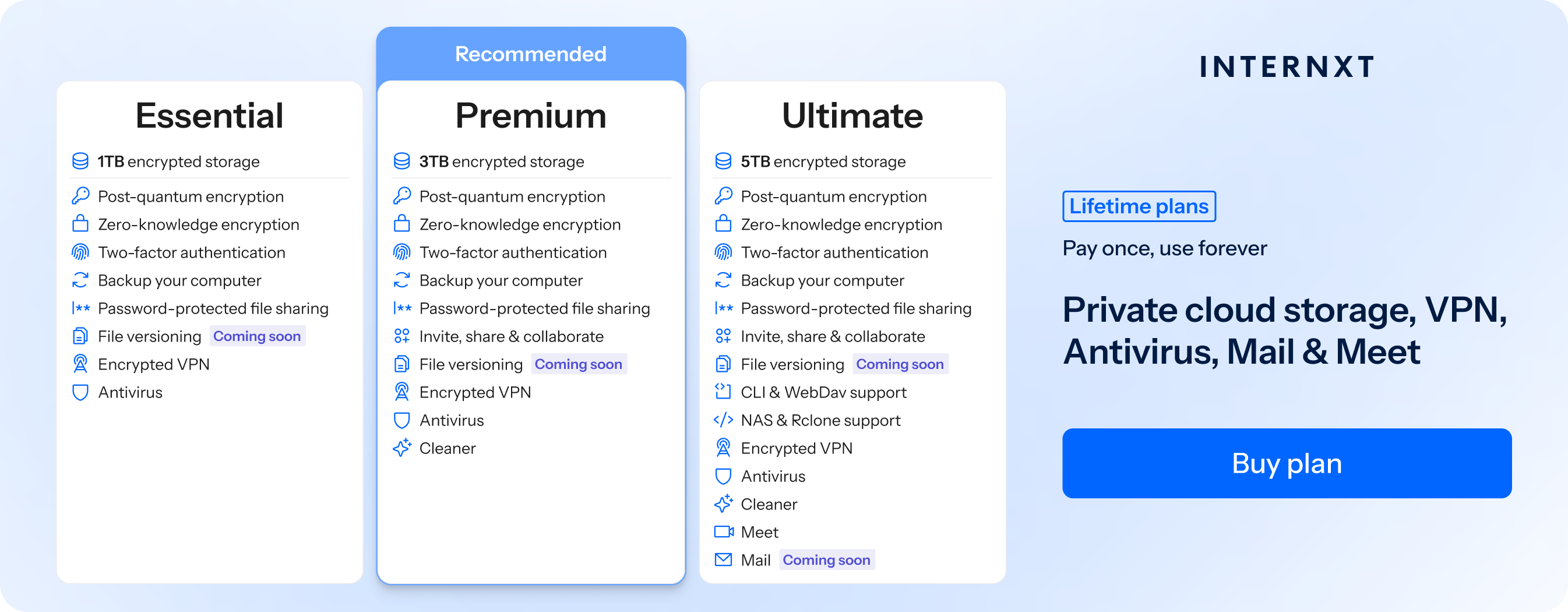
With NAS support, you now get additional control of your files, combined with our post-quantum encrypted cloud storage for the best cloud storage protection for your files.
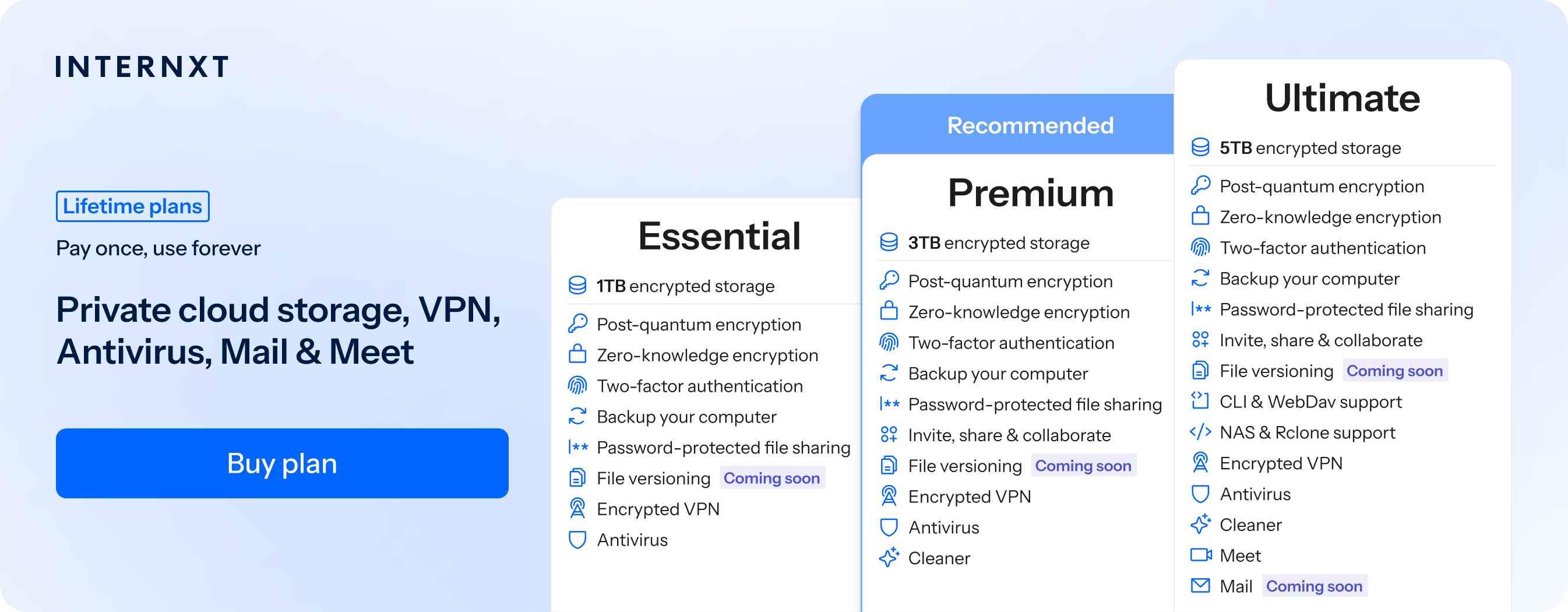
Internxt secure cloud storage support for NAS with all Ultimate lifetime or annual plans, which include post-quantum and zero-knowledge encryption, and additional features such as VPN, Antivirus, Mail, and Meet.
Internxt offers the best cloud storage pricing and features for your privacy, which can be viewed on our website or in the table below.
| Plan | Storage | Features | Annual (Paid monthly) | Lifetime Cost |
|---|---|---|---|---|
| Essential | 1TB |
|
€9.99/month | €380 |
| Premium | 3TB |
|
€19.99/month | €580 |
| Ultimate | 5TB |
|
€29.99/month | €780 |
| *Prices are correct at the time of writing and are subject to change. For latest prices, check https://internxt.com/pricing | ||||
Secure backups
Get increased redundancy for your files from your NAS device. With Internxt, you can back up your NAS to the cloud protected with zero-knowledge and post-quantum encryption. Get peace of mind that your photos, videos, and documents are all secured and protected against data loss.
Own your data
Manage your local and cloud storage on your own terms and get full flexibility and ownership over your data with the convenience and privacy of Internxt Drive.
Full privacy
Combine the privacy of zero-knowledge encryption with Internxt, as all your files are encrypted directly on your device, accessible only to you. When combined with your NAS, you get additional insurance that your files are protected from unauthorized access and never exposed to third parties during transfer or backup.
How to set up NAS with Internxt
To connect your Internxt account to your NAS device, you must first download the Docker app for Mac or Windows from here: https://www.docker.com/
Once completed, follow these steps.
Synology
- Open the Docker app.
- Go to Registry, search for internxt-webdav, and download the latest image.
- Go to Image, select internxt-webdav, and click Launch.
- Configure environment variables (INXT_USER, INXT_PASSWORD, etc.) and port mappings (e.g., 3005:3005).
- Start the container.
QNAP
- Open Container Station.
- Click Create Container and search for internxt-webdav.
- Select the latest image and click Next.
- Set environment variables (INXT_USER, INXT_PASSWORD, etc.) and port mappings.
- Apply settings and start the container.
Once completed, you can back up your files to your NAS system and enjoy all the benefits of your Internxt account combined with Network Attached Storage.
For more information, visit our GitHub page for additional instructions, visit our help centre, or contact us at hello@internxt.com
You may also be interested
Frequently asked questions
How is NAS different from an external hard drive?
An external drive connects directly to one device, while a NAS connects to a network and can be accessed by multiple devices at the same time.
Do I need technical skills to set up a NAS?
Basic setups are usually simple with modern systems from brands like Synology or QNAP, which provide step by step software interfaces. Advanced features may require more technical knowledge.
What can I use a NAS for at home?
Common uses include file storage, media streaming, photo backups, personal cloud services, and automatic backups for computers and phones.
Is NAS good for backing up data?
Yes, NAS is widely used for backups because it can store multiple versions of files and support automated backup schedules.
Can I access my NAS remotely?
Yes, most NAS systems allow secure remote access through apps or web portals so you can reach your files outside your home network.
Is NAS secure?
NAS can be secure if properly configured with strong passwords, encryption, updates, and firewall settings. Security depends on user setup.
How much storage do I need for a NAS?
It depends on use. For basic home use, 4 to 12 terabytes is common. For video editing or business use, much larger capacities are typical.
Do NAS devices use a lot of electricity?
Most home NAS devices are energy efficient and consume roughly similar power to a small router or mini PC, depending on how many drives are installed.
Also of interest to you...