
How to Send a Large Amount of Photos: 6 Methods Compared


You have six ways to send a large amount of photos:cloud storage links, dedicated file transfer tools, email with a workaround, messaging apps, device-to-device transfer, and physical drives. Which one works best depends on how many photos you're sending, whether quality matters, and how private you need it to be.
The default options most people try first all have real limits. Email cuts off around 25MB, which is about 5 to 10 full-quality photos. Messaging apps like WhatsApp compress images automatically, so what arrives looks worse than what you sent.
The table below breaks down all six.
Quick comparison: how to send a large amount of photos
| Method | Max size (free) | Free option | Keeps original quality | Private | Best for |
|---|---|---|---|---|---|
| WeTransfer | 3 GB per transfer | Yes, link expires in 3 days | Yes | Standard (WeTransfer can access files) | Quick one-off transfers, casual use |
| Google Drive | 15 GB total account | Yes | Yes | Standard (Google can access files) | Gmail and Android users |
| Google Photos | 15 GB total account | Yes | No by default (switch to Original quality) | Standard (Google can access files) | Casual photo backup and sharing |
| 2 GB if sent as a document | Yes | Only if sent as a document, not as a photo | E2E encrypted, Meta-owned | Informal sharing with contacts | |
| Internxt Send | 5 GB | Yes, unlimited uses | Yes | End-to-end encrypted, zero-knowledge | Privacy-first sharing, no account needed |
| Internxt Drive | 10 GB per share link | 1 GB free account | Yes | Zero-knowledge, independently audited | Ongoing private storage and sharing |
| Email + ZIP | 20 to 25 MB total | Yes | Depends on compression level | Depends on email provider | Small batches only — use a cloud link for more |
| USB or external drive | Physical limit | Hardware cost only | Yes | Fully offline | Large volumes, no internet needed |
Note: Google Drive, Google Photos, and Gmail all share the same 15 GB free storage. A full inbox eats into your photo storage.
How to send a large amount of photos online
Key points:
- Cloud storage (Google Drive, Internxt Drive) is the most reliable option for bulk photo sharing — generate a link and anyone can download without needing an account
- File transfer tools like WeTransfer and Internxt Send are the fastest for one-off sends with no account required
- Email works for small batches only; the workaround is to upload to cloud storage and paste the link into the email instead
- Messaging apps compress photos unless you send them as a Document file
- For iPhone users, Apple's Mail Drop handles up to 5 GB automatically through the built-in Mail app
- For Android users, Gmail integrates with Google Drive to send files up to 10 GB via a Drive link
Cloud storage
Cloud storage works best when you need a link that stays active, when you're sending to multiple people, or when you'll be sharing large photo collections more than once.
Google Drive gives you 15 GB of free storage. Sharing a folder of photos is simple: create a folder, upload your photos, click "Share," set access to "Anyone with the link," and paste that link into an email or message. The recipient does not need a Google account to download. Google holds the encryption keys to your files, meaning they can technically access them. For most people sharing personal photos, this is an acceptable trade-off.
Google Photos is the easiest option for sharing a large batch of photos directly from your phone, especially if you are on Android or already back up photos to Google.
To share a large collection: open Google Photos, tap and hold to select photos, tap the Share icon, and choose "Create link." Anyone with the link can view and download.
Note that Google Photos compresses images by default — switch to "Original quality" in Settings if you need full resolution, though this counts toward your 15 GB storage limit.
If you're unsure which Google service to use for photo sharing, our Google Photos vs Google Drive breakdown covers the key differences.
Internxt Drive lets you share photos online privately, as well as large videos, or any other files up to 10 GB via a link, free on the 1 GB free plan.
The key difference is how it handles your files: everything is encrypted on your device before it reaches Internxt's servers.
Internxt cannot see your photos even if legally asked to — this has been confirmed by an independent security audit by Securitum, a European cybersecurity company that also audits Proton.
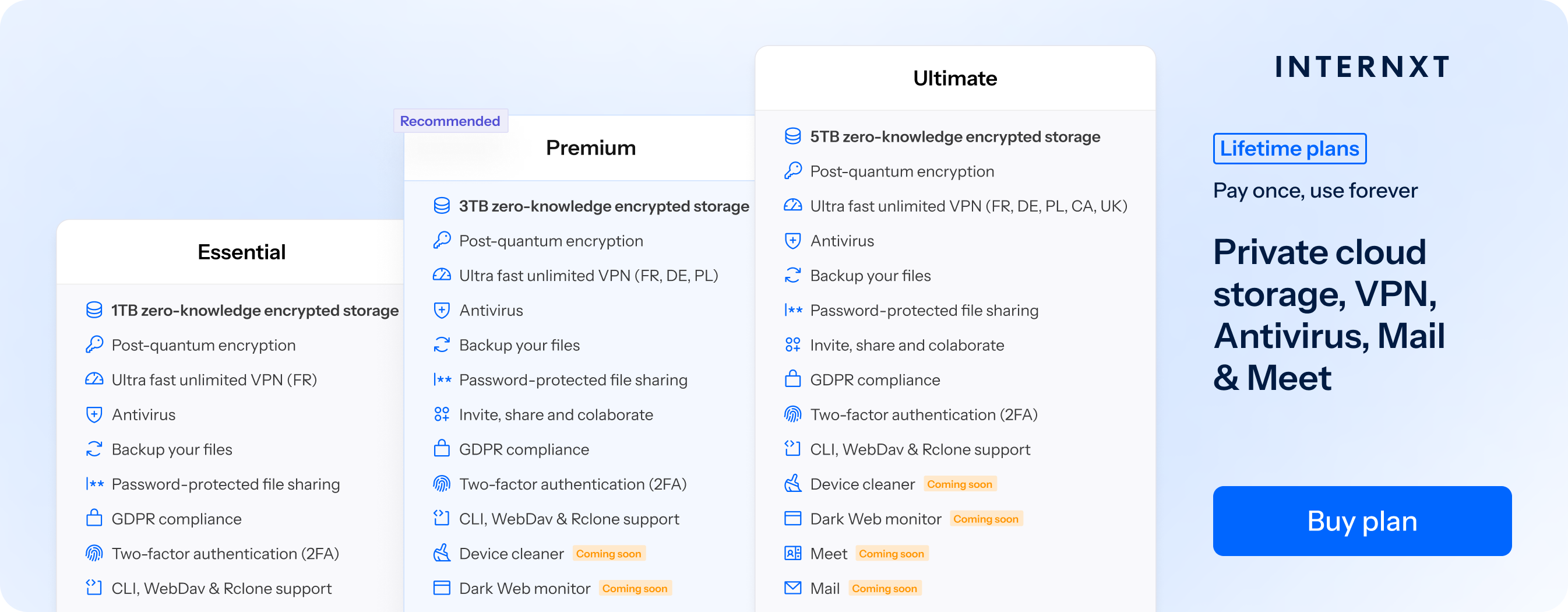
Internxt holds ISO 27001:2022 certification (certificate number ACC-ISMS-2025090158) and is HIPAA compliant. Paid plans start at €18/year (€1.50/month) for 1 TB billed annually. Lifetime plans are also available as a one-time payment.
Dropbox offers 2 GB free, which fills up quickly with photos. Its main strength is collaboration and sync across devices, not large photo transfers on the free plan.
Bottom line: For most users, Google Drive or Google Photos is the most convenient option. For photographers, healthcare professionals, or anyone handling sensitive material who needs a share link that does not expose files to the provider, Internxt Drive is the right choice.
For a full breakdown of what each provider offers at no cost, see our guide to which free cloud storage plans are worth using.
File transfer tools
File transfer tools are the simplest option when you want to send a large batch of photos once, without setting up storage or sharing a folder.
WeTransfer is the most widely used option. The free plan supports up to 3 GB per transfer, no account needed, but links expire after 3 days and you're limited to 10 transfers per month. It does not use end-to-end encryption — WeTransfer can technically access files while they're on their servers.
Internxt Send is free, handles up to 5 GB per transfer (roughly 2,500 high-quality JPEGs or 250 RAW files), and has no monthly limit. Files are encrypted end-to-end before they leave your device. Links expire after 15 days. You can set a password on the link for added access control.
Smash has no file size limit on the free plan, though download speed is throttled without a paid subscription. Links stay active for 7 days.
For a one-time send where privacy matters, Internxt Send is the strongest free option. For quick casual transfers where privacy is not a concern, WeTransfer or Smash both work well.
How to email a large amount of photos
Email is the method most people try first, and it hits a wall fast. Gmail caps attachments at 25 MB. Outlook caps at 20 MB. That's roughly 5 to 10 full-quality JPEGs before the attachment is rejected.
The workaround is the same across all providers: upload the photos to cloud storage, paste the link into the email instead of attaching the files. No attachment limits, and the photos don't pass through your email provider's servers unencrypted.
On iPhone (Apple Mail — Mail Drop)
Apple's built-in Mail app includes a feature called Mail Drop that handles the upload automatically. Open the Photos app, select the photos you want to send, tap the Share icon, and choose Mail. If the total size exceeds 25 MB, Mail will prompt you to "Use Mail Drop." Tap that option. The photos are uploaded to iCloud and your recipient gets a download link valid for 30 days — no extra steps required. The recipient does not need an iCloud account to download.
On iPhone or Android (Gmail)
Gmail integrates with Google Drive for large attachments. Compose a new email and tap the attachment icon. Select "Insert from Drive" (or "Attach file" and then upload to Drive first). Once uploaded, Gmail converts the attachment to a Drive link automatically when you exceed 25 MB. The recipient gets a link to the file in Drive, not an email attachment. Note that sharing via Drive means Google holds the encryption keys and can technically access the photos.
On desktop (any provider)
- Select all your photos and compress them into a ZIP file. JPEGs compress 10 to 30 percent; RAW files more.
- If the ZIP is still over the attachment limit — which it will be for anything beyond 5 to 10 photos — upload it to Google Drive, Internxt Drive, or WeTransfer and copy the share link.
- Paste the link into your email instead of attaching the file.
Corporate email accounts often have tighter incoming limits than Gmail's 25 MB, so even a small ZIP may bounce. A cloud link sidesteps that entirely.
Messaging apps
Messaging apps work for a few photos but break down quickly for large batches.
WhatsApp is the most commonly used option. If you send photos from your gallery the normal way, WhatsApp compresses them automatically — quality degrades noticeably on larger or higher-resolution images. If you send them as a "Document" instead, you can send up to 2 GB per file without compression. Most people don't know about the Document workaround. WhatsApp uses end-to-end encryption for message content, but it is owned by Meta, which collects metadata (who you contacted, when, how often) even if it can't read the message content — worth reading before you share anything sensitive via WhatsApp's privacy for private photos.
Signal supports files up to 100 MB and collects significantly less metadata than WhatsApp. Better for privacy, but the 100 MB cap makes it impractical for large photo batches.
Telegram supports files up to 2 GB on the free plan (4 GB on Premium) and does not compress photos sent as documents. Worth considering for larger transfers within a group.
For more than a few dozen photos, a cloud link or file transfer tool is a cleaner solution than any messaging app — see our breakdown of apps built specifically for sharing photos if you want more options.
Device-to-device transfer
For sharing large photo collections locally — in the same room, or between your own devices — direct transfer avoids upload and download entirely.
AirDrop (Apple devices only) transfers photos wirelessly between iPhones, iPads, and Macs without size limits and without any compression. Open Photos, select the photos, tap Share, then AirDrop. The recipient accepts the transfer on their device. Range is roughly 9 meters (30 feet). Fast and free, but requires both devices to be Apple and physically nearby.
Nearby Share (Android to Android, or Android to Chromebook) works the same way. Open the file, tap Share, then Nearby Share. Works without internet.
Neither option is useful for remote sharing, but for bulk transfers between your own devices or with someone nearby, they're faster than any cloud method.
Offline options
For very large photo collections — tens of thousands of files, professional archives, or situations with no reliable internet connection — physical storage is the most reliable option.
A USB drive is cheap, fast to set up, and works on any computer. You can hand it over in person or post it. For collections under 128 GB, a standard USB covers most needs.
An external hard drive works for much larger collections, typically 1 TB or more — useful for photographers dealing with RAW files or large archives. The trade-off: hard drives are more fragile than USB drives and can fail if not used regularly.
The main limitation is obvious: someone has to physically receive it. It is not a good option for sharing remotely. For large, important collections, a good approach is both: keep the original files on a physical drive and use cloud storage for sharing and remote access.

Security and privacy comparison
Key points:
- Google Drive, Google Photos, WeTransfer, and Dropbox all use standard encryption where the provider holds the keys and can technically access your files
- Internxt uses zero-knowledge encryption — your files are locked on your device before upload, and Internxt cannot access them even if legally compelled
- This has been independently verified by Securitum, a European security firm that also audits Proton
- For most personal photo sharing, standard encryption is fine. For sensitive material — medical records, legal documents, client work — the distinction matters
Which services can actually see your photos?
Most cloud storage and file transfer services use server-side encryption. Your photos travel to their servers and are encrypted there, with the service holding the keys. This protects your files from hackers, but it means the service itself can technically access them. Google, Dropbox, and WeTransfer all work this way.
Internxt works differently. Files are encrypted on your device before upload, so Internxt never receives the key and cannot see your photos under any circumstances — including court orders. That's zero-knowledge encryption.
| Service | Who holds the encryption key | Can the service see your photos? |
|---|---|---|
| Google Drive / Photos | Yes, technically | |
| WeTransfer | WeTransfer | Yes, technically |
| Dropbox | Dropbox | Yes, technically |
| WhatsApp (messages) | Neither party (E2E) | No, but Meta collects metadata |
| Internxt Drive / Send | You | No |
| USB / external drive | You | No (fully offline) |
The "yes, technically" services are not reading your photos as a rule — their privacy policies restrict employee access. But the architectural capability exists, and legal requests can compel it. For everyday personal photos that's a reasonable trade-off. For sensitive material, it's not.
Why Internxt's security claims are independently verified
Any service can claim to be secure — Internxt's architecture has been tested by a third party.
Internxt has passed two consecutive independent security audits by Securitum, a European cybersecurity firm that also audits Proton. The 2025 audit confirmed that Internxt's zero-knowledge architecture works as described and found no critical vulnerabilities.
Internxt also holds ISO 27001:2022 certification (certificate number ACC-ISMS-2025090158), the international standard for information security management. Maintaining it requires annual external audits, documented procedures, and active risk management — not a one-time badge.
Internxt is also HIPAA compliant, which matters for healthcare workers or any regulated industry handling sensitive personal information. The code is fully open source, so anyone can inspect the encryption implementation directly rather than taking the company's word for it.
When does privacy actually matter for photo sharing?
For most people sharing holiday photos or family shots, standard encryption is adequate. The realistic threat for most users is an account getting hacked or files being intercepted in transit — and standard encryption protects against both.
Where zero-knowledge matters more: photographers sending client work before publication, anyone in healthcare or law handling sensitive files, people sharing documents that look like photos — scanned IDs, contracts, medical images — and anyone who simply doesn't want a third party to have the technical ability to read their files, whether or not they ever would.
For that group, a zero-knowledge service like Internxt is the right tool. For everything else, Google Drive and WeTransfer work fine. If you want a wider view of your options, we've compared the most secure apps for storing and sharing photos across mobile and desktop.
Best practices before you send
Remove metadata from your photos
Every photo you take contains hidden information called metadata, stored inside the file itself. This includes the GPS coordinates of where the photo was taken, the exact date and time, the camera model, and sometimes your name or username depending on your device settings.
Most people are unaware this information travels with the photo when shared. If you're sharing photos with someone you do not fully trust, or posting them online, this data can reveal more than intended.
Internxt's Metadata Remover is a free tool that strips this information from your photos before sharing. No account needed.
Check the format before you send
Not everyone can open every photo format. HEIC files, which iPhones use by default, will not open on older Android devices or Windows computers without additional software. RAW files from cameras require editing software most recipients will not have.
If you are unsure what format your recipient can handle, converting to JPEG is the safest option. Universally supported, keeps reasonable quality for most purposes, and results in smaller file sizes than PNG or RAW.
Internxt offers a free file converter that handles HEIC, JPG, PNG, and other common formats without any software to install.
Avoid compressing photos that need to stay sharp
Compressing a photo reduces file size by discarding image data. For casual sharing this is usually fine, but for professional work, client delivery, print, or anything where the recipient needs to zoom in or edit the file, compression causes visible quality loss. The same applies to scanned documents — compression can make text unreadable.
For any of that, use a service that preserves original quality on upload — Internxt Drive or Google Drive — rather than a messaging app or any service that compresses automatically.
If you need to reduce file size without excessive quality loss, Internxt's free file compressor gives you control over compression level so you can find the right balance.
Control who can access your shared link
Most cloud storage and file transfer services generate a link that anyone with it can open. Fine for friends, but worth thinking through for anything sensitive.
A few things you can do:
- Set a password on the link if the service supports it. Internxt Drive and Internxt Send both allow password-protected links.
- Check expiry. WeTransfer free links expire after 3 days. Internxt Send links expire after 15 days. Google Drive links do not expire unless revoked manually.
- Revoke access once the recipient has downloaded the files, especially if the photos contain personal or sensitive content.
Which method should you choose?
For a quick, one-off send with no account needed: WeTransfer (up to 3 GB, free, link expires in 3 days) or Internxt Send (up to 5 GB, free, end-to-end encrypted, no monthly limit). Both work without signing up. Internxt Send is the better pick if privacy matters.
For Gmail and Android users sharing casually: Google Drive or Google Photos is the most convenient option. You likely already have 15 GB free and the sharing flow is built into Gmail. Fine for everyday photos where privacy is not a concern.
For iPhone users sending a large batch via email: Use Mail Drop through the built-in Mail app. Apple handles the upload to iCloud automatically when the attachment exceeds 25 MB.
For photographers sending work to clients: You need original quality preserved and ideally access control. Internxt Drive (up to 10 GB per share link, password protection, zero-knowledge encryption) or a dedicated gallery delivery tool. WeTransfer works for smaller batches.
For healthcare, legal, or other regulated industries: Internxt Drive is the only option in this list that is HIPAA compliant and independently audited. Standard cloud storage from Google or Dropbox does not meet those requirements for sensitive health or legal information.
For sharing within a group chat casually: WhatsApp works, but send photos as a Document file to avoid automatic compression. For more than a few dozen photos, a cloud link is cleaner.
For sharing between nearby Apple devices: AirDrop is the fastest option — no upload, no compression, no size limit.
For very large collections with no internet: USB drive or external hard drive. No size limit, no service dependency, works anywhere.
For anyone who needs privacy as a default: Internxt Send or Internxt Drive. Files are locked before they leave your device, and no one else holds the key — verified by an independent Securitum security audit.
Frequently asked questions
How do I send 1,000 photos at once?
Upload the folder to a cloud service like Google Drive or Internxt Drive (up to 10 GB per share link) and send the recipient a link. Email will not work here — even zipped, the attachment limits are far too small.
How do I email a large amount of photos?
Upload your photos to a cloud service and paste the share link into the email instead of attaching files. On iPhone, Apple Mail does this automatically via Mail Drop; on Gmail (Android or iPhone), Google Drive integration handles it the same way.
How do I send 500 photos at once for free?
Internxt Send handles up to 5 GB free with no account needed, covering most batches of 500 standard JPEGs. WeTransfer (up to 3 GB) and Google Photos shared albums are also free options.
How do I send photos without losing quality?
Use a service that does not compress on upload: Internxt Drive, Google Drive (Original quality in Google Photos settings), or WeTransfer. If you are using WhatsApp, send photos as a Document file rather than from your gallery to skip automatic compression.
Is it safe to send photos via cloud storage?
Most services encrypt files in transit and at rest, but Google Drive and Dropbox hold the encryption keys and can technically access your files. Internxt uses zero-knowledge encryption where only you hold the key, independently verified by Securitum in a 2025 security audit.
Can WhatsApp send 100 photos at once?
Yes, but send them as a Document file rather than from your gallery — the gallery option triggers automatic compression that noticeably reduces quality. For large batches, a cloud link is faster and arrives at full resolution.
How do I send a large amount of photos from my iPhone?
Use Mail Drop in the built-in Mail app — select photos, share via Mail, and choose Mail Drop when prompted, which uploads to iCloud and sends a download link valid for 30 days. Google Photos shared albums and Internxt Send (up to 5 GB, free) are also solid options.
How do I send a large amount of photos from an Android phone?
Google Photos shared albums are the easiest option — select photos, tap Share, and create a link anyone can download from. Gmail integrates with Google Drive to send large batches via a Drive link automatically when attachments exceed 25 MB.
What is the best free app to send a large amount of photos?
Google Photos is the easiest for most people (Android/iPhone, free shared albums). For privacy-conscious users, Internxt Send offers up to 5 GB free with end-to-end encryption and no account required.
Why Internxt is the best choice to send a large amount of photos online
Internxt’s end-to-end and post-quantum encrypted product suite is the best choice if you’re looking for options on how to send a large amount of photos securely.
With its free tools such as Internxt Send, metadata remover, file converter, and expansive product suite, which includes a VPN, Antivirus, Meet, Mail, and more, you can get everything you need to get started with sending and storing all your files in complete privacy.
To get started with Internxt, you can join for free using your email and get 1GB of free storage, or choose from any of our annual or lifetime plans, which go up to 5TB. You can upgrade your account whenever you need to get more storage, so you never have to worry about running out of storage for your photos, videos, or anything else!