
Dropbox vs Cloud Backup Tools 2026: Internxt, Backblaze, IDrive, Carbonite, Comparison


As we store more of our data online, we have to take additional measures to protect personal, business, or enterprise data against hardware failures, accidental deletion, ransomware, and theft.
Without the right tools and security protocols in place, not having a reliable backup can result in permanent data loss if you don't have a reliable backup.
While cloud storage solutions like Dropbox may seem like a popular choice, they may not cover all your data protection, security, or privacy needs.
So we compare Dropbox vs cloud backup tools that are popular choices to protect files, which include:
- Dropbox vs Internxt
- Dropbox vs IDrive
- Dropbox vs Carbonite
- Dropbox backup vs Backblaze
To help you understand cloud storage and cloud storage backups in more detail, and to help you choose which service is right for you, we will also cover:
- Backups vs cloud syncing
- What makes a good backup solution
- Features of Dropbox vs cloud backup tools
- Pricing
- Alternatives to Dropbox
Table of contents
- Is Dropbox a cloud backup tool?
- What makes a good cloud backup tool in 2026?
- Dropbox vs cloud backup tools 2026
- Dropbox vs cloud backup: Which option should you choose?
- Related products
- Frequently asked questions
Is Dropbox a cloud backup tool?
No, Dropbox is primarily a cloud storage and file synchronization service, not a traditional cloud backup tool.
Its main purpose is to keep files synced across your devices so you can access, edit, and share them from anywhere.
Because Dropbox stores copies of your files in the cloud, many people assume it functions as a complete backup solution.
While it does provide version history and file recovery for a limited period, it is designed to keep your files synchronized rather than maintain independent backup copies.

You can learn more about the features of Dropbox, storage, and costs in the article below:
Dropbox pros
- Excellent collaboration
- Fast sync
- Huge app ecosystem
Dropbox cons
- Not a true backup solution
- Storage limits
- Deleted files can sync across devices
Below, you can find an overall comparison of Dropbox vs cloud backup tools.
| Feature | Dropbox (File Sync) | Dedicated Cloud Backup |
|---|---|---|
| Syncs files across devices | ✅ Yes | ❌ No (focuses on backup, not syncing) |
| Automatically backs up files | ✅ Limited (selected folders and devices) | ✅ Yes |
| Protects against hard drive failure | ⚠️ Partially | ✅ Yes |
| Full computer backup | ❌ No | ✅ Yes |
| System image backup | ❌ No | ✅ Often supported |
| Automatic background backups | ⚠️ Limited | ✅ Yes |
| Version history | ✅ Yes | ✅ Yes |
| File recovery after accidental deletion | ✅ Yes (within retention limits) | ✅ Yes |
| Ransomware recovery | ✅ Limited (depends on plan and retention) | ✅ Yes |
| External drive backup | ❌ No | ✅ Often supported |
| Designed for collaboration and file sharing | ✅ Yes | ❌ No |
Cloud sync vs cloud backup: What’s the difference?
A file sync service like Dropbox keeps your files identical across all connected devices. If you add, edit, rename, or delete a file, those changes are synchronized in the desktop apps, web, or mobile apps.
A cloud backup service creates separate copies of your data to protect it from loss. Instead of mirroring every change, it continuously backs up your files so they can be restored if your computer is stolen, your hard drive fails, or your data is corrupted or encrypted by ransomware.
Misconceptions about Dropbox
One of the biggest misconceptions is that storing files in Dropbox means they're fully backed up. While Dropbox keeps your files in the cloud and lets you recover deleted files or previous versions for a limited time, its primary goal is synchronization, not long-term data protection.
Another common misunderstanding is that Dropbox can restore an entire computer after a hardware failure.
In reality, Dropbox only restores the files stored in your Dropbox account. It doesn't back up your operating system, installed applications, system settings, or your entire hard drive like a dedicated cloud backup service can.
Why cloud backup services exist
Dedicated cloud backup services are designed to protect your data when something goes wrong.
They automatically back up your files in the background, preserve recoverable copies over time, and provide recovery options if your computer is damaged, lost, infected with ransomware, or suffers a complete drive failure.
For users who only need file syncing and collaboration, Dropbox is often enough. But if your priority is recovering from data loss or protecting your entire computer, a dedicated cloud backup solution offers a much higher level of protection.
What makes a good cloud backup tool in 2026?
Automatic backups
Cloud storage solutions, like Internxt or Dropbox, can automatically back up selected folders from your computer, but dedicated cloud backup services take this much further, as they can back up your files in the background, ensuring new and changed data is protected automatically without relying on you to choose what to sync or upload.
Unlimited vs limited storage
Dropbox personal plans are limited to 3TB, whereas cloud backup tools offer scalable storage for up to petabytes of data, like Internxt S3, or unlimited cloud storage for your backups. Choosing which option is best depends on your current and future needs.
External drive backup
Backing up your files in multiple cloud storage providers, as well as with SSDs or hard drives, is highly recommended so you always have a backed-up copy of important data available should it need to be recovered.
Dropbox doesn't back up external drives, while dedicated cloud backup services like Backblaze, IDrive, and Carbonite can protect external drives on supported plans.
NAS support
Some cloud storage services offer support for a hybrid cloud setup, such as NAS support; however, Dropbox doesn’t offer this feature.
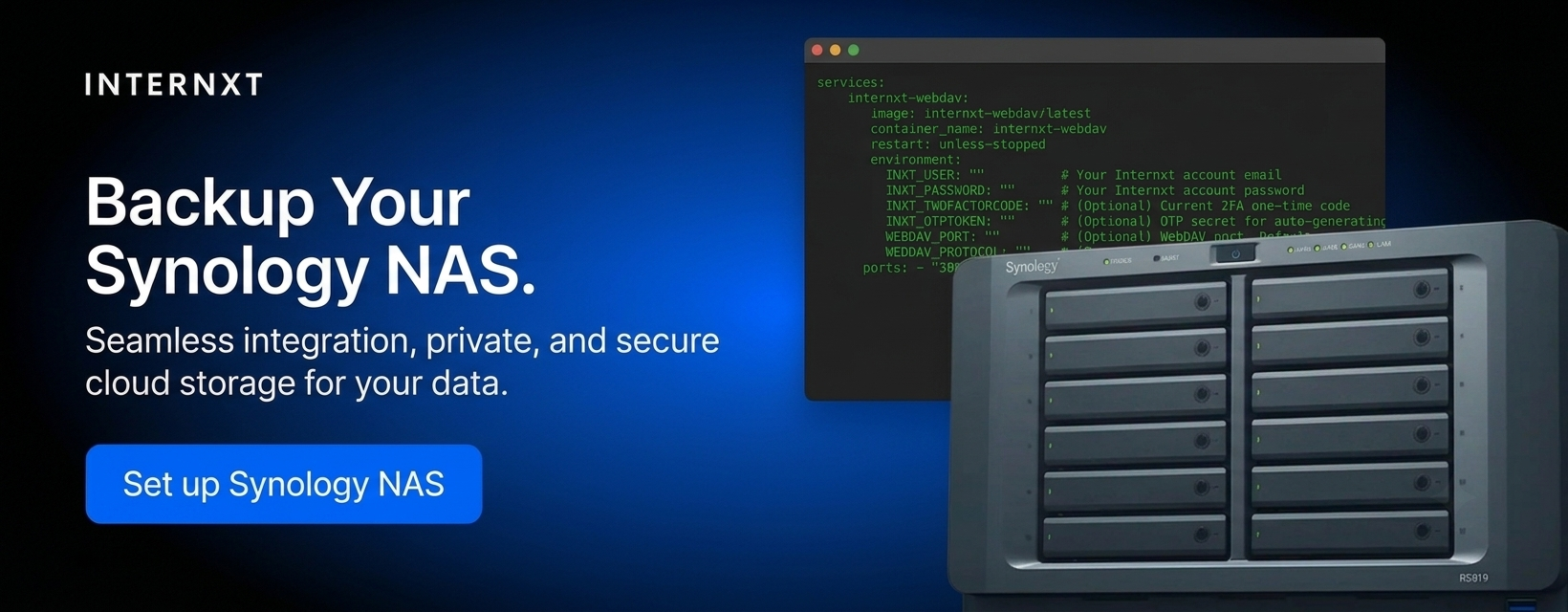
Services like Internxt Drive, however, offer NAS cloud backups, with support for QNAP and Synology devices to give you secure encrypted backups in a private cloud environment.
Security & encryption
Dropbox and Carbonite manage encryption keys by default, making them more convenient but offering less privacy than a true zero-knowledge, end-to-end encrypted backup service, as they hold the encryption keys and can theoretically access your files.
IDrive allows you to create a private key that only you know, providing true zero-knowledge encryption because the key never leaves your control.
Backblaze also lets you set a private encryption key, but you must provide that key to Backblaze when restoring files through its web interface, so it isn't considered true end-to-end or zero-knowledge encryption during that process.
If you want true end-to-end encryption by default for your backups, then Internxt Drive encrypted cloud storage and Internxt S3 cloud object storage provide this for all plans, without the need for a private encryption key, which can easily be lost, causing you to lose access to all your files.
Dropbox vs cloud backup tools 2026
Now we know the difference between Dropbox vs cloud backup tools, and what features you need if your focus is cloud backups, below is a comparison of Dropbox vs cloud backup tools dedicated to backups only.
Dropbox vs Internxt
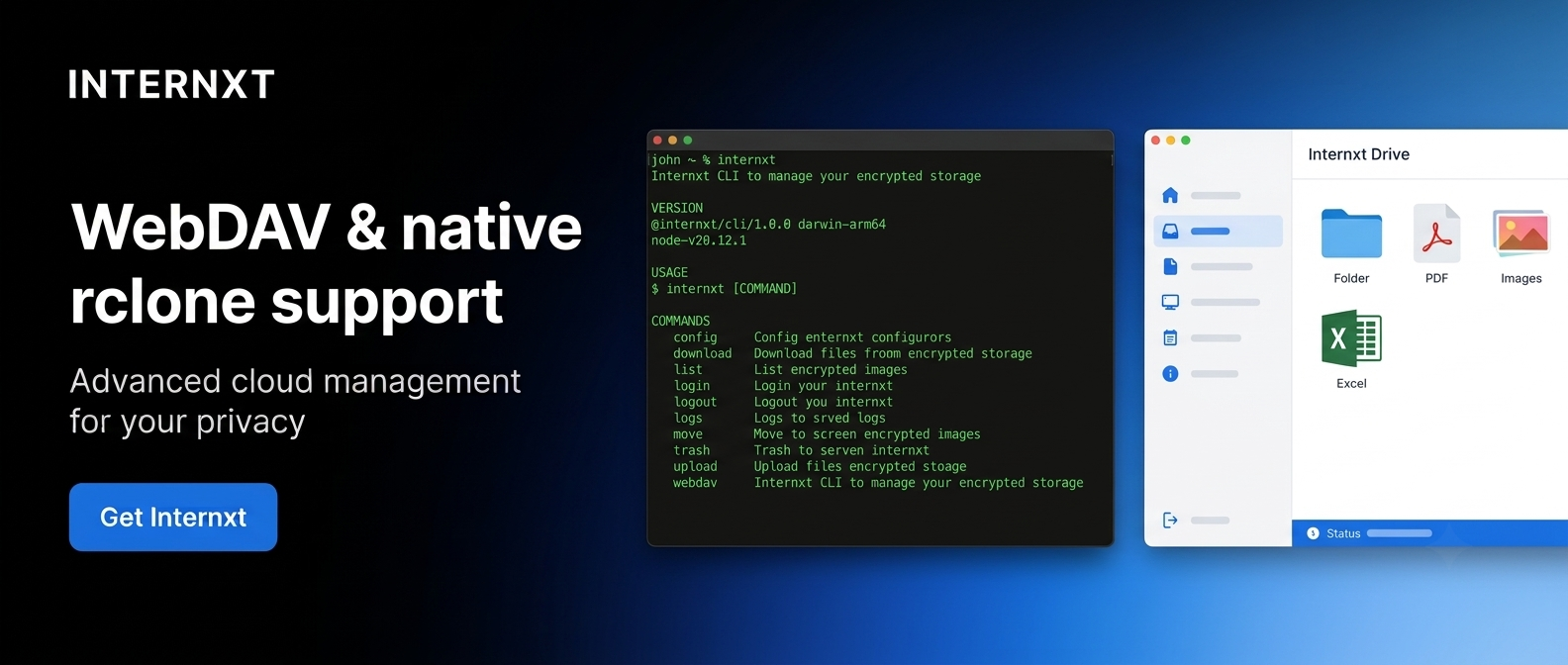
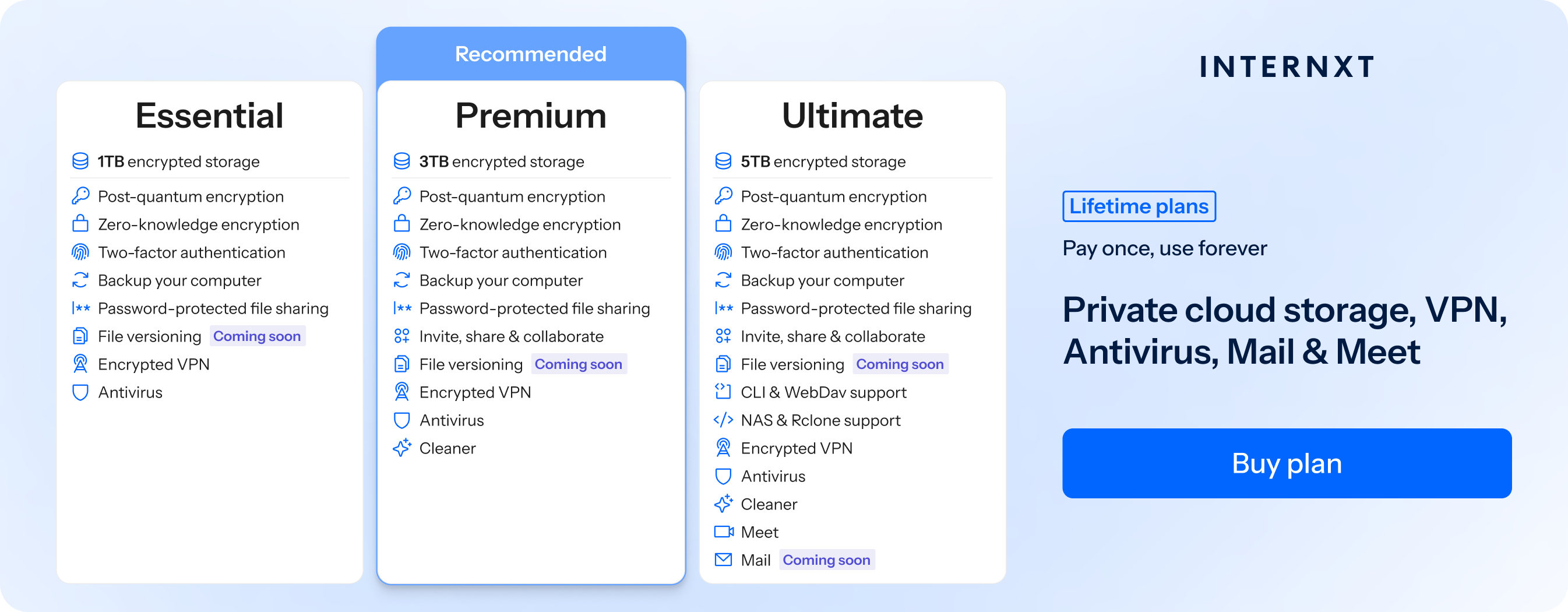
If you need cloud storage for backups, Internxt Drive offers a secure alternative to Dropbox that includes end-to-end encrypted backups via the Windows, Mac, or Linux desktop apps. Internxt also offers NAS support for QNAP and Synology, and native Rclone support for advanced cloud management.
For enterprises, Internxt S3 cloud object storage offers backups for large amounts of data, with GDPR, ISO 27001, HIPAA, and SOC 2 compliance. Plans offer pay-as-you-go pricing for €7/TB/month, offering a scalable and affordable cloud backup solution for businesses and enterprises.
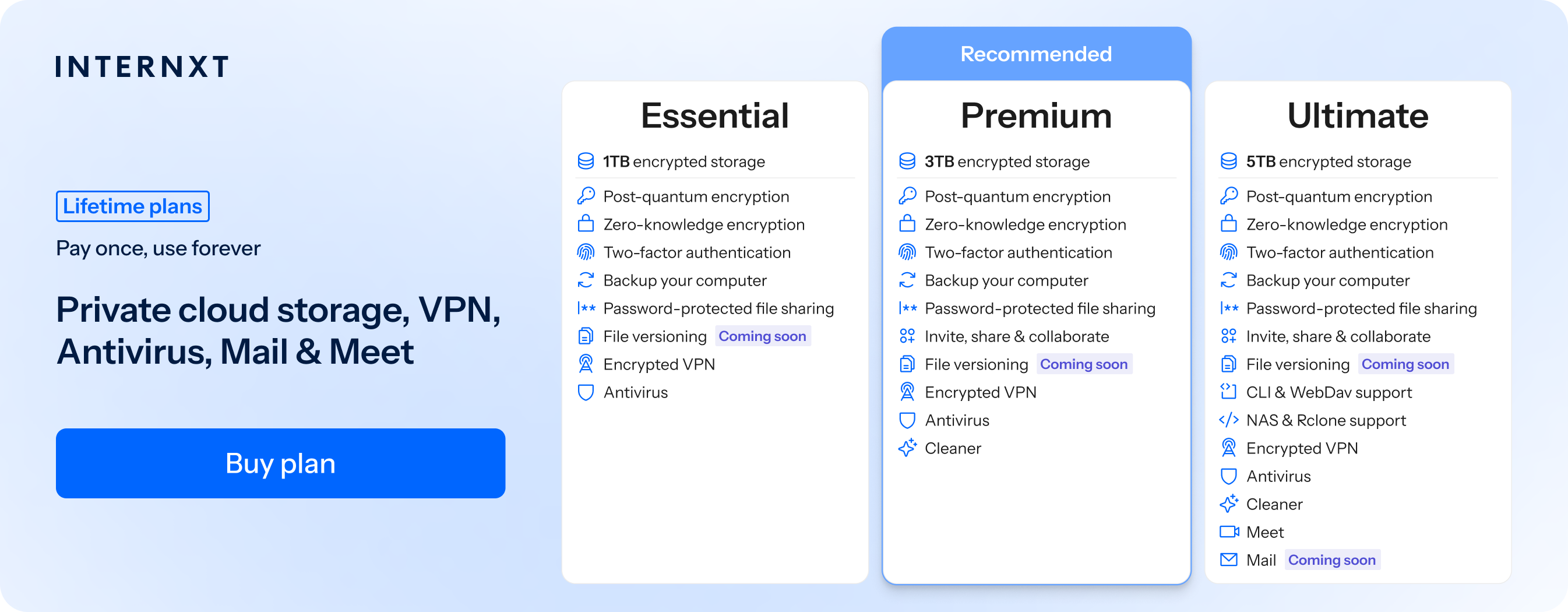
| Plan | Storage | Features | Annual (Paid monthly) | Lifetime Cost |
|---|---|---|---|---|
| Essential | 1TB | €1.99/month | €380 | |
| Premium | 3TB |
|
€3.99/month | €580 |
| Ultimate | 5TB |
|
€5.99/month | €780 |
| *Prices are correct at the time of writing and are subject to change. For latest prices, check https://internxt.com/pricing | ||||
Dropbox vs IDrive
IDrive takes a backup-first approach. Its Personal plans are built specifically for backing up multiple computers, smartphones, tablets, and external drives under a single account.
Unlike Dropbox, IDrive automatically creates backup copies of your data in the background, allowing you to restore files if your device is lost, damaged, or infected with ransomware.
It also supports full disk image backups and NAS cloud backups, making it a much more comprehensive backup solution.
IDrive also offers add-ons to back up files automatically from:
- Microsoft Office 365
- Google Workspace
- Dropbox
- Box
IDrive also offers S3 cloud object storage for enterprises and offers Veeam-ready object storage for businesses.
IDrive, however, is based in the US, so if you want European cloud storage and the same S3 features as IDrive, you can consider Internxt S3 to meet your enterprise cloud storage needs.
For IDrive safety features, it is a secure solution, but not end-to-end encrypted by default, so you have to create and save your encryption key in a secure place, or risk losing your files.
iDrive pros
- Multiple devices
- Rich backup features
- Good value
IDrive cons
- Not end-to-end encrypted by default
- More complex interface
- Storage quotas
Dropbox vs IDrive pricing
| Plan | Dropbox | IDrive |
|---|---|---|
| Entry paid plan | Plus – 2 TB $9.99/month (annual billing) |
Personal – 5 TB $11.99/month |
| Next tier | Essentials – 3 TB | Personal – 10 TB $17.99/month |
| Primary purpose | Cloud storage and file syncing | Dedicated cloud backup for multiple devices |
| Multiple computer backup | Limited | Yes |
| Automatic backup | Limited | Yes |
| External drive backup | No | Yes |
| Disk image backup | No | Yes |
| Best for | File syncing, sharing, and collaboration | Comprehensive backup and disaster recovery |
Dropbox vs Carbonite
Carbonite is built specifically to create automatic backups of your computer. Once installed, it runs quietly in the background, continuously backing up your files without requiring you to manually upload them or organize them into sync folders.
One of Carbonite's biggest advantages is its unlimited cloud backup storage. Unlike Dropbox, which gives you a fixed storage allowance based on your subscription, Carbonite's personal plans let you back up one computer with no storage limit.
You can also back up one external hard drive with Plus and Prime plans, making it easier to recover your entire system after a hardware failure or ransomware attack.
Dropbox, by comparison, is better suited to users who need quick access to files across multiple devices or frequently collaborate with others. Carbonite's strength lies in long-term data protection, offering a hands-off backup solution that requires very little ongoing management.
Carbonite pros
- Automatic backups
- Easy recovery
- Business options
Carbonite cons
- Feature limitations on lower-tier plans
- Less flexible than IDrive
Dropbox vs Carbonite pricing
| Plan | Dropbox | Carbonite |
|---|---|---|
| Entry paid plan | Plus – 2 TB $9.99/month (annual billing) |
Basic $6.75/month (annual billing) |
| Next tier | Essentials – 3 TB | Plus $9.58/month (annual billing) |
| Primary purpose | Cloud storage and file syncing | Dedicated cloud backup |
| Automatic backup | Limited | Yes |
| Unlimited backup storage | No | Yes (one computer) |
| External drive backup | No | Yes (Plus and Prime plans) |
| Full image backup | No | Yes (Prime plan) |
| File syncing | Yes | No |
| Best for | File sharing, collaboration, and syncing | Automatic cloud backup and disaster recovery |
Dropbox backup vs Backblaze
Dropbox Backup vs Backblaze backups have one major difference: Dropbox offers automatic cloud backups for your files, while Backblaze is designed to protect your entire computer with unlimited cloud backup storage.
Backblaze scans your computer and continuously backs up your files in the background, requiring little to no maintenance.
Its biggest advantage is unlimited cloud backup storage. Every personal subscription covers one Windows or Mac computer with no storage limits, making it ideal for users with large photo libraries, video collections, or years of accumulated files.
Backblaze also backs up one directly connected external hard drive at no additional cost, provided it is connected periodically.
Backblaze also includes version history, ransomware recovery options, and several restore methods, including downloadable ZIP files or having a USB drive shipped to you for large recoveries.
If your priority is protecting a single computer with unlimited, automatic backups and virtually no setup, Backblaze is arguably the strongest alternative to Dropbox Backup. It sacrifices collaboration and syncing features in favour of making backup as simple and reliable as possible.
Backblaze pros
- Unlimited backup
- Very easy setup
- Affordable
Backblaze cons
- One computer per license
- Limited collaboration features
Dropbox vs Backblaze pricing
| Plan | Dropbox | Backblaze |
|---|---|---|
| Entry paid plan | Plus – 2 TB $9.99/month (annual billing) |
Computer Backup $9/month |
| Storage model | Fixed cloud storage (2 TB) | Unlimited cloud backup storage |
| Primary purpose | Cloud storage and file syncing | Dedicated cloud backup |
| Automatic backup | Limited | Yes |
| Unlimited storage | No | Yes |
| External drive backup | No | Yes (one directly connected drive) |
| Full system restore | No | Yes |
| File syncing | Yes | No |
| Best for | File syncing, sharing, and collaboration | Unlimited automatic backup for one computer |
Dropbox vs cloud backup: Which option should you choose?
Each service excels in different areas. The right choice depends on whether you need file syncing, unlimited backup storage, or advanced backup features. Here's a quick guide to help you decide.
Choose Dropbox if:
- You need file syncing and collaboration.
- You regularly work across multiple devices.
- Cloud storage is more important than full computer backup.
Choose Internxt Drive if:
- You need zero-knowledge encryption
- You need lifetime cloud storage
- You need a full online privacy suite of Antivirus, backups, VPN, Meet, and more
Choose Internxt S3 if:
- You need secure, cloud object storage
- A cheaper alternative to AWS, Azure, and Google Cloud
- Scalable storage, with no additional data transfer fees
Dropbox backup vs Backblaze: choose Backblaze if:
- You want unlimited cloud backup for one computer.
- You prefer a simple, set-it-and-forget-it backup solution.
- Automatic backups are your top priority.
Dropbox vs IDrive: Choose IDrive if:
- You need to back up multiple devices under one account.
- You want advanced backup features, including NAS and disk image backups.
- You prefer a dedicated backup plan with generous storage.
Dropbox vs Carbonite: Choose Carbonite if:
- You want unlimited cloud backup for one computer.
- You prefer continuous, hands-off backups.
- You need reliable protection for your computer and external hard drive.
Related products
Frequently asked questions
Is Dropbox a backup?
Dropbox Backup can automatically back up your files, but Dropbox is primarily a cloud storage and file synchronization service, so if you only need cloud backups, you should consider alternatives.
Dropbox vs Backblaze: which is cheaper?
Backblaze is generally cheaper for cloud backups. It starts at $9 per month for unlimited backup storage for one computer, while Dropbox Plus costs $9.99 per month (billed annually) and includes 2 TB of cloud storage.
Dropbox vs iDrive: which has more storage?
IDrive offers more storage on its entry-level backup plan, with 5 TB compared to Dropbox Plus's 2 TB. Dropbox's Business Plus plan includes up to 15 TB of shared storage, while IDrive also offers larger backup plans for users with greater storage needs.
What's the 3-2-1 backup rule?
The 3-2-1 backup rule recommends keeping three copies of your data, storing them on two different types of media, and keeping one copy off-site. For example, you could keep the original files on your computer, a copy on an external hard drive, and another copy in a cloud backup service.